To clear Android Auto cache, open its app info on your Android phone, choose Storage & cache, then tap Clear cache. Menu names vary by phone and Android version, and clearing cache does not erase your saved cars or reset the vehicle’s infotainment system.
- Use Android settings to clear cache; Android Auto may appear as a system app.
- Clear cache before trying Clear storage or deleting app data. Those actions can remove settings and require setup again.
- Restart your phone and reconnect after clearing cache.
- If the problem continues, check cable, USB port, wireless connection, phone permissions, and vehicle settings.
Android Auto cache is temporary app data. Removing it can help if the app behaves unexpectedly, but it cannot fix a damaged cable, incompatible vehicle system, or phone software bug. Park before changing settings, and do not handle your phone while driving.
- Disconnect your phone from the car. Unplug its USB cable or disconnect the wireless Android Auto session. This avoids interrupting an active connection while you change phone settings.
- Open Android settings. Tap Settings, then Apps or Apps & notifications. Wording and menu layout depend on the phone maker and Android version.
- Open Android Auto’s app page. Tap See all apps or App list if Android Auto is not immediately visible. On some phones, tap the three-dot menu and choose Show system apps. Search settings for “Android Auto” if menus differ.
- Open Storage & cache. Some phones call this Storage or Storage usage. Check that the app page is Android Auto, not Google Play services or another app.
- Tap Clear cache. Do not tap Clear storage, Clear data, or a similarly named control unless you intend to reset app data. The exact labels vary by phone.
- Restart the phone. A restart closes active processes and gives Android Auto a fresh start. It is a useful next step, but it does not clear faults in the vehicle’s head unit.
- Reconnect while parked. Start Android Auto using the connection method supported by your vehicle. If prompted, approve required permissions on the phone.
If Android Auto does not appear in the app list, check the phone’s app search or open its Play Store page and use the available app settings link. On some Android versions, Android Auto is integrated into the operating system rather than presented like a regular app. Menu paths also differ among Samsung, Google Pixel, and other Android phones.
What clearing cache changes, and what it does not
Clearing cache removes temporary files Android Auto may use to load or run parts of the app. It does not normally remove the app itself, erase personal files, or reset the car’s infotainment system. It is a low-impact troubleshooting step, but it is not a repair for every connection problem.
| Action | What it does | When to consider it |
|---|---|---|
| Clear cache | Removes temporary app files. Android Auto may rebuild them during later use. | Try first for glitches that began without a clear hardware change. |
| Clear storage or data | Resets app data and may remove preferences or saved connection details. | Use only after simpler checks, and expect to set up connections again. |
| Forget car or remove pairing | Removes a saved phone-to-car connection, depending on where you remove it. | Try when pairing appears stuck; remove the old entry on the phone and car if needed. |
| Reset infotainment system | Changes or clears settings stored by the vehicle’s head unit. | Use the vehicle manual’s instructions; reset options and effects vary by model and year. |
Android’s settings labels and the effects of app-data resets can vary by manufacturer and software release. Read each confirmation screen before approving a reset. Clearing cache is different from clearing storage, so choose the cache control only for the procedure above.
When clearing cache may help
Try clearing cache when Android Auto suddenly closes, freezes, loads incorrectly, or behaves differently after an app update. These symptoms can have several causes, so a successful cache clear does not prove that cached files caused the problem. It is a reasonable first check because it leaves deeper phone and vehicle resets for later.
Match the symptom to the next check instead of repeating the cache step:
- App opens, then freezes: Clear cache, restart the phone, and check for Android and app updates.
- Phone charges but Android Auto does not start over USB: Check the cable, the vehicle’s data-capable USB port, and any connection prompt on the phone. Some ports provide power but do not carry the data needed for Android Auto.
- Wireless connection fails: Check that both the phone and vehicle support wireless Android Auto. Wireless requirements vary by vehicle, head unit, phone, and software version.
- Only one vehicle has the problem: Check that vehicle’s saved phone pairing and infotainment settings. A phone cache clear may not change a problem stored in the car.
- Several apps or phone functions fail: Treat it as a wider phone issue, not necessarily an Android Auto cache issue. Check available system updates and contact the phone maker if the fault continues.
Check connection and compatibility before resetting more
Android Auto depends on both the phone and the vehicle system. Compatibility can change with phone OS version, vehicle model year, factory or aftermarket head unit, and installed firmware. A car that supports wired Android Auto may not support wireless use. Third-party wireless adapters also have their own requirements and do not add support to every vehicle.
For USB connections, try another known-good data cable if available, and use the vehicle port identified for phone projection. Avoid assuming that every USB port in the cabin supports Android Auto. For wireless connections, check the phone and car manuals for setup requirements, then remove and recreate a saved pairing only if ordinary reconnecting fails.
Google’s Android Auto setup instructions cover supported setup steps. For broader head-unit questions, see CarTechTalk’s guide to car stereos for Android phones. Factory-system features and aftermarket stereo fitment can differ, so those guides do not replace the instructions for a specific vehicle or radio.
If clearing cache does not fix Android Auto
Work from simple checks to changes that remove saved settings. Repeating Clear cache several times rarely adds useful information. Change one thing at a time, then test the connection while parked.
- Restart both sides. Restart the phone. Turn the vehicle fully off and follow its manual’s instructions for restarting or waking the infotainment system; some systems remain powered briefly after shutdown.
- Check updates. Install available Android, Android Auto, and vehicle infotainment updates using the applicable maker’s instructions. Update availability and installation methods vary by device and vehicle.
- Check permissions and connection prompts. Android Auto may need permissions to provide features such as calls, messages, or location-based functions. Review phone settings and approve only permissions you want to use.
- Replace the saved pairing. Remove the car from Android Auto’s previously connected cars list if that option appears, and remove the phone from the vehicle’s Bluetooth or projection list. Pair again using the vehicle’s setup process.
- Consider clearing app storage only if needed. This is a broader reset than clearing cache. It may erase app preferences or saved connection details, so record anything you need and read the phone’s confirmation prompt.
- Check the vehicle manual or support channel. If the car’s system needs a reset or firmware update, follow vehicle-specific instructions. Reset steps and effects differ across model years and infotainment systems.
If Android Auto works in another compatible vehicle, that points toward the original vehicle’s port, pairing, or infotainment system, but it does not identify the exact fault. If it fails in multiple compatible vehicles, phone software or hardware becomes a stronger possibility. These comparisons narrow the next check; they do not prove a particular part is faulty.
Common mistakes
- Tapping Clear storage instead of Clear cache: The controls have different effects. Choose Clear cache for the first procedure.
- Clearing Google Play services cache as a substitute: That is a different app and does not follow the Android Auto cache steps above.
- Assuming every USB port carries data: Some vehicle ports only charge devices. Use the port identified in the vehicle manual.
- Assuming cache clears vehicle settings: Phone-side cache removal does not reset head-unit settings or repair vehicle firmware.
- Unpairing everything immediately: Removing saved connections can mean repeating setup. Try a restart and basic cable or wireless checks first.
- Changing settings while driving: Park before using phone or infotainment menus.
When to get professional help
Contact the vehicle dealer, head-unit maker, or a qualified installer if the infotainment system repeatedly restarts, multiple phones fail to connect, or the vehicle’s USB port is loose or damaged. A vehicle-specific firmware issue may need service procedures that are not safe to guess from a general phone guide.
Contact the phone maker or a repair provider if Android Auto crashes across multiple compatible vehicles after updates and basic checks. Share the phone model, Android version, vehicle model year, connection type, and what troubleshooting steps you tried. That information helps separate a phone problem from a vehicle-specific one.
Gear that can help
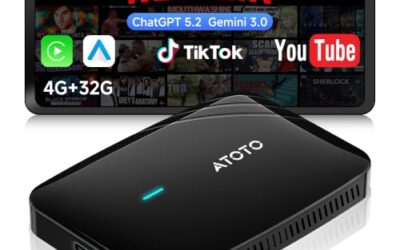
If you need wireless Android Auto adapters for this job, these picks already appear in our wireless Android Auto adapters guides. Check the full guide for fit and who should skip each one.

Pros
- Supports wireless Android Auto in vehicles and head units with wired-only Android Auto
- Includes a multifunction button for pairing and switching between phones
- Companion app supports updates, troubleshooting, customization, and localized Wi-Fi settings
Cons
- Only compatible with vehicles or head units that exclusively support wired Android Auto
- Requires an Android 11 or higher phone on Google's official Android Auto compatible smartphone list
- External interference from sources such as cell towers, Wi-Fi hotspots, dashcams, or other wireless devices may affect connection stability
Specifications
| Color | Black |
|---|---|
| Dimensions | 2.16535 x 1.37795 x 0.59055 inches |
| Weight | 0.03968320716 pounds |
| Product Group | Wireless |
| Binding | Electronics |
Best For / Avoid If
Best for buyers prioritizing
- Supports wireless Android Auto in vehicles and head units with wired-only Android Auto
- Includes a multifunction button for pairing and switching between phones
- Companion app supports updates, troubleshooting, customization, and localized Wi-Fi settings
Consider another option if
- Only compatible with vehicles or head units that exclusively support wired Android Auto
- Requires an Android 11 or higher phone on Google's official Android Auto compatible smartphone list
- External interference from sources such as cell towers, Wi-Fi hotspots, dashcams, or other wireless devices may affect connection stability

Pros
- Supports both wired CarPlay and wired Android Auto vehicles
- Compact 0.35 x 1.3 x 0.8-inch design with a silver aluminum-alloy housing
- Automatic reconnection can reduce the need to repeat setup on each trip
- Provides wireless access to navigation, music, calls, and other compatible functions
Cons
- Requires a vehicle with factory wired CarPlay or wired Android Auto
- Does not add CarPlay or Android Auto to vehicles without existing support
- Not compatible with BMW or Tesla, and is not intended for vehicles with factory wireless CarPlay or wireless Android Auto
Specifications
| Color | Silver |
|---|---|
| Dimensions | 0.35 x 1.3 x 0.8 inches |
| Weight | 0.0125 Pounds |
| Product Group | Wireless |
Best For / Avoid If
Best for buyers prioritizing
- Supports both wired CarPlay and wired Android Auto vehicles
- Compact 0.35 x 1.3 x 0.8-inch design with a silver aluminum-alloy housing
- Automatic reconnection can reduce the need to repeat setup on each trip
Consider another option if
- Requires a vehicle with factory wired CarPlay or wired Android Auto
- Does not add CarPlay or Android Auto to vehicles without existing support
- Not compatible with BMW or Tesla, and is not intended for vehicles with factory wireless CarPlay or wireless Android Auto

Pros
- Supports both CarPlay and Android Auto
- Works with USB and USB-C car ports using the included converter
- No app or download is required for setup
- Compact size is intended to reduce dashboard clutter
Cons
- Requires a vehicle with factory-wired CarPlay or built-in Android Auto
- The listed compatibility requirements are iOS 10 or later for iPhones and Android 11 or later for Android devices
- The listing does not identify specific compatible vehicle makes or models
Specifications
| Color | Black |
|---|---|
| Size | mini |
| Dimensions | 1.181102361 x 1.1023622036 x 1.181102361 inches |
| Weight | 0.0661386786 Pounds |
| Product Group | Wireless |
| Binding | Electronics |
Best For / Avoid If
Best for buyers prioritizing
- Supports both CarPlay and Android Auto
- Works with USB and USB-C car ports using the included converter
- No app or download is required for setup
Consider another option if
- Requires a vehicle with factory-wired CarPlay or built-in Android Auto
- The listed compatibility requirements are iOS 10 or later for iPhones and Android 11 or later for Android devices
- The listing does not identify specific compatible vehicle makes or models
Next step: Android Auto Adapter Buying Guide and How to Connect Android Auto.
FAQ
Will clearing Android Auto cache delete my saved cars?
Clearing cache normally removes temporary files, not saved cars. Clearing storage or removing a pairing is different and can require setup again.
Can I clear Android Auto cache while connected to my car?
Disconnect first. Then clear cache while parked, restart the phone, and reconnect. Do not change phone settings while driving.
Why can’t I find Android Auto in Settings?
Android Auto may appear under system apps, or its settings may be integrated differently on your phone. Search Settings for the app name, check the full app list, or use the phone maker’s support instructions.
Should I clear cache if Android Auto will not connect by USB?
You can try it, but check the data cable and the vehicle’s designated projection port too. Cache clearing cannot make a charge-only port carry data.
Does clearing cache update Android Auto?
No. Cache removal does not install an app or system update. Check the Play Store and phone settings for updates separately.
Sources and further reading
- Set up Android Auto (Google): Review Google’s Android Auto setup instructions and connection guidance.