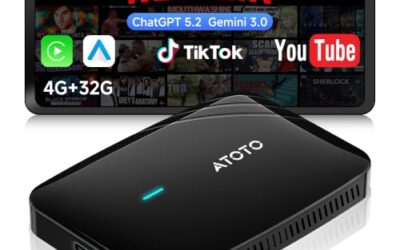
Yes, the answer to “does Android Auto work without mobile data” is usually yes: the phone can connect to a compatible vehicle, and some apps can work offline. But Android Auto does not provide internet access, so live maps, online searches, streaming, and other connected features may stop or become limited without a data connection.
- Android Auto connection does not, by itself, require mobile data.
- Offline navigation and downloaded media may work if prepared in their phone apps.
- Live traffic, streaming, online voice queries, and cloud services need internet access.
- Phone calls and texts depend on cellular service and carrier features, not mobile data alone.
- Wireless Android Auto still needs compatible phone and vehicle hardware, plus its wireless connection.
What works in Android Auto without mobile data?
Android Auto can show supported apps on a compatible vehicle display even when the phone has no mobile data. The exact functions depend on the app, what it has stored locally, and whether the phone still has GPS and cellular service.
Downloaded music, podcasts, or other saved media can play through a supported app without streaming. Offline map data can support navigation in areas covered by maps already downloaded. You may still see your location because GPS reception does not require mobile data, but map coverage and route features depend on the app’s offline support.
Basic screen projection and vehicle controls also do not need mobile internet. A wired connection uses the USB link, while wireless Android Auto uses supported wireless connections between phone and vehicle. Neither connection creates an internet service plan for the phone.
Does Android Auto need internet for navigation?
Not always. Navigation can work offline when your map app supports offline maps and the relevant area has been downloaded before the connection is lost. Offline navigation is not the same as full online navigation: live traffic, current incidents, online destination searches, and some route updates may be unavailable.
Offline map coverage and features vary by app and region. Check the app’s offline-map controls while you still have internet access. Download the area you expect to travel through, and open the map before leaving to check that it is available on the phone.
GPS can locate the phone without a mobile data connection, but GPS does not download street maps or road updates. In a tunnel, garage, or area with poor satellite reception, location accuracy can also change.
Which Android Auto features need mobile data?
| Feature | Works without mobile data? | What to expect |
|---|---|---|
| Connecting by USB | Usually | Requires a compatible phone, cable, and vehicle system. The connection itself does not provide mobile internet. |
| Wireless Android Auto | Usually, for the connection | Requires compatible vehicle and phone hardware. Wireless projection is separate from mobile data service. |
| Downloaded music or podcasts | Often | Works when the app has stored the content locally and permits offline playback. |
| Navigation with downloaded maps | Partly | May show location and provide routes in downloaded areas; live traffic and online search need internet. |
| Streaming audio or video services | Usually no | Streaming needs internet. Offline playback depends on app features and saved content. |
| Voice assistant requests | Limited | Online questions and searches need internet. Available offline actions vary by phone, app, and settings. |
| Calls and text messages | Mobile data may not be needed | Cellular service, Bluetooth or Android Auto connection, and carrier support can matter. Internet messaging apps may need data. |
Mobile data, cellular service, Wi-Fi, and Android Auto are different
Mobile data is internet access through a cellular carrier. Cellular service also carries ordinary calls and SMS text messages, depending on the phone, carrier, and signal. Turning off mobile data does not always turn off calls or texts.
Wi-Fi is a separate network connection. A phone can sometimes use Wi-Fi for internet even when mobile data is off, but that depends on having a usable Wi-Fi network. Wireless Android Auto also uses wireless links to connect the phone and vehicle; that connection should not be mistaken for internet service.
Android Auto is the interface that presents supported phone apps through the vehicle’s screen. It relies on the phone for app functions and internet access. If an app needs an online service, the vehicle display cannot supply that service when the phone has no connection.
How to prepare Android Auto for a drive without data
- Download map areas. Use your navigation app’s offline-map feature while connected to Wi-Fi or mobile data. Include the full area and route where possible.
- Save media for offline playback. Download playlists, podcasts, or other content in the app you plan to use. Check that downloads remain available offline.
- Connect Android Auto before leaving. Test the USB cable or wireless pairing while parked. Phone OS version, vehicle model year, head-unit firmware, and regional availability can affect support.
- Check the phone’s connection settings. If mobile data is off, confirm whether Wi-Fi or cellular service remains available for features you need.
- Review the route and destination. Open the saved map and make sure the destination falls within downloaded coverage. Do this before driving.
Google’s Android Auto setup instructions explain supported setup steps. Vehicle compatibility differs across model years and trim levels. If your vehicle lacks Android Auto, an aftermarket stereo may be an option; see our guide to car stereos for Android phones.
Why Android Auto may seem broken without data
If Android Auto connects but a feature fails, the cause may be that feature’s internet requirement rather than the Android Auto connection. A blank online search, missing traffic data, or a streaming error points toward a service that cannot reach the internet. A downloaded playlist that will not play may instead involve the app’s offline settings or expired access.
- Android Auto will not connect: Check vehicle and phone compatibility, cable condition for wired use, pairing settings for wireless use, and the vehicle’s infotainment settings.
- Map appears but route search fails: Check downloaded coverage and try a saved destination. Online address searches may require internet.
- Music app opens but content will not play: Check whether the tracks are downloaded and whether the app allows offline playback.
- Calls fail with mobile data off: Check cellular signal and carrier calling service. Internet-based calling apps may need Wi-Fi or mobile data.
For connection problems, test one change at a time while parked. Avoid troubleshooting the screen while driving. A different USB cable can help isolate a wired connection issue, but not every cable supports data transfer.
Common mistakes
- Assuming GPS needs mobile data. GPS can determine location without mobile internet. Map content and online route features are separate.
- Assuming offline maps include live information. Downloaded maps do not supply current traffic, incidents, or online search results.
- Assuming wireless Android Auto means Wi-Fi internet. The phone-to-car connection and internet access are separate functions.
- Turning off all phone connections to stop mobile data. This can also affect calls, texts, Bluetooth, or Wi-Fi. Change only the setting you intend to change.
- Expecting every app to work offline. Each app sets its own offline features, and saved content may have access limits.
When to get professional help
Seek help from the vehicle dealer or a qualified audio installer if Android Auto does not connect after basic cable, pairing, and settings checks, or if the vehicle’s infotainment system repeatedly restarts. A vehicle software update or hardware fault may require model-specific diagnosis. Do not assume a mobile-data problem caused a vehicle electrical fault.
For a replacement head unit, check fitment and vehicle integration by make, model, and model year. Steering-wheel controls, factory cameras, and other features may need additional interfaces. Our car stereo guide covering Android Auto and fitment explains why those details matter.
Gear that can help
If you need wireless Android Auto adapters for this job, these picks already appear in our wireless Android Auto adapters guides. Check the full guide for fit and who should skip each one.

Pros
- Supports both Apple CarPlay and Android Auto protocols
- Metal chassis with side vents facilitates cooling during long drives
- Maintains OEM steering wheel buttons and voice commands
- Automatic reconnection eliminates need for repeated pairing
Cons
- Explicitly incompatible with BMW and Tesla vehicles
- Initial pairing procedure requires over 15 seconds
- Requires pre-existing factory wired CarPlay or Android Auto hardware
Specifications
| Color | Black and White |
|---|---|
| Product Group | Wireless |
Best For / Avoid If
Best for buyers prioritizing
- Supports both Apple CarPlay and Android Auto protocols
- Metal chassis with side vents facilitates cooling during long drives
- Maintains OEM steering wheel buttons and voice commands
Consider another option if
- Explicitly incompatible with BMW and Tesla vehicles
- Initial pairing procedure requires over 15 seconds
- Requires pre-existing factory wired CarPlay or Android Auto hardware

Pros
- Supports both wireless CarPlay and wireless Android Auto on compatible factory systems
- Offers app installation, streaming, screen mirroring, and Bluetooth auto-lock features
- Includes cables for USB-C and USB-A connections
- Provides over-the-air updates, online self-service guides, and an 18-month warranty
Cons
- Requires a vehicle with factory wired CarPlay or wired Android Auto and a compatible touch, touchpad, or rotary/remote control system
- Not compatible with BMW, Tesla, most Subaru models, aftermarket head units, or factory systems that only support wireless CarPlay or wireless Android Auto
Specifications
| Color | Black |
|---|---|
| Dimensions | 2.5 x 1.5 x 0.5 inches |
| Weight | 0.1 pounds |
| Product Group | Wireless |
Best For / Avoid If
Best for buyers prioritizing
- Supports both wireless CarPlay and wireless Android Auto on compatible factory systems
- Offers app installation, streaming, screen mirroring, and Bluetooth auto-lock features
- Includes cables for USB-C and USB-A connections
Consider another option if
- Requires a vehicle with factory wired CarPlay or wired Android Auto and a compatible touch, touchpad, or rotary/remote control system
- Not compatible with BMW, Tesla, most Subaru models, aftermarket head units, or factory systems that only support wireless CarPlay or wireless Android Auto
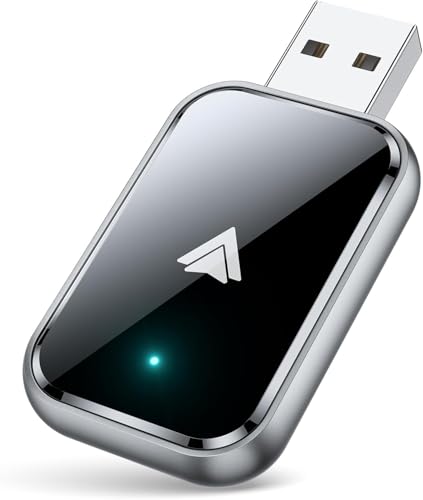
Pros
- Supports wireless Android Auto in vehicles with wired Android Auto
- Includes both USB-A and USB-C extension cables
- Offers Bluetooth 5.3 and 5.8 GHz Wi-Fi connectivity
- Includes a 2-year warranty
Cons
- Compatibility is specified only for vehicles that support wired Android Auto
Specifications
| Color | Black |
|---|---|
| Product Group | Wireless |
Best For / Avoid If
Best for buyers prioritizing
- Supports wireless Android Auto in vehicles with wired Android Auto
- Includes both USB-A and USB-C extension cables
- Offers Bluetooth 5.3 and 5.8 GHz Wi-Fi connectivity
Consider another option if
- Compatibility is specified only for vehicles that support wired Android Auto
Next step: Android Auto Adapter Buying Guide.
FAQ
Can I use Android Auto with mobile data turned off?
Yes, if the phone and vehicle support Android Auto. Offline functions can work, but online apps and services may be limited.
Can Android Auto use Google Maps offline?
Navigation may work in areas covered by maps downloaded in advance. Online search, live traffic, and other connected features may not work without internet.
Can I listen to music without mobile data?
Yes, when the music app has saved the tracks for offline playback. Streaming requires an internet connection.
Will phone calls work without mobile data?
Ordinary calls may work if cellular service and carrier support remain available. Internet-based calls may need Wi-Fi or mobile data.
Sources and further reading
- Set up Android Auto (Google): Setup steps and compatibility guidance for Android Auto.