To check if a car supports wired CarPlay, look up its exact model year and trim in the owner’s manual or an official vehicle feature list, then test the designated USB data port with a compatible iPhone. A USB port alone does not prove CarPlay support: some ports only charge, and some vehicles offer CarPlay on certain trims or through a different connection method.
- Check the vehicle’s model year, trim, and market, since equipment can vary within one model line.
- Look for Apple CarPlay in the manual or infotainment settings, not just for a USB socket.
- Use a data-capable cable and the port identified for smartphone integration.
- Separate wired CarPlay from wireless CarPlay and Android Auto; they have different compatibility requirements.
What you need before checking
Have the vehicle’s model year, make, model, and trim ready. If you are checking a used car, the VIN can help a dealer identify its original configuration, but an official feature list for the exact market and trim may be faster. Cars with the same model name can have different infotainment systems across years, trim levels, and regions.
You also need an iPhone that supports CarPlay, Siri enabled, and a compatible cable for the phone’s connector. Apple’s phone and software requirements can change, so check current Apple guidance if you are unsure whether your iPhone is supported. A USB-C connector on a newer iPhone does not mean the car’s port supports CarPlay; the vehicle still needs compatible infotainment hardware and software.
Park safely before using the infotainment screen. Do not troubleshoot menus or cables while driving.
How to check if a car supports wired CarPlay
- Identify the exact vehicle. Write down model year, make, model, and trim. If trim is unclear, check the vehicle paperwork or ask a dealer to look up the VIN. Do not rely on a listing for a different year or trim.
- Check the owner’s manual. Search its index or digital copy for “Apple CarPlay,” “CarPlay,” “smartphone integration,” or “USB.” Read the connection instructions. A manual may identify a particular port or explain that availability depends on equipment.
- Check an official feature list. Look for Apple CarPlay under infotainment or connectivity for your exact model year and trim. Apple’s CarPlay available models list can help identify supported vehicle models, but a model name alone may not settle trim, regional, or wired-versus-wireless details. The vehicle’s manual or automaker can clarify those points.
- Inspect the infotainment system. With the car parked, open its connectivity, projection, or smartphone menu. Look for Apple CarPlay or a phone-integration setup option. A matching menu is a useful clue, but a menu may depend on configuration or software and is not as strong as a successful connection.
- Find the correct USB port. Check the manual for the port used for smartphone integration. Some vehicles have multiple USB ports, and some support charging from one port while routing data through another. Port labels and locations differ by vehicle.
- Connect the iPhone and follow prompts. Use a known data-capable cable that fits both the phone and the vehicle port. Unlock the phone and accept any CarPlay or permission prompts. If CarPlay opens on the vehicle display, that is direct confirmation of wired support for that phone and connection.
- Separate car compatibility from connection problems. If nothing happens, try the designated port and a different data-capable cable before concluding the car lacks support. Check iPhone settings and the vehicle manual. If the system still will not connect, ask the automaker or a qualified installer to check the vehicle’s configuration and software.
Evidence that confirms support
A successful CarPlay session over USB is the clearest practical confirmation. The car displays the CarPlay interface after the iPhone connects, and the phone may show that CarPlay is active. For a car you cannot test, documentation for the exact model year and trim is the best route. If documentation only says “Apple CarPlay” without identifying the connection type, it may not tell you whether the vehicle supports wired, wireless, or both.
| What you find | What it tells you | What to do next |
|---|---|---|
| CarPlay starts after USB connection | Vehicle supports wired CarPlay with that phone and connection. | Note which port and cable worked. |
| Manual names CarPlay and a USB port | Strong evidence of wired support for the described configuration. | Check whether your trim and market match the manual. |
| CarPlay appears in a menu, but no connection works | The system may support it, but cable, port, phone settings, or software could block setup. | Try the documented port and another data-capable cable. |
| USB port charges the phone | Charging works; CarPlay data support is not established. | Check the manual for the designated data port. |
| Vehicle supports wireless CarPlay only | CarPlay may work without a cable, but that does not establish wired support. | Check the manual for supported connection methods. |
Wired CarPlay compatibility limits
Compatibility depends on both ends of the connection. The vehicle needs a compatible infotainment system, enabled feature, working data connection, and the right port. The iPhone needs to meet Apple’s current CarPlay requirements. A cable must carry data, not only power. A charging cable can look suitable and still fail to pass data, especially if it is damaged or intended only for charging.
Model year matters because automakers change head units and software during redesigns or even within a model generation. Trim matters because a base trim may have a different display or audio system than a higher trim. Regional versions can differ too. A feature list for a US vehicle may not describe an otherwise similar model sold elsewhere.
Aftermarket head units add another layer. A car that did not leave the factory with CarPlay may have an installed replacement stereo that supports it. The vehicle’s original manual will not confirm what that stereo can do. Check the stereo’s model and its installation information, or ask the installer which USB port carries phone data.
For a broader look at stereo fit and feature tradeoffs, see our guide to car stereos with CarPlay and Android Auto. A stereo replacement can involve vehicle-specific wiring, dash fit, steering-wheel controls, and other features, so a display that advertises CarPlay does not by itself prove it will fit your car.
Common mistakes
- Assuming every USB port carries data. Some ports only charge, or only one port supports phone integration. Use the manual’s port instructions.
- Treating charging as proof. A charging phone confirms power, not CarPlay or data support.
- Using a wireless connection as proof of wired support. Wireless CarPlay is a separate connection method. A car can support wireless CarPlay without offering wired CarPlay through USB.
- Checking only the model name. Features can vary by year, trim, market, and infotainment package. Match all details you can.
- Assuming a cable is data-capable because it charges. Test with another known data-capable cable before diagnosing the vehicle.
- Confusing CarPlay with Android Auto. They are separate phone platforms. A listing or menu that names Android Auto alone does not confirm Apple CarPlay.
- Assuming an adapter adds native support. Third-party adapters have their own vehicle and system requirements. They do not establish that the car itself supports wired CarPlay.
When to get professional help
Contact the automaker’s service department or a qualified car-audio installer if the manual says your exact configuration supports wired CarPlay, but the documented port does not work after you try another data-capable cable and check the phone prompts. The system may need a software update, configuration check, or diagnosis of its USB data path. Those possibilities depend on the vehicle, so avoid assuming a particular part has failed.
Ask a dealer to identify factory equipment when you are considering a used vehicle and its trim or infotainment package is uncertain. For an aftermarket stereo, ask the installer to check the stereo model and the wiring used for the USB connection. If you are weighing a replacement, our CarPlay and Android Auto topic page collects related guidance.
Gear that can help
If you need wireless CarPlay adapters for this job, these picks already appear in our wireless CarPlay adapters guides. Check the full guide for fit and who should skip each one.

Pros
- Combines wireless CarPlay and wireless Android Auto in one adapter
- Compact 0.98 x 0.98 x 1.06-inch design helps reduce cable clutter
- Compatible with USB-A and USB-C vehicle ports when using the included adapter
- Supports Android 11 or later phones with Wireless Android Auto enabled
Cons
- Requires a vehicle with factory wired CarPlay or Android Auto
- Not compatible with BMW, Tesla, or vehicles without a wired system
Specifications
| Color | Black |
|---|---|
| Size | Ultramini |
| Dimensions | 0.98 x 0.98 x 1.06 inches |
| Weight | 0.01763698096 Pounds |
| Product Group | Wireless |
Best For / Avoid If
Best for buyers prioritizing
- Combines wireless CarPlay and wireless Android Auto in one adapter
- Compact 0.98 x 0.98 x 1.06-inch design helps reduce cable clutter
- Compatible with USB-A and USB-C vehicle ports when using the included adapter
Consider another option if
- Requires a vehicle with factory wired CarPlay or Android Auto
- Not compatible with BMW, Tesla, or vehicles without a wired system

Pros
- Supports iPhone 6 and newer devices running iOS 10 or later
- Uses a three-step plug, pair, and play setup
- Retains listed vehicle controls, including steering-wheel controls, knobs, and touchscreens
- Compatible with vehicles equipped with factory CarPlay, according to the listing
Cons
- Requires a vehicle with factory Apple CarPlay
- The listed compatibility claim is limited to 2016+ vehicles and does not identify specific makes or models
- iPhone and iOS requirements are limited to iPhone 6 or newer and iOS 10 or later
Specifications
| Color | Ebony Black |
|---|---|
| Product Group | Wireless |
Best For / Avoid If
Best for buyers prioritizing
- Supports iPhone 6 and newer devices running iOS 10 or later
- Uses a three-step plug, pair, and play setup
- Retains listed vehicle controls, including steering-wheel controls, knobs, and touchscreens
Consider another option if
- Requires a vehicle with factory Apple CarPlay
- The listed compatibility claim is limited to 2016+ vehicles and does not identify specific makes or models
- iPhone and iOS requirements are limited to iPhone 6 or newer and iOS 10 or later

Pros
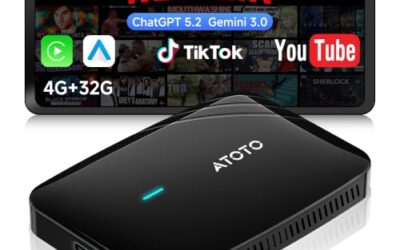
- Supports wireless CarPlay with access to navigation, music, calls, and compatible apps
- Offers USB drive playback for offline media
- Provides an HD media port for rear-seat entertainment setups
- Compact black enclosure measures 0.87 x 2.05 x 3.14 inches
Cons
- Requires a factory wired CarPlay or Android Auto system
- Not compatible with BMW or Tesla vehicles
- An HDMI cable, hotspot connection, and compatible vehicle system may be required for specific features
Specifications
| Color | Black |
|---|---|
| Dimensions | 0.87 x 2.05 x 3.14 inches |
| Weight | 0.2425084882 pounds |
| Product Group | Electronics |
| Binding | Unknown Binding |
Best For / Avoid If
Best for buyers prioritizing
- Supports wireless CarPlay with access to navigation, music, calls, and compatible apps
- Offers USB drive playback for offline media
- Provides an HD media port for rear-seat entertainment setups
Consider another option if
- Requires a factory wired CarPlay or Android Auto system
- Not compatible with BMW or Tesla vehicles
- An HDMI cable, hotspot connection, and compatible vehicle system may be required for specific features
Readers weighing these picks also look at Wireless CarPlay Adapter Compatibility Explained and Wireless CarPlay Adapter Buying Guide.
FAQ
Can a car have USB ports but no wired CarPlay?
Yes. A USB port may supply power for charging without supporting CarPlay data. The vehicle also needs compatible infotainment hardware and software.
Does wireless CarPlay mean wired CarPlay will work too?
No. A vehicle can support wireless CarPlay without supporting a USB CarPlay connection. Check the manual for the connection method your system supports.
Can I check wired CarPlay without an iPhone?
You can check the manual, exact-trim feature list, and infotainment menus without a phone. A successful connection with a compatible iPhone gives the clearest practical confirmation.
Will a different cable fix a car that does not support CarPlay?
No. A data-capable cable can fix a cable-related connection problem, but it cannot add CarPlay support to an incompatible infotainment system.
Sources and further reading
- CarPlay Available Models (Apple): Check Apple’s list of vehicle models that support CarPlay.