To stop CarPlay from reading messages aloud, turn off message announcements for CarPlay in your iPhone’s notification settings. Depending on your iOS version, you can disable announcements for all CarPlay notifications or limit the change to messages; Siri, navigation prompts, and visual alerts may still work.
- Change the setting on the iPhone connected to CarPlay, not on the vehicle screen.
- Look under Settings > Notifications > Announce Notifications; menu labels can vary by iOS version.
- Turn off CarPlay announcements for a complete stop, or adjust Messages announcements if that option appears.
- AirPods announcements and spoken navigation use separate settings.
CarPlay message announcements are controlled mainly by iPhone settings. Park before changing them, then use these steps while the iPhone is available.
- Open Settings on your iPhone.
- Tap Notifications, then Announce Notifications. On some iOS versions, you may need to scroll to find this setting.
- Find the CarPlay section or CarPlay option. Turn off announcements for CarPlay to stop Siri from announcing notifications through the vehicle.
- If your iPhone shows app-specific controls, select Messages and disable its announcement option instead. This can leave announcements from other supported apps available.
- Connect to CarPlay and check the result while parked. Menu names and available choices can vary with iOS version, region, and vehicle system.
If you cannot find a CarPlay-specific switch, turn off Announce Notifications to test whether the behavior stops. That broader change can also affect announcements on compatible headphones or other supported devices. If you want announcements on headphones, check their separate controls after changing the setting.
Choose the setting that matches what you want to stop
| What you hear | Setting to check | What the change affects |
|---|---|---|
| Siri reads incoming texts in the car | CarPlay announcement controls under Announce Notifications | CarPlay announcements, depending on whether you disable all announcements or Messages only |
| Siri reads notifications through headphones | Announce Notifications headphone controls | Announcements on compatible headphones, separate from the car’s settings |
| Navigation directions interrupt music | Navigation app audio or guidance settings | Spoken route directions, not message announcements |
| Messages appear on the display but are not spoken | CarPlay message and notification behavior | Visual alerts or message display, depending on the vehicle and iPhone settings |
| Siri reads a message after a voice request | Siri interaction and voice-command use | That request; it may not change automatic notification announcements |
What changes when you turn off CarPlay announcements?
Turning off CarPlay announcements stops Siri from automatically speaking supported incoming notifications through CarPlay. It does not necessarily hide every message alert from the vehicle display, turn off message notifications on the iPhone, or stop you from asking Siri to read a message.
The effect depends on which control you change. A CarPlay-specific option can limit the change to the vehicle. A main Announce Notifications switch may affect more than CarPlay. If you want fewer interruptions without changing every iPhone alert, use the narrowest Messages or CarPlay control available on your phone.
CarPlay features depend on both the iPhone and vehicle system. The iPhone’s iOS version affects menu layout and available controls. Vehicle model year, infotainment firmware, region, and the car’s CarPlay implementation can affect which alerts appear and how they sound. Apple’s CarPlay available models page can help check vehicle support, but it does not describe every vehicle-specific menu or setting.
If messages still play aloud
If the setting seems off but messages continue to be spoken, work through these checks in order. Change one setting at a time so you can identify what affected the behavior.
- Check which device is speaking. Listen for whether the sound comes through the car speakers, the iPhone, or headphones. An announcement on headphones may not be controlled by the CarPlay setting.
- Check the active iPhone. If more than one phone can connect to the vehicle, make sure you changed settings on the phone currently using CarPlay.
- Review app-specific controls. Check Announce Notifications and any Messages options shown there. Some iOS versions group settings differently.
- Check Siri and voice commands. A requested message readout differs from an automatic incoming-message announcement. Turning off automatic announcements may not disable voice requests.
- Reconnect CarPlay. Once safely parked, disconnect and reconnect the phone. A wired system may use its USB connection; a wireless system may reconnect through its supported wireless connection. Pairing methods vary by vehicle.
- Restart the iPhone and vehicle system if needed. Follow the vehicle owner’s manual for infotainment restart steps. Do not attempt to reset or update the system while driving.
For a wired connection, a compatible cable and working USB port matter for CarPlay connection, but changing cables is unlikely to fix an announcement setting that remains enabled. For wireless CarPlay, connection and audio behavior can depend on the vehicle’s implementation. Avoid deleting a working phone pairing unless basic setting checks fail; removing it can require setup again.
Common mistakes
- Turning down media volume. This changes audio level, not whether Siri announces a message. Some vehicles also use separate volume levels for navigation, calls, and media.
- Changing Messages notifications only. A phone’s ordinary alert settings and CarPlay’s spoken announcement controls are related but not always the same control.
- Changing headphone settings for a car problem. Headphone announcements can be managed separately. First identify where the voice is coming from.
- Using Driving Focus as the only fix. Focus settings can silence or limit notifications, but behavior depends on the Focus configuration. They do not replace checking CarPlay announcement controls.
- Expecting the car screen to offer every option. Many announcement controls live on the iPhone. Vehicle menus vary by make, model year, and infotainment software.
- Assuming all spoken audio is a message alert. Siri announcements, navigation prompts, and voice-command responses can sound similar but use different settings.
When to get professional help
Contact the vehicle manufacturer or an authorized service department if CarPlay repeatedly ignores iPhone settings, the infotainment system loses connection, or audio behavior changes after a vehicle software update. Ask for instructions specific to your vehicle’s model year and infotainment system.
Contact Apple Support if the relevant iPhone controls are missing, do not save, or fail across different CarPlay vehicles. Share your iPhone model, iOS version, vehicle make and model year, and whether CarPlay is wired or wireless. Those details help separate an iPhone setting issue from a vehicle compatibility or software issue.
Gear that can help
If you need wireless CarPlay adapters for this job, these picks already appear in our wireless CarPlay adapters guides. Check the full guide for fit and who should skip each one.

Pros
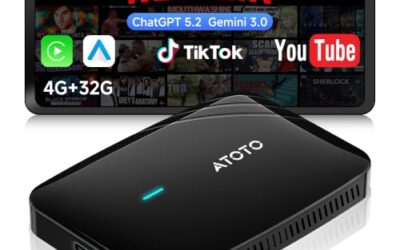
- Supports wireless CarPlay with access to navigation, music, calls, and compatible apps
- Offers USB drive playback for offline media
- Provides an HD media port for rear-seat entertainment setups
- Compact black enclosure measures 0.87 x 2.05 x 3.14 inches
Cons
- Requires a factory wired CarPlay or Android Auto system
- Not compatible with BMW or Tesla vehicles
- An HDMI cable, hotspot connection, and compatible vehicle system may be required for specific features
Specifications
| Color | Black |
|---|---|
| Dimensions | 0.87 x 2.05 x 3.14 inches |
| Weight | 0.2425084882 pounds |
| Product Group | Electronics |
| Binding | Unknown Binding |
Best For / Avoid If
Best for buyers prioritizing
- Supports wireless CarPlay with access to navigation, music, calls, and compatible apps
- Offers USB drive playback for offline media
- Provides an HD media port for rear-seat entertainment setups
Consider another option if
- Requires a factory wired CarPlay or Android Auto system
- Not compatible with BMW or Tesla vehicles
- An HDMI cable, hotspot connection, and compatible vehicle system may be required for specific features

Pros
- Combines wireless CarPlay and Android Auto in one device
- Supports automatic reconnection after initial Bluetooth pairing
- Includes both USB-A and USB-C connection options
- Retains listed factory control functions, including touchscreen and steering-wheel controls
Cons
- Only compatible with vehicles that already support factory wired CarPlay or wired Android Auto
- Android compatibility requires Android 11 or above
Specifications
| Color | Silver |
|---|---|
| Size | Extra Mini |
| Dimensions | 1 x 0.4 x 1 inches |
| Product Group | Wireless |
| Binding | Electronics |
Best For / Avoid If
Best for buyers prioritizing
- Combines wireless CarPlay and Android Auto in one device
- Supports automatic reconnection after initial Bluetooth pairing
- Includes both USB-A and USB-C connection options
Consider another option if
- Only compatible with vehicles that already support factory wired CarPlay or wired Android Auto
- Android compatibility requires Android 11 or above
Pros
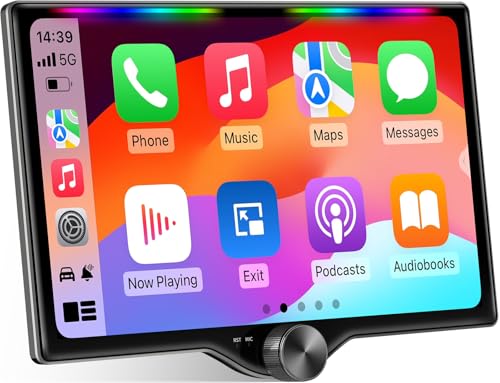
- Combines wireless and wired CarPlay and Android Auto support
- Offers audio customization through built-in DSP and a 10-band EQ
- Includes dual subwoofer output and a listed 4×60W peak-power specification
- Provides steering-wheel-control integration and Bluetooth hands-free functionality
Cons
- A dash kit, wiring harness adapter, or radio antenna adapter may be required and is not included
- Mirror Link and wired CarPlay or Android Auto connections require the rear USB1 port; the Type-C port supports fast charging only
- Vehicle fit, installation, and required steering-wheel-control interface must be confirmed before purchase
Specifications
| Product Group | Wireless |
|---|
Best For / Avoid If
Best for buyers prioritizing
- Combines wireless and wired CarPlay and Android Auto support
- Offers audio customization through built-in DSP and a 10-band EQ
- Includes dual subwoofer output and a listed 4×60W peak-power specification
Consider another option if
- A dash kit, wiring harness adapter, or radio antenna adapter may be required and is not included
- Mirror Link and wired CarPlay or Android Auto connections require the rear USB1 port; the Type-C port supports fast charging only
- Vehicle fit, installation, and required steering-wheel-control interface must be confirmed before purchase
Before you buy, it is worth reading How to Stop CarPlay From Auto Playing Music, Wireless CarPlay Adapter Compatibility Explained and Wireless CarPlay Adapter Buying Guide.
FAQ
Can I stop Siri from reading texts but keep CarPlay?
Yes. Turn off CarPlay message announcements or the Messages announcement option if your iOS version shows one. CarPlay can remain available for calls, maps, music, and other supported features.
Will turning off announcements hide messages from my car screen?
Not necessarily. Spoken announcements and visual message alerts are different behaviors. What appears on screen depends on iPhone settings, iOS version, and vehicle system.
Why does Siri still read messages through my headphones?
Headphone announcements use separate controls from CarPlay announcements. Check Announce Notifications settings for the headphone option, and confirm which device is connected when the alert plays.
Does this setting stop Siri from reading a message when I ask?
Usually, automatic announcements and voice-requested readouts are separate actions. Disabling announcements may not stop Siri from responding to a direct request.
Will the menu steps be the same on every iPhone?
No. iOS versions can move or rename controls, and options can vary by region and device. Search Settings for “Announce Notifications” if the menu path differs.
Sources and further reading
- CarPlay Available Models (Apple): Check which vehicle models Apple lists as supporting CarPlay.