To set CarPlay navigation volume, change Apple Maps’ spoken-direction level on your iPhone or adjust your vehicle’s guidance volume while a direction is speaking. The exact control depends on your navigation app and car stereo; changing music volume may not change voice prompts.
- For Apple Maps, check spoken-direction settings on your iPhone.
- For many cars, adjust guidance volume while a navigation prompt is playing.
- Music, calls, Siri, and navigation prompts can use separate volume levels.
- Menu names and behavior vary by iOS version, app, vehicle model year, and stereo firmware.
Park before changing phone or dashboard settings. If you use a dashboard control while driving, keep your attention on the road and follow your vehicle’s instructions.
- Start CarPlay and open your navigation app. Connect your iPhone using the method supported by your vehicle. CarPlay may use wired or wireless connection, depending on the car and its equipment.
- Check the app’s voice settings. For Apple Maps, open Settings on your iPhone and look for Maps, then Spoken Directions. Depending on your iOS version, the Maps settings may appear under Settings > Apps > Maps. Set Navigation Voice Volume to Low, Normal, or Loud if those options appear.
- Start a route and wait for a spoken direction. Some vehicles assign a separate level to navigation prompts. While the voice is speaking, turn the stereo’s volume knob or press its volume control. Watch the display for a label such as Navigation, Guidance, or Voice.
- Test the result with audio playing. Play music or a podcast at your usual level, then listen to a route instruction. Adjust the voice and media levels separately if your car allows it.
- Check mute and audio routing. Make sure navigation voice is enabled in the app and the stereo is not muted. If voice prompts play through the phone rather than the car, check CarPlay connection and the app’s audio settings.
If your car has no separate guidance control, set the app’s voice level first. Then adjust the stereo while a prompt is active. Some systems apply one shared volume setting, so music and directions may rise or fall together.
Where to change Apple Maps voice volume
Apple Maps has a spoken-direction level in its settings on supported iPhone software. Open Settings and search for Maps if the menu is hard to locate; Apple changes menu organization across iOS versions. The available choices can differ by software version.
Check that spoken directions are not set to Off. Also review any option that pauses spoken audio, if present. That option affects what happens to music or other audio during directions; it is not the same as the voice-volume level.
Settings on the iPhone and controls on the car stereo can work together. The phone setting may set the app’s output level, while the vehicle may control how loud guidance sounds through the speakers. The separation varies by vehicle and head-unit design.
Adjusting volume while a direction plays
Changing volume during a spoken prompt is a useful first check because some vehicle systems detect which audio channel is active. Turn the stereo control during the voice instruction, not during music playback. If the display identifies the source as navigation or guidance, that is a sign the car is changing that channel.
Some vehicles have separate levels for navigation, voice recognition, phone calls, and media. Others use a shared level or expose controls only through a sound menu. Consult the owner’s manual for your model year if dashboard menus do not make the distinction clear.
Do not assume that every steering-wheel volume button changes navigation voice by itself. On some systems it changes the active audio source; on others it changes a shared level. Test while parked or have a passenger handle the controls.
Navigation volume versus music and Siri volume
| Audio type | Where to check | What can differ |
|---|---|---|
| Navigation directions | Navigation app settings and vehicle guidance controls | May have a separate prompt level |
| Music or podcasts | Car stereo media volume | May duck, pause, or continue under directions |
| Siri | Vehicle or Siri voice controls | Can use a different level from route prompts |
| Phone calls | Call audio controls during a call | Often has its own level on the vehicle system |
This distinction helps diagnose a common complaint: music sounds loud, but directions remain faint. The stereo may be changing media volume rather than navigation volume. Try the adjustment during a spoken instruction and check the Maps voice setting separately.
What to check when CarPlay directions are too quiet
- Only Apple Maps is quiet: Check its spoken-direction setting, then test another route prompt.
- Every navigation app is quiet: Check the car’s guidance or navigation level and stereo sound menu.
- Music is loud but voice is faint: Adjust during the spoken prompt; the car may separate media and guidance levels.
- Prompts are missing: Check app voice mode, mute settings, route status, and audio output. A muted or silent direction setting can resemble a volume fault.
- Sound comes from the iPhone: Check that CarPlay is active and the vehicle is selected as the audio output.
- Problem began after an update: Recheck app and iPhone settings. Menu locations and behavior can change with software updates.
If you use a navigation app other than Apple Maps, look in that app’s own navigation or voice settings. Its labels and controls may not match Apple Maps. CarPlay displays compatible apps, but each app can manage spoken directions differently.
Vehicle and software compatibility limits
CarPlay behavior depends on the vehicle’s model year, infotainment system, and software. An aftermarket receiver can have different audio menus from the factory stereo. A vehicle’s ability to run CarPlay also depends on its equipment; Apple maintains a list of CarPlay-compatible models, though trim and regional availability can vary.
iPhone settings can move between iOS releases, and app updates can alter menu labels. If instructions do not match your screen, search Settings for Maps or consult the current help information for your navigation app. Do not assume an older vehicle’s stereo firmware supports every newer CarPlay feature.
If you are considering a stereo change because the existing unit lacks useful audio controls, compare fitment and vehicle integration before choosing hardware. Our guide to car stereos with CarPlay and Android Auto explains why dashboard fit and vehicle features matter.
Common mistakes
- Turning up music instead of guidance: The change may not affect navigation prompts if the car separates audio channels.
- Adjusting volume between prompts: The system may register the control as media volume. Try during a spoken direction.
- Changing only the stereo: The app itself may have a low voice setting or muted directions.
- Expecting every app to share settings: Apple Maps and third-party apps can have separate voice controls.
- Assuming all CarPlay cars use the same menu: Controls differ across vehicle model years, head units, and firmware.
When to get professional help
Seek help from the vehicle dealer or a qualified car-audio installer if navigation, calls, and media all have low or distorted sound after you check their separate settings. A failing speaker, amplifier, wiring connection, or head unit can affect more than CarPlay prompts. Avoid removing trim or probing wiring unless you have the correct service information and tools.
Ask for help if CarPlay repeatedly disconnects, the audio output changes without input, or the stereo controls do not respond. These symptoms may involve a phone connection, software, or vehicle audio fault rather than a simple volume setting. Note the vehicle model year, iPhone model, iOS version, navigation app, and whether the connection is wired or wireless before contacting support.
Gear that can help
If you need wireless CarPlay adapters for this job, these picks already appear in our wireless CarPlay adapters guides. Check the full guide for fit and who should skip each one.
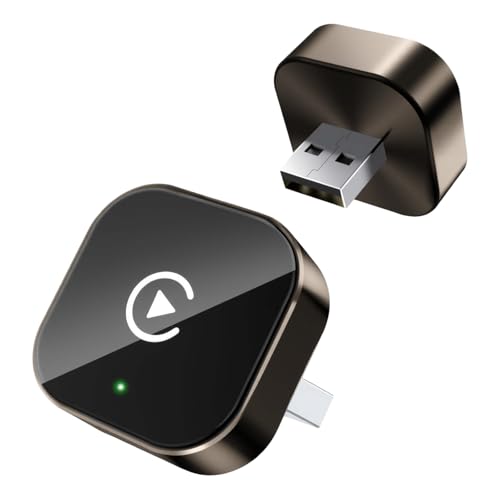
Pros
- Designed for compatible factory-installed wired CarPlay systems
- Supports automatic reconnection after initial pairing
- Compact construction is intended to save space in the car
Cons
- Only compatible with vehicles that have factory-wired CarPlay
Specifications
| Color | Brown |
|---|---|
| Size | Square |
| Dimensions | 1 x 0.4 x 1 inches |
| Product Group | Wireless |
| Binding | Electronics |
Best For / Avoid If
Best for buyers prioritizing
- Designed for compatible factory-installed wired CarPlay systems
- Supports automatic reconnection after initial pairing
- Compact construction is intended to save space in the car
Consider another option if
- Only compatible with vehicles that have factory-wired CarPlay

Pros
- Wireless CarPlay compatibility can reduce the need to connect an iPhone by cable
- USB-C connection and compact mini form factor
- Aluminum-alloy housing is described as supporting heat dissipation
- Supports navigation, music, Siri, phone calls, and messaging apps through CarPlay
Cons
- Compatible only with factory systems that already support wired Apple CarPlay
Specifications
| Color | GRAY |
|---|---|
| Size | MINI |
| Dimensions | 2.362204722 x 0.7480314953 x 0.2755905509 inches |
| Weight | 0.110231131 pounds |
| Product Group | Electronics |
| Binding | Electronics |
Best For / Avoid If
Best for buyers prioritizing
- Wireless CarPlay compatibility can reduce the need to connect an iPhone by cable
- USB-C connection and compact mini form factor
- Aluminum-alloy housing is described as supporting heat dissipation
Consider another option if
- Compatible only with factory systems that already support wired Apple CarPlay

Pros
- Supports factory-installed wired CarPlay vehicles
- Automatic reconnection reduces the need for repeated manual pairing
- Includes free lifetime firmware updates
- Compact construction uses a metal casing and acrylic glass surface
Cons
- Only compatible with vehicles that already have factory-installed wired CarPlay
- Requires Wi-Fi and Bluetooth to be enabled on the phone
Specifications
| Color | silver |
|---|---|
| Product Group | Wireless |
| Binding | Electronics |
Best For / Avoid If
Best for buyers prioritizing
- Supports factory-installed wired CarPlay vehicles
- Automatic reconnection reduces the need for repeated manual pairing
- Includes free lifetime firmware updates
Consider another option if
- Only compatible with vehicles that already have factory-installed wired CarPlay
- Requires Wi-Fi and Bluetooth to be enabled on the phone
Next step: How to Set Up Wireless CarPlay.
FAQ
Can I change CarPlay navigation volume without changing music volume?
Often, yes. Adjust the stereo while a spoken direction is playing, and check the app’s voice level. Whether the car saves a separate setting depends on its audio system.
Why does turning up the volume not make directions louder?
You may be changing media volume while the navigation channel has a separate level. Try the control during a prompt, then check the navigation app’s voice setting.
Does CarPlay have one volume slider for every navigation app?
No single control works the same way across every app and vehicle. Check the app’s settings and the vehicle’s guidance controls.
Why can I hear music but not Apple Maps directions?
Apple Maps directions may be muted, set to a low voice level, or routed differently from media. Check Spoken Directions settings and test a route while CarPlay is active.
Sources and further reading
- CarPlay Available Models (Apple): Check vehicle models that support CarPlay; equipment can vary by trim and region.