

To switch phones on wireless Android Auto, disconnect the phone currently connected, then select the other paired phone using your vehicle’s Bluetooth or phone menu. Park before changing settings, and check that both phones and the car support wireless Android Auto; menus and automatic connection behavior vary by model year and software.
Key takeaways
- Both phones need compatible Android Auto support and a completed wireless setup with the vehicle.
- Many vehicles connect to one phone at a time, but device selection and connection priority differ.
- Disconnecting the active phone often lets the second phone connect. Some systems need you to choose it from a device list.
- For a first setup, follow the vehicle’s instructions and Google’s current Android Auto setup steps.
- Do not change Bluetooth or infotainment settings while driving.
How to switch phones on wireless Android Auto
Wireless Android Auto relies on Bluetooth and Wi-Fi, but the car’s infotainment system decides how it handles multiple paired phones. Use this sequence as a starting point. Your vehicle may use different labels or require a different selection step.
- Park and keep the vehicle stationary. Put the vehicle in Park where applicable. Do not troubleshoot phone connections while moving.
- Identify the active connection. Check the infotainment screen for the connected phone or Android Auto session. If the screen shows the other driver’s phone, disconnect that phone first.
- Disconnect the active phone. Use the car’s phone, Bluetooth, or device-management menu to disconnect it. If there is no disconnect option, turn Bluetooth off on that phone temporarily. This can interrupt calls and other Bluetooth accessories.
- Select the second phone. Open the vehicle’s paired-device list and tap the intended phone. If the car has an Android Auto or smartphone-projection menu, select that phone there too.
- Accept connection prompts. Keep the second phone unlocked and accept any pairing, Android Auto, or permission prompts. The exact prompts depend on phone and vehicle software.
- Check the result. Confirm that Android Auto appears on the vehicle display and that calls, audio, and navigation use the intended phone. Reconnect the first phone later if needed.
If the car automatically reconnects to the first phone, disconnect it again or switch off its Bluetooth while the second phone connects. Then review the vehicle’s phone-priority or automatic-connection settings, if available. Avoid deleting a phone’s pairing until simpler steps fail; removing it means pairing it again later.
Prerequisites: both phones must be compatible and paired
Switching works only after each phone has completed the required setup for that specific vehicle. A phone that has never paired with the car may not appear as a selectable Android Auto device. Wireless support also depends on the vehicle’s equipment, model year, region, and software, as well as phone and Android Auto compatibility.
Do not assume that a USB Android Auto connection proves wireless support. Some vehicles support Android Auto only over USB, while other vehicles support both connection types. A wireless adapter, if used, has its own vehicle and phone requirements; its behavior may differ from the car’s built-in wireless system.
For initial setup, use the carmaker’s instructions alongside Google’s Android Auto setup instructions. The setup path can differ across infotainment systems, so one set of button names will not fit every car.
How vehicle connection priority affects switching
When two paired phones are in the vehicle, the system may reconnect to whichever phone it recognizes first or treats as preferred. Other systems let the driver select a phone from the screen. A few may favor a phone previously used for Android Auto. These are vehicle-specific behaviors, not settings shared by every Android Auto system.
| What happens | Likely next step |
|---|---|
| The first phone connects again automatically | Disconnect it, temporarily turn off its Bluetooth, then select the second phone in the vehicle menu. |
| The second phone appears in Bluetooth but not Android Auto | Check whether it completed Android Auto setup and whether the vehicle supports wireless Android Auto for that phone. |
| Neither phone connects | Check that wireless and Bluetooth are enabled, then restart the phone or infotainment system using the vehicle’s instructions. |
| Android Auto opens on the wrong phone | Disconnect the unwanted phone and explicitly select the intended device if the menu offers that choice. |
| Only USB connection works | Check the vehicle’s model-year equipment and instructions. USB support alone does not establish wireless support. |
For drivers weighing a head-unit change rather than troubleshooting, our guide to car stereos for Android phones explains in-dash and portable options. Vehicle fitment and the features included can vary, so a replacement is not a quick fix for every connection issue.
Switching between personal and work phones
For a regular driver pairing, keep both phones saved in the vehicle and use the infotainment device list to pick the one needed for that trip. If the car keeps grabbing the wrong phone, disconnect that phone before starting Android Auto on the other one. Turning off Bluetooth on the unused phone can help, but also stops that phone from connecting to hands-free calling and other car functions.
Some infotainment systems offer a preferred-phone setting or separate controls for calling and smartphone projection. If your car has those controls, read the owner’s manual to learn what each setting changes. Do not assume that selecting a phone for calls also selects it for Android Auto.
If you share a vehicle with another driver, consider privacy before leaving personal contacts, call history, or messages paired to the car. Use the vehicle’s manual to remove a phone or clear its stored connection details when appropriate. Deleting a pairing is different from disconnecting temporarily: deletion requires a new pairing process before that phone can reconnect.
If switching fails
Start with low-impact checks. Confirm that the intended phone has Bluetooth and Wi-Fi enabled, is not connected to another Android Auto session, and has completed setup with this vehicle. Restarting the phone can clear a temporary connection issue. If the infotainment system offers a normal restart, follow the vehicle manual rather than interrupting power or pulling fuses.
Next, remove the stale pairing from both the phone and vehicle, then pair the intended phone again using the vehicle’s instructions. This step erases the saved connection, so use it only after trying a disconnect and manual device selection. Menus vary among Android versions and vehicle brands; follow the labels on your device rather than relying on instructions written for another model.
If the problem began after a phone OS, Android Auto, or vehicle software update, check the relevant support instructions. Updates can change menus or connection behavior, but the timing alone does not prove the update caused the fault. A wired test can help distinguish a wireless connection issue from a broader Android Auto problem, but it cannot establish that the vehicle supports wireless operation.
Common mistakes
- Pairing only one phone. The second phone must also complete its own setup with the vehicle.
- Assuming Bluetooth pairing equals Android Auto setup. A phone may be paired for calls without being ready for Android Auto.
- Turning Bluetooth off on the phone you want to use. That can prevent the wireless connection from starting.
- Deleting every phone before trying device selection. This creates extra pairing work and may remove settings that were not causing the issue.
- Expecting identical menus across vehicles. Model year, infotainment system, region, and software can change available options.
- Changing settings while driving. Pull over and park before handling the phone or infotainment system.
When to get professional help
Contact the vehicle dealer or infotainment service provider if the car no longer detects any compatible phone after setup checks, if its Bluetooth or Wi-Fi functions fail across multiple devices, or if the display repeatedly freezes or restarts. Ask whether the vehicle has a relevant software update or known setup procedure for its model year.
Seek phone support if the same phone cannot connect to multiple compatible vehicles, especially after checking its settings and software. Give support staff the vehicle year, make, model, infotainment system if known, phone model, Android version, and whether USB Android Auto works. Those details help separate a vehicle limitation from a phone or pairing problem.
Gear that can help
If you need wireless Android Auto adapters for this job, these picks already appear in our wireless Android Auto adapters guides. Check the full guide for fit and who should skip each one.

Pros
- Supports both wireless CarPlay and wireless Android Auto on compatible factory systems
- Offers app installation, streaming, screen mirroring, and Bluetooth auto-lock features
- Includes cables for USB-C and USB-A connections
- Provides over-the-air updates, online self-service guides, and an 18-month warranty
Cons
- Requires a vehicle with factory wired CarPlay or wired Android Auto and a compatible touch, touchpad, or rotary/remote control system
- Not compatible with BMW, Tesla, most Subaru models, aftermarket head units, or factory systems that only support wireless CarPlay or wireless Android Auto
Specifications
| Color | Black |
|---|---|
| Dimensions | 2.5 x 1.5 x 0.5 inches |
| Weight | 0.1 pounds |
| Product Group | Wireless |
Best For / Avoid If
Best for buyers prioritizing
- Supports both wireless CarPlay and wireless Android Auto on compatible factory systems
- Offers app installation, streaming, screen mirroring, and Bluetooth auto-lock features
- Includes cables for USB-C and USB-A connections
Consider another option if
- Requires a vehicle with factory wired CarPlay or wired Android Auto and a compatible touch, touchpad, or rotary/remote control system
- Not compatible with BMW, Tesla, most Subaru models, aftermarket head units, or factory systems that only support wireless CarPlay or wireless Android Auto
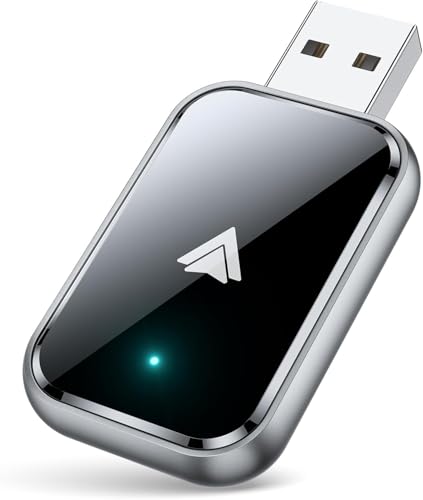
Pros
- Supports wireless Android Auto in vehicles with wired Android Auto
- Includes both USB-A and USB-C extension cables
- Offers Bluetooth 5.3 and 5.8 GHz Wi-Fi connectivity
- Includes a 2-year warranty
Cons
- Compatibility is specified only for vehicles that support wired Android Auto
Specifications
| Color | Black |
|---|---|
| Product Group | Wireless |
Best For / Avoid If
Best for buyers prioritizing
- Supports wireless Android Auto in vehicles with wired Android Auto
- Includes both USB-A and USB-C extension cables
- Offers Bluetooth 5.3 and 5.8 GHz Wi-Fi connectivity
Consider another option if
- Compatibility is specified only for vehicles that support wired Android Auto

Pros
- Combines wireless CarPlay and Android Auto functionality in one adapter
- Advertised automatic pairing and reconnection
- Lists broad vehicle compatibility with 800+ models
- Includes a 2-year replacement guarantee and lifetime technical support
Cons
- Requires a vehicle with factory-wired CarPlay
- Compatibility is limited to iPhone devices running iOS 10+ and Android phones running Android 11+
Specifications
| Color | Black |
|---|---|
| Product Group | Wireless |
Best For / Avoid If
Best for buyers prioritizing
- Combines wireless CarPlay and Android Auto functionality in one adapter
- Advertised automatic pairing and reconnection
- Lists broad vehicle compatibility with 800+ models
Consider another option if
- Requires a vehicle with factory-wired CarPlay
- Compatibility is limited to iPhone devices running iOS 10+ and Android phones running Android 11+
Readers weighing these picks also look at Best Aftermarket Car Stereo for Android Phones and How To Check Android Auto Wireless Compatibility.
FAQ
Can two phones use wireless Android Auto at the same time?
Most drivers should expect one active Android Auto phone connection at a time. A vehicle may remember several paired phones, but its ability to manage simultaneous connections depends on the infotainment system.
Do I need to pair the second phone again every time?
No, not if the vehicle saves its pairing and the phone remains compatible. You may still need to select it for a particular trip, depending on the car’s connection priority.
Why does my car keep connecting to someone else’s phone?
The car may reconnect to a previously paired phone that is nearby. Disconnect that phone or temporarily switch off its Bluetooth, then select the intended phone from the vehicle’s device menu.
Will a USB cable let me switch phones?
A cable may connect a phone if the vehicle supports wired Android Auto, but it does not guarantee wireless support. Check the vehicle manual for the connection types supported by your model year and infotainment system.
Sources and further reading
- Set up Android Auto (Google): Setup steps and compatibility guidance for Android Auto.









