

To check android auto wireless compatibility, confirm that both your Android phone and your vehicle’s infotainment system support wireless Android Auto. Then check the phone’s Android version, the car’s model-year-specific equipment, and whether the connection is meant to work without a USB cable.
- Wired Android Auto does not prove wireless support. The car and phone must both support wireless operation.
- Check exact vehicle trim and head unit. Equipment can vary by model year, market, and installed stereo.
- Use Google’s current setup guidance. Phone and network requirements can change over time.
- Test safely while parked. Do not troubleshoot phone menus while driving.
- Check your phone’s Android version. Open Settings and look for About phone or Software information. Menu names vary by phone maker. Compare the version and phone model with Google’s current Android Auto setup requirements. Wireless requirements can differ by Android version and device. An older phone may support Android Auto over USB but not meet wireless requirements.
- Check the vehicle’s exact configuration. Search the owner’s manual or infotainment guide for “wireless Android Auto.” Use the model year, trim, and head-unit details, not just the vehicle name. A model may have different multimedia systems across trims, production dates, or countries. If the stereo was replaced, check its manual and model number instead.
- Look for wireless Android Auto in the car’s menus. With the vehicle parked, open the phone connection or projection menu. Look for Android Auto setup or a prompt to pair a phone. A menu that only describes USB phone projection may indicate wired-only support, though menu wording varies. Do not treat the Android Auto app appearing on your phone as proof of wireless car support.
- Pair the phone using the car’s instructions. Wireless setup commonly uses Bluetooth for initial pairing and Wi-Fi for the connection. Follow the car and phone prompts. Keep Bluetooth and Wi-Fi enabled if the setup requests them. Do not assume every vehicle uses the same pairing sequence or asks for a Wi-Fi password.
- Test without the USB cable. Complete setup while parked, then disconnect the cable. If Android Auto opens on the car display and remains connected, the phone-to-car wireless setup works under those conditions. If it only works with USB, check whether the vehicle supports wireless Android Auto before changing settings or buying an adapter.
What has to support wireless Android Auto?
Wireless Android Auto depends on several parts working together: the phone, its software, the vehicle’s infotainment system, and the connection setup. A compatible phone cannot add wireless support to a head unit that only supports wired Android Auto. Likewise, a wireless-capable car cannot make an incompatible phone meet Google’s requirements.
Phone and Android version
Google’s requirements can vary by Android version and phone model. Check the current setup page rather than relying on an old phone compatibility list. A phone also needs working Bluetooth and Wi-Fi for the wireless connection process. A damaged radio, restrictive work profile, or phone setting can interfere, even when the model is otherwise supported.
Android Auto support on a phone is not the same as wireless Android Auto support. A phone that launches Android Auto when plugged in may still need a cable because its Android version, phone model, or car system does not support wireless use.
Vehicle or aftermarket stereo
The vehicle must have a compatible infotainment system. Factory equipment can differ between trims and model years, and the same vehicle name may refer to systems sold in different regions. Check the manual for your specific vehicle or contact the automaker with its model year and trim. If the stereo has been replaced, use the stereo maker’s compatibility information rather than the original vehicle’s feature list.
Wireless Android Auto is also separate from wireless CarPlay. A display or stereo that supports one wireless phone system does not automatically support the other. For a broader look at replacement head units and fitment, see our guide to car stereos for Android phones.
Wireless connection requirements
Wireless Android Auto uses Bluetooth and Wi-Fi, but exact setup details depend on the phone and vehicle. Some systems begin pairing when the driver starts setup in the car; others require a specific menu or an initial cable connection. Follow the instructions for that system. Do not apply one vehicle’s pairing steps to every car.
Wi-Fi capability alone does not establish compatibility. A phone hotspot, a built-in vehicle hotspot, or an available Wi-Fi network does not turn a wired-only head unit into a wireless Android Auto system.
Wired Android Auto works, but wireless does not
If Android Auto works over USB but not wirelessly, the phone and car have proved wired compatibility only. First check the vehicle manual or infotainment settings for wireless support. If the car is wired-only, repeated Bluetooth pairing attempts will not add the missing feature.
If the vehicle does support wireless Android Auto, remove the old phone pairing from both the phone and car, then follow the vehicle’s setup steps again. Restarting the phone and infotainment system may help with a temporary connection fault. Check for phone and vehicle software updates through their normal settings or service guidance. Avoid factory resets until simpler checks fail, because a reset can remove saved settings and pairings.
If wireless worked before and stopped, consider recent changes: a phone update, a replaced phone, changed Bluetooth pairings, or an infotainment update. Those clues help separate a compatibility limit from a new connection problem. If multiple compatible phones fail in the same car, the vehicle system may need diagnosis.
Can an adapter add wireless Android Auto?
Some third-party wireless adapters are made to convert a compatible wired Android Auto connection into a wireless one. They are not universal. Many require the car’s USB port to support wired Android Auto already, and adapter compatibility can depend on the vehicle, head unit, and phone. An adapter cannot be assumed to work with a car that lacks Android Auto entirely.
Read the adapter maker’s fitment rules for the exact vehicle system, and distinguish Android Auto adapters from devices that add a separate screen or mirror a phone display. These perform different jobs. Our overview of Android Auto adapters with screen mirroring explains that distinction.
Common mistakes
- Assuming USB support means wireless support. Wired and wireless operation are separate capabilities.
- Checking only the make and model. Trim, model year, market, and head unit can change the answer.
- Confusing Bluetooth calling with Android Auto. Bluetooth audio or hands-free calling does not prove that the display supports Android Auto.
- Assuming Wi-Fi means wireless Android Auto. The car’s system must support the feature, not merely Wi-Fi connectivity.
- Buying an adapter before checking wired support. Many adapters depend on an existing wired Android Auto connection.
- Using another car’s setup instructions as a rule. Pairing menus and first-connection steps vary.
When to get professional help
Contact the vehicle dealer or a qualified automotive electronics installer if the manual and menus conflict, the head unit was replaced, or the car’s equipment is unclear. Provide the model year, trim, market, and stereo model where possible. A technician can identify the installed system and check whether a software or hardware fault is affecting a feature the system is meant to support.
Seek service if the infotainment system repeatedly reboots, loses other functions, or fails with multiple known-compatible phones. Avoid changing vehicle wiring or installing an adapter into a port whose purpose is unclear. For a stereo replacement, check both dashboard fitment and vehicle-specific wiring needs; Android Auto compatibility alone does not establish installation compatibility. See our guide to aftermarket stereos for wireless Android Auto for related head-unit considerations.
Gear that can help
If you need wireless Android Auto adapters for this job, these picks already appear in our wireless Android Auto adapters guides. Check the full guide for fit and who should skip each one.
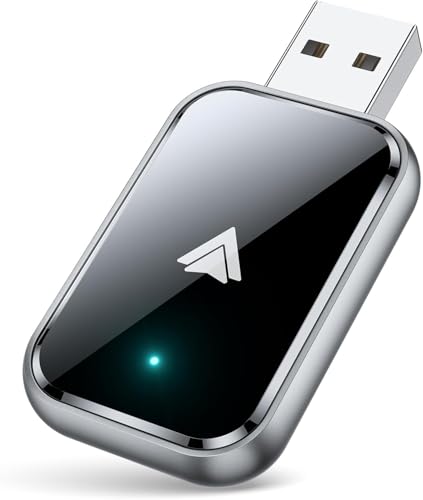
Pros
- Supports wireless Android Auto in vehicles with wired Android Auto
- Includes both USB-A and USB-C extension cables
- Offers Bluetooth 5.3 and 5.8 GHz Wi-Fi connectivity
- Includes a 2-year warranty
Cons
- Compatibility is specified only for vehicles that support wired Android Auto
Specifications
| Color | Black |
|---|---|
| Product Group | Wireless |
Best For / Avoid If
Best for buyers prioritizing
- Supports wireless Android Auto in vehicles with wired Android Auto
- Includes both USB-A and USB-C extension cables
- Offers Bluetooth 5.3 and 5.8 GHz Wi-Fi connectivity
Consider another option if
- Compatibility is specified only for vehicles that support wired Android Auto

Pros
- Combines wireless CarPlay and Android Auto functionality in one adapter
- Advertised automatic pairing and reconnection
- Lists broad vehicle compatibility with 800+ models
- Includes a 2-year replacement guarantee and lifetime technical support
Cons
- Requires a vehicle with factory-wired CarPlay
- Compatibility is limited to iPhone devices running iOS 10+ and Android phones running Android 11+
Specifications
| Color | Black |
|---|---|
| Product Group | Wireless |
Best For / Avoid If
Best for buyers prioritizing
- Combines wireless CarPlay and Android Auto functionality in one adapter
- Advertised automatic pairing and reconnection
- Lists broad vehicle compatibility with 800+ models
Consider another option if
- Requires a vehicle with factory-wired CarPlay
- Compatibility is limited to iPhone devices running iOS 10+ and Android phones running Android 11+

Pros
- Combines wireless CarPlay and Android Auto in one device
- Supports automatic reconnection after initial Bluetooth pairing
- Includes both USB-A and USB-C connection options
- Retains listed factory control functions, including touchscreen and steering-wheel controls
Cons
- Only compatible with vehicles that already support factory wired CarPlay or wired Android Auto
- Android compatibility requires Android 11 or above
Specifications
| Color | Silver |
|---|---|
| Size | Extra Mini |
| Dimensions | 1 x 0.4 x 1 inches |
| Product Group | Wireless |
| Binding | Electronics |
Best For / Avoid If
Best for buyers prioritizing
- Combines wireless CarPlay and Android Auto in one device
- Supports automatic reconnection after initial Bluetooth pairing
- Includes both USB-A and USB-C connection options
Consider another option if
- Only compatible with vehicles that already support factory wired CarPlay or wired Android Auto
- Android compatibility requires Android 11 or above
FAQ
Does Android Auto work wirelessly through Bluetooth alone?
No. Bluetooth is part of wireless pairing, but wireless Android Auto also uses Wi-Fi. The phone and infotainment system must support the required wireless connection.
Can I use wireless Android Auto if my car only supports wired Android Auto?
Not by pairing alone. A compatible third-party adapter may work with some wired systems, but it has separate vehicle and head-unit requirements.
Why does Android Auto work with a cable but not without one?
The car may support wired operation only, or wireless setup may be incomplete. Check the exact infotainment system first, then follow its pairing instructions.
Does a newer Android phone guarantee wireless compatibility?
No. The vehicle or stereo must also support wireless Android Auto. Phone model, Android version, and system requirements still matter.
Sources and further reading
- Set up Android Auto (Google): Review current phone, vehicle, and connection setup requirements.









