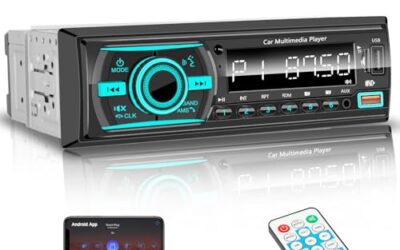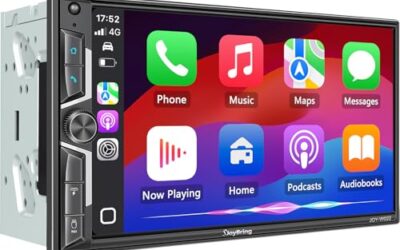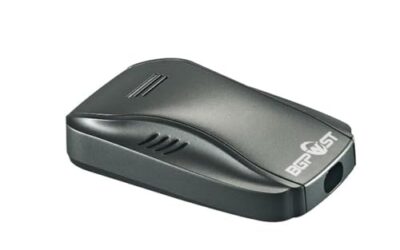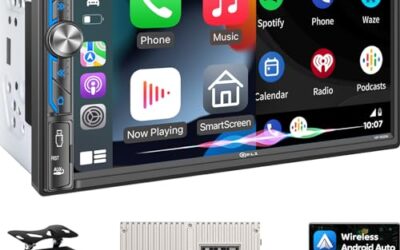

To connect Android Auto, first confirm that the phone and installed car system support the connection type you want. Use the designated USB data port for a wired setup, or the car’s Bluetooth pairing process for supported wireless use. Follow the on-screen instructions while parked.
Connecting Android Auto is essential for many drivers who want to use their smartphones while driving. This article will guide you through the process, from checking compatibility to troubleshooting common problems. We will cover wired and wireless methods, prerequisites, and tips for success.
Key takeaways
- Android Auto requires an Android phone and a compatible vehicle.
- Wired connection uses a USB cable, while wireless uses Bluetooth and Wi-Fi.
- Always ensure your phone and car’s software are up to date.
- Follow safety guidelines to avoid distractions while driving.
- Check your vehicle’s manual for specific instructions.
What is Android Auto?
Android Auto is an Android-based interface that allows you to interact with your phone’s apps through your car’s display. It was launched to provide a safer way to use smartphones in vehicles. Instead of the full phone interface, Android Auto shows a curated list of apps that are useful while driving.
The system works by establishing a connection between your phone and the car’s head unit. Once connected, the car’s screen displays the Android Auto interface. You can then use the car’s touch screen, steering wheel controls, or voice commands to navigate the apps.
Key features include:
- Navigation using Google Maps or Waze
- Music streaming from Spotify, YouTube Music, or Apple Music (if supported)
- Voice commands with Google Assistant
- Messaging and calls
- Podcasts and audiobooks
Android Auto is designed to be distraction-free. It automatically limits the screen brightness and may disable the phone’s screen when the vehicle is in motion. This helps keep your attention on the road.
How Android Auto Works
In wired mode, the phone connects via USB to the car’s port. The car then powers the phone’s display through the connection. For wireless, the phone connects to the car’s wireless module using Bluetooth for pairing and Wi-Fi for data transfer. The connection is usually seamless and automatic.
The interface consists of a home screen with cards for each app. You can swipe between different views and use gestures to interact. Voice commands are a big part of it, allowing you to say things like “Hey Google, navigate to the nearest gas station.”
Supported apps are updated regularly by Google to include new features and improve performance. This means the experience can evolve over time.
Compatibility Requirements
For a successful connection, you need the following:
- Android phone with version 6.0 or higher.
- Google Play Services installed on the phone.
- A vehicle with Android Auto support. This can be confirmed by looking for the Android Auto symbol on the infotainment screen or in the owner’s manual.
- A USB cable that supports data transfer for wired connections. It should be at least USB 2.0 for reliable performance.
- For wireless Android Auto, the car must have the necessary hardware and the phone must support it.
Vehicle compatibility can vary by model year. For example, many vehicles from 2014 onward support Android Auto, but some may require a software update from the manufacturer. Phone compatibility is generally good, but certain models or carriers may have issues with the connection.
Aftermarket head units can also support Android Auto, but the quality and reliability may vary. Always check reviews and compatibility lists before purchasing.
Step-by-Step Guide to Connect Android Auto
Follow these steps to connect your Android phone to the car’s Android Auto system. The process is similar for both wired and wireless, but there are some differences.
Wired Connection Steps
- Charge your phone to at least 50% to ensure a stable connection.
- Locate the USB port in your vehicle, usually in the center console or glove compartment.
- Connect one end of the USB cable to your phone and the other to the car’s USB port.
- Wait for the phone to detect the connection. You may see a notification on your phone or the Android Auto interface will appear on the car’s screen.
- If the interface doesn’t appear, go to your phone’s settings and look for Android Auto or connected devices to start it manually.
- Grant any necessary permissions for location, contacts, and media access.
- The connection is now established, and you can start using the apps.
If the connection fails to start, try unplugging and plugging back in, or restart your phone.
Wireless Connection Steps
- Ensure your phone and car support wireless Android Auto.
- Turn on your phone’s Bluetooth and Wi-Fi.
- Connect your phone to the car’s wireless network if prompted. The network name is often “Android Auto” or similar.
- Once connected, the Android Auto interface should launch automatically.
- If not, manually select the connection from the phone’s settings menu.
- Allow the connection to establish, which may take a few seconds.
Wireless connections are convenient but can be affected by distance or interference from other devices.
Troubleshooting Common Connection Problems
If you are having trouble connecting Android Auto, use this checklist to diagnose the issue:
- Basic restart: Restart your phone and the car’s infotainment system.
- Check cable: For wired, try a different cable or port.
- Update software: Ensure your phone’s OS and the car’s firmware are up to date.
- Toggle settings: Turn off and on Bluetooth and Wi-Fi on your phone.
- Permissions: Check if any app permissions are blocking the connection.
- Network: For wireless, check if the Wi-Fi signal is strong.
If these steps don’t resolve the issue, it could be a hardware problem with the car’s USB port or the head unit itself. In that case, professional help may be needed.
Common Mistakes When Connecting Android Auto
Many users make mistakes that can prevent a successful connection. Here are some common ones:
- Using a charging-only USB cable, which does not support data transfer.
- Not updating the phone’s software, which can cause compatibility issues with newer car systems.
- Expecting the full phone interface, which is not how Android Auto works; it is limited to specific apps.
- Connecting the phone while the car is moving, which is unsafe and may not be allowed by the system.
- Ignoring regional availability; some features may not be supported in certain countries due to regulations.
- Not checking the vehicle’s manual for specific instructions or limitations.
Avoiding these mistakes will help you get the most out of Android Auto.
When to Seek Professional Help
If you have tried basic troubleshooting and still cannot connect Android Auto, it may be time to get professional help. This could involve a visit to a car dealership or an auto electronics specialist. They can diagnose issues with the head unit, USB port, or wiring.
Do not attempt to repair the system yourself if you are not qualified, as it can lead to further damage or void the vehicle’s warranty. Bring your phone and a list of the problems you are experiencing to the service center for the best results.
Gear that can help
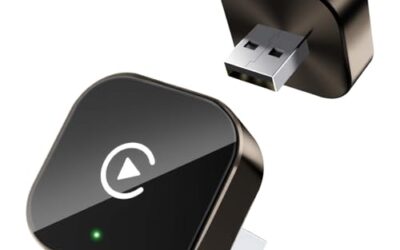
If you need wireless Android Auto adapters for this job, these picks already appear in our wireless Android Auto adapters guides. Check the full guide for fit and who should skip each one.

Pros
- Combines wireless CarPlay and Android Auto in one device
- Supports automatic reconnection after initial Bluetooth pairing
- Includes both USB-A and USB-C connection options
- Retains listed factory control functions, including touchscreen and steering-wheel controls
Cons
- Only compatible with vehicles that already support factory wired CarPlay or wired Android Auto
- Android compatibility requires Android 11 or above
Specifications
| Color | Silver |
|---|---|
| Size | Extra Mini |
| Dimensions | 1 x 0.4 x 1 inches |
| Product Group | Wireless |
| Binding | Electronics |
Best For / Avoid If
Best for buyers prioritizing
- Combines wireless CarPlay and Android Auto in one device
- Supports automatic reconnection after initial Bluetooth pairing
- Includes both USB-A and USB-C connection options
Consider another option if
- Only compatible with vehicles that already support factory wired CarPlay or wired Android Auto
- Android compatibility requires Android 11 or above

Pros
- Combines wireless CarPlay and wireless Android Auto in one adapter
- Compact 0.98 x 0.98 x 1.06-inch design helps reduce cable clutter
- Compatible with USB-A and USB-C vehicle ports when using the included adapter
- Supports Android 11 or later phones with Wireless Android Auto enabled
Cons
- Requires a vehicle with factory wired CarPlay or Android Auto
- Not compatible with BMW, Tesla, or vehicles without a wired system
Specifications
| Color | Black |
|---|---|
| Size | Ultramini |
| Dimensions | 0.98 x 0.98 x 1.06 inches |
| Weight | 0.01763698096 Pounds |
| Product Group | Wireless |
Best For / Avoid If
Best for buyers prioritizing
- Combines wireless CarPlay and wireless Android Auto in one adapter
- Compact 0.98 x 0.98 x 1.06-inch design helps reduce cable clutter
- Compatible with USB-A and USB-C vehicle ports when using the included adapter
Consider another option if
- Requires a vehicle with factory wired CarPlay or Android Auto
- Not compatible with BMW, Tesla, or vehicles without a wired system

Pros
- Supports wireless Android Auto in vehicles and head units with wired-only Android Auto
- Includes a multifunction button for pairing and switching between phones
- Companion app supports updates, troubleshooting, customization, and localized Wi-Fi settings
Cons
- Only compatible with vehicles or head units that exclusively support wired Android Auto
- Requires an Android 11 or higher phone on Google's official Android Auto compatible smartphone list
- External interference from sources such as cell towers, Wi-Fi hotspots, dashcams, or other wireless devices may affect connection stability
Specifications
| Color | Black |
|---|---|
| Dimensions | 2.16535 x 1.37795 x 0.59055 inches |
| Weight | 0.03968320716 pounds |
| Product Group | Wireless |
| Binding | Electronics |
Best For / Avoid If
Best for buyers prioritizing
- Supports wireless Android Auto in vehicles and head units with wired-only Android Auto
- Includes a multifunction button for pairing and switching between phones
- Companion app supports updates, troubleshooting, customization, and localized Wi-Fi settings
Consider another option if
- Only compatible with vehicles or head units that exclusively support wired Android Auto
- Requires an Android 11 or higher phone on Google's official Android Auto compatible smartphone list
- External interference from sources such as cell towers, Wi-Fi hotspots, dashcams, or other wireless devices may affect connection stability
FAQ
How do I know if my car supports Android Auto?
Look for the Android Auto logo on the infotainment screen or check your vehicle’s owner’s manual. You can also contact your car’s manufacturer or visit their website to confirm compatibility with your model year.
Can I connect Android Auto to any Android phone?
Most Android phones from 2015 and newer should work, but you need to have Android 6.0 or higher and Google Play Services. Some older phones may have limited support or not work at all.
What should I do if the wireless connection doesn’t work?
Make sure your car and phone support wireless Android Auto. Restart the devices, check for software updates, and try connecting again. If the problem continues, it may be a hardware limitation in your vehicle.
Is it safe to use Android Auto while driving?
Yes, Android Auto is designed with safety in mind. It minimizes distractions by using voice commands and limiting screen interaction. Always keep your eyes on the road and use the voice features when possible.
How can I update Android Auto?
Update your phone’s software through the Google Play Store or phone settings. For the car’s system, check if there are software updates available from the manufacturer. The Android Auto app on your phone is usually updated automatically when you update the system.
By following the information in this article, you should be able to connect Android Auto successfully and enjoy the benefits of this technology. Remember to always prioritize safety while driving and keep your devices updated for the best experience.