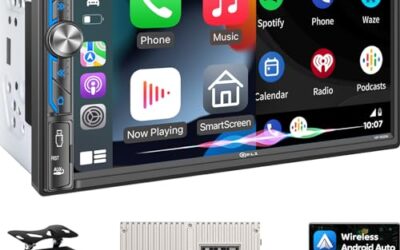

To activate Android Auto, connect a compatible Android phone to a vehicle that supports Android Auto, then follow the prompts on the phone and car display. The exact steps depend on whether your vehicle uses a USB connection or wireless Android Auto, and on your phone’s Android version and settings.
- Check that both the vehicle and phone support Android Auto before troubleshooting.
- For a wired connection, use a USB port intended for smartphone data, not a charge-only port.
- For wireless use, both the car and phone must support wireless Android Auto; Bluetooth and Wi-Fi may be part of setup.
- Complete setup while parked and follow the prompts shown by your specific vehicle.
What you need before activating Android Auto
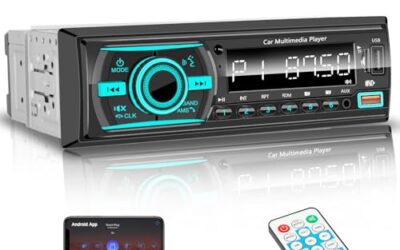
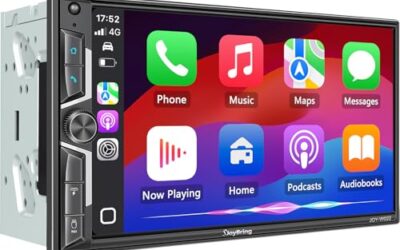
Android Auto is a phone-to-car system that brings selected phone apps and functions to a compatible vehicle display. It is not a feature that can be switched on in every car by changing a phone setting. The vehicle’s infotainment system must support Android Auto, either from the factory or through a compatible aftermarket stereo.
Google’s setup instructions may change as Android and Android Auto are updated. Check the current Google Android Auto setup instructions if your screen labels differ from those below.
| Check | Why it matters |
|---|---|
| Vehicle support | Model year, trim, factory options, and the installed infotainment system can affect whether Android Auto is available. |
| Connection type | A car may support wired Android Auto, wireless Android Auto, or both. Wireless support is not automatic just because the car has Bluetooth. |
| Phone and software | Android version, Android Auto updates, and regional availability can affect setup and available features. |
| USB port and cable | For wired use, the port must carry data. A cable that only charges the phone will not establish Android Auto. |
Find the vehicle’s owner’s manual or infotainment guide and look for Android Auto under smartphone connectivity. If you have an aftermarket stereo, use its manual as well. The USB connector shape alone does not tell you whether a port supports Android Auto.
How to activate Android Auto with a USB cable
- Park the vehicle. Keep the vehicle stationary while pairing and responding to setup prompts. Do not handle the phone while driving.
- Start the vehicle or switch on its accessory mode. Follow the vehicle manual’s instructions for powering the infotainment system.
- Unlock the phone. Check that it has an active data connection if setup requires one, and install available Android or Android Auto updates when practical.
- Connect the phone to the correct USB port. Use a sound data-capable cable and the port identified in the vehicle manual for smartphone connectivity. If the phone only charges, try another suitable cable or the designated port.
- Accept the prompts. The car display and phone may ask you to allow Android Auto, grant permissions, or accept terms. Read and respond to the prompts on both screens.
- Select Android Auto on the car screen if it does not open by itself. The menu may use a label such as Phone, Projection, or Smartphone connection. Names vary by vehicle.
- Check that the connection is active. The Android Auto interface should appear on the vehicle display. Keep the phone connected if your car requires a wired connection during use.
Some vehicles require an initial setup step through the infotainment menu before the phone is recognized. Others start setup as soon as the phone is connected. If nothing appears, check the manual for the correct port and menu path before changing phone settings.
How to activate wireless Android Auto
Wireless Android Auto requires support from both the phone and the vehicle’s infotainment system. Bluetooth pairing by itself does not prove that a car supports wireless Android Auto. Follow the car manual’s pairing steps because the initial connection process can differ between vehicles.
- Park and turn on the vehicle’s infotainment system. Leave the car in a safe, stationary state during setup.
- Turn on Bluetooth and Wi-Fi on the phone. Wireless setup can use both, even though Bluetooth audio alone is not Android Auto.
- Open the vehicle’s phone or Android Auto setup menu. Choose the option to add or connect a phone, if the system offers one.
- Pair the phone with the vehicle when prompted. Check that the pairing request refers to your car, then accept the request on both screens as needed.
- Allow the Android Auto prompts. The phone may ask for permissions or request that you continue setup on the car display.
- Wait for the interface to appear. The first connection may take longer than later connections. For subsequent trips, the phone and vehicle may reconnect automatically when the relevant systems are available.
If the car’s manual says the first connection must use USB, follow that procedure. Some vehicles begin wireless setup through a USB connection, while others use a wireless pairing flow. There is no single first-pairing method that applies to every car.
How to tell whether the vehicle supports Android Auto
Check the owner’s manual, the infotainment system’s connectivity menu, or the vehicle manufacturer’s documentation for your exact model year and trim. A model name by itself may not settle the question because equipment can vary across years and versions. If the car has an aftermarket head unit, check the head unit model and firmware documentation too.
Bluetooth calling, music streaming, and a USB charging port are separate features. They do not, on their own, mean the system supports Android Auto. Likewise, a phone that works with Android Auto in one vehicle may not connect to another vehicle with different equipment or software.
If you are comparing phone projection systems, our guide to connecting Apple CarPlay to a car covers the Apple-side process. CarPlay and Android Auto are separate systems, so support for one should not be taken as proof that the other is available.
Android Auto will not activate: safe checks
If setup fails, start with simple checks that do not change vehicle wiring or require a factory reset. Note what happens: no response, a charging-only connection, a pairing error, or a connection that drops. Different symptoms point to different parts of the setup.
- The phone charges but Android Auto does not open: Try a different data-capable cable and the vehicle’s designated smartphone USB port. Charging shows that power is reaching the phone, not that the cable or port is carrying data.
- The car does not appear during wireless pairing: Check that wireless Android Auto is supported by the exact vehicle system and that Bluetooth and Wi-Fi are on. Follow the vehicle’s instructions for adding a phone.
- The phone connects, then disconnects: Check the cable and connectors for a loose fit. For wireless use, restart the phone and infotainment system according to their manuals, then pair again if needed.
- The connection worked before but now fails: Check for pending phone, Android Auto, or infotainment updates. A software change can alter menus or connection behavior.
- The setup prompts do not appear: Check the Android Auto and smartphone projection settings in the car, then review the phone’s connection settings. Menu names vary by Android version and vehicle.
As a next step, remove the phone from the vehicle’s paired-device list and remove the vehicle from the phone’s Bluetooth devices, then restart setup using the manual’s instructions. This can help when an old pairing is stuck, but it will not add Android Auto support to a vehicle that lacks it.
Common mistakes when setting up Android Auto
- Assuming Bluetooth means wireless Android Auto. Bluetooth calling and audio are not the same as wireless phone projection.
- Using a charge-only cable. A phone may show a charging symbol even when the cable cannot transfer the data needed for wired Android Auto.
- Plugging into the wrong USB port. Some vehicles have multiple ports with different functions. Check the manual rather than relying on connector location or shape.
- Expecting every app to appear. Android Auto presents supported apps and functions, not a full copy of every phone screen or app.
- Trying to pair while driving. Complete setup while parked, then use voice controls and the vehicle interface where available.
- Assuming an update fixes every connection problem. Software updates can help with some issues, but a bad cable, unsupported car system, or faulty port can still prevent connection.
When to get professional help
Contact the vehicle dealer, stereo installer, or a qualified automotive electronics technician if the manual says Android Auto is supported but the car’s USB port or infotainment system does not respond to known-good setup steps. Professional diagnosis is also sensible if several compatible phones fail in the same vehicle, or if other infotainment functions have stopped working.
Do not pull dashboard trim or probe vehicle wiring just to activate Android Auto unless you have the right service information and skills. An electrical fault, damaged connector, or incorrectly installed aftermarket stereo may need diagnosis beyond phone settings. If the system is still covered by a vehicle or stereo warranty, check the applicable terms before arranging repairs.
Before you buy, it is worth reading How To Disable Android Auto and How to Connect Android Auto.
FAQ
Do I need to download Android Auto?
Android Auto is integrated into many current Android phones, but availability and setup can vary by Android version and region. Check the phone’s settings and Google’s current setup instructions rather than relying on an old app-installation guide.
Can I use Android Auto without a cable?
Yes, if both the phone and the vehicle’s infotainment system support wireless Android Auto. Bluetooth support alone is not enough to establish wireless compatibility.
Why does Android Auto charge my phone but not connect?
The cable or USB port may provide power but not data, or the port may not be the one intended for phone projection. Try a data-capable cable and check the vehicle manual for the correct port.
Does every app on my phone appear in Android Auto?
No. Android Auto displays supported apps and functions, and the available options can depend on the phone, app, region, and vehicle system.
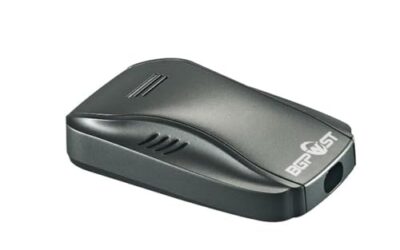
Can an adapter add Android Auto to any car?
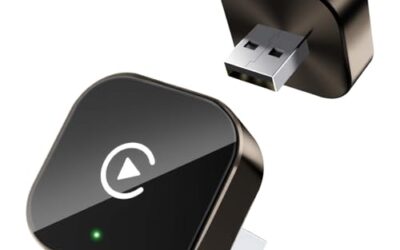
No single adapter works with every car. Compatibility depends on the vehicle’s existing infotainment system, its connection type, and the adapter’s requirements. Check the adapter documentation for your exact system before relying on it.
Sources and further reading
- Set up Android Auto (Google): Current setup guidance for connecting a compatible phone and vehicle.