
How to connect CarPlay to a car depends on whether the vehicle supports a wired connection, wireless connection, or both. You need a compatible iPhone and a vehicle or stereo with CarPlay; if either one lacks support, changing settings alone will not add the feature.
- Check the car’s manual or Apple’s available-models list to confirm CarPlay support.
- For wired CarPlay, use a data-capable USB cable and the vehicle’s designated USB port.
- For wireless CarPlay, follow the car’s pairing prompts and allow Bluetooth and Wi-Fi connections when requested.
- Some vehicles support only wired CarPlay, and USB ports in the same cabin may have different functions.
- Set up the connection while parked, and troubleshoot from simple checks to more involved changes.
What you need before connecting CarPlay
CarPlay projects supported iPhone apps and features onto a compatible vehicle display. The car’s infotainment system handles the connection, so having an iPhone does not mean every vehicle can use CarPlay. Apple maintains a list of CarPlay-compatible vehicle models, but equipment can vary by model year, trim, region, and installed stereo.
Check the vehicle owner’s manual for CarPlay instructions and the location of the correct USB port. A port may charge a phone without carrying data, while another port supports the infotainment system. The manual or labels near the port can help distinguish them. If a previous owner installed an aftermarket stereo, check that stereo’s manual as well.
Use an iPhone that supports the CarPlay feature and has a compatible version of iOS for the vehicle system. The precise requirements depend on the car and its software. Keep the phone updated when practical, but do not assume that an update can add CarPlay to a vehicle that lacks compatible hardware.
| Connection type | What you need | What to expect |
|---|---|---|
| Wired | Compatible car, iPhone, and data-capable cable | The phone connects through a supported USB port. It may charge while connected. |
| Wireless | Compatible car and iPhone with the vehicle’s wireless pairing feature | The initial pairing follows the car’s prompts. Bluetooth and Wi-Fi may both be used. |
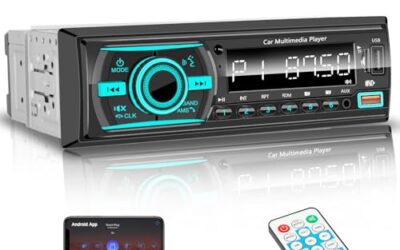
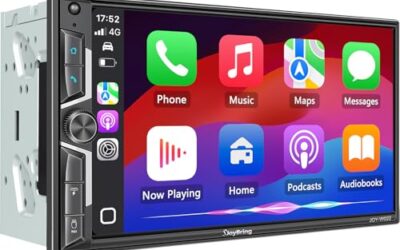
| Aftermarket stereo | CarPlay-capable stereo installed in the vehicle | Setup and compatibility depend on the stereo, installation, and vehicle wiring. |
How to connect CarPlay to a car with USB
- Park the vehicle. Keep the car in Park and follow its instructions for using the infotainment system. Do not handle setup menus while driving.
- Start the car’s infotainment system. Turn on the vehicle or accessory mode as directed in the owner’s manual. Look for a CarPlay prompt or a smartphone projection menu.
- Connect the iPhone to the correct USB port. Use a cable that supports data, not only charging. If the car has several ports, use the one identified for phone integration or CarPlay.
- Approve the prompts. Unlock the iPhone and accept the CarPlay prompt on the phone or vehicle display. If asked whether CarPlay should work while the phone is locked, choose the setting that suits your use.
- Wait for the CarPlay screen. If it does not appear, select CarPlay or smartphone projection on the vehicle display. A first connection may require approval on both screens.
- Check the connection before driving. Confirm that the screen responds and that audio routes through the car. Put the phone somewhere secure, then use voice control or steering-wheel controls when available.
A cable can charge a phone without establishing CarPlay. If the phone charges but the CarPlay screen does not appear, try the vehicle’s designated data port and a known data-capable cable. Avoid forcing a connector into the port, and check the manual before changing vehicle settings.
How to connect wireless CarPlay
Wireless CarPlay is available only when both the vehicle system and iPhone support it. Some cars can pair wirelessly from the first setup, while others may offer a guided setup that starts with a USB connection. Follow the method shown in the car’s manual rather than assuming every vehicle pairs the same way.
- Park and open the vehicle’s phone or Bluetooth menu. Look for an option to add a phone, connect a device, or set up CarPlay.
- Start pairing as the car directs. Some systems ask you to hold a voice-command button on the steering wheel or select a pairing option on the display.
- Select the vehicle on the iPhone if prompted. Open Settings, then Bluetooth, and follow the car’s instructions. The name shown may be the vehicle brand or stereo name.
- Approve the CarPlay request. Read the prompts on both screens and allow the requested connection. Wireless CarPlay may use Bluetooth to begin pairing and Wi-Fi for the ongoing connection.
- Wait for CarPlay to open. If it does not start, choose the iPhone or CarPlay entry from the vehicle’s phone menu. Keep the phone inside the cabin and within the system’s usable range.
- Check automatic connection. After setup, the phone may reconnect when you start the vehicle. The exact behavior depends on the car’s system and its settings.
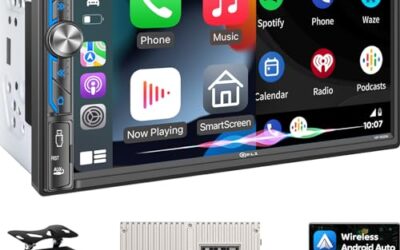
If you need help selecting a replacement stereo, see our guide to car stereo brands and dashboard fit. Replacing a factory stereo can involve vehicle-specific trim, wiring, and controls, so CarPlay support is only one part of the fit decision.
CarPlay does not connect: safe checks to try
Start with the simplest checks. A failed connection can come from the cable, the selected USB port, a disabled setting, an old pairing, or the vehicle system. One symptom alone does not identify the cause.
- The phone charges, but CarPlay does not open: Check whether the port supports data, then try another data-capable cable. Select CarPlay on the vehicle display if it does not launch automatically.
- The car does not appear during wireless pairing: Confirm that the vehicle supports wireless CarPlay and that its pairing mode is active. Check Bluetooth and Wi-Fi on the iPhone, then follow the vehicle’s pairing instructions.
- CarPlay worked before but stopped: Restart the iPhone and, when safe and permitted by the manual, restart the infotainment system. Check the iPhone’s CarPlay settings and the vehicle’s saved-device list.
- The connection drops: For wired use, check that the cable and connectors are seated and undamaged. For wireless use, remove the phone from places that may block its connection and check whether other saved phones are taking priority.
- Only some apps appear: CarPlay displays supported apps, not every iPhone app. Check the CarPlay settings on the phone and the app’s own availability.
If basic checks do not help, remove the old pairing from both the iPhone and vehicle, then pair again using the car’s instructions. This can erase saved connection details, so do it while parked and be ready to set up other phone connections again. Avoid resetting all vehicle settings unless the manual or a qualified technician recommends it.
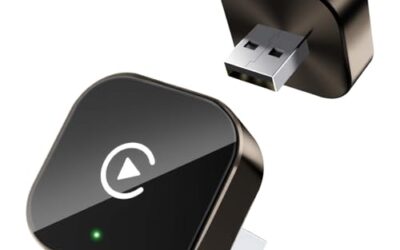
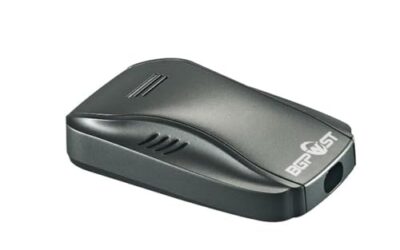
For a wireless adapter question, remember that an adapter does not add CarPlay to every car. Many adapters are intended to convert an existing wired CarPlay connection to wireless use, and their compatibility depends on the car, stereo, and adapter. Our article on wireless CarPlay adapters for iPhone drivers explains that distinction.
Common mistakes when setting up CarPlay
- Using a charging-only port or cable. Charging does not prove that the USB connection can transfer data.
- Assuming every USB port works the same way. Some ports serve only charging or media playback, while another handles phone projection.
- Expecting wireless CarPlay in a wired-only car. A wireless adapter may suit some systems, but it cannot make an incompatible stereo support CarPlay by itself.
- Pairing only through Bluetooth. Bluetooth audio pairing is not always the same as setting up CarPlay. Complete the vehicle’s CarPlay prompts.
- Expecting every app to appear. CarPlay shows supported apps and features, not the full iPhone screen.
- Trying to troubleshoot while moving. Pairing menus and phone settings should be handled while parked.
When to get professional help
Contact the vehicle dealer, stereo installer, or a qualified automotive electronics technician if the manual says CarPlay should work but the system repeatedly fails with a suitable cable and correctly paired phone. Seek help if the vehicle has an aftermarket stereo with unclear wiring, damaged USB ports, repeated infotainment restarts, or other electrical faults. Do not remove dash panels or disturb wiring unless you have the right vehicle-specific instructions and skills.
If CarPlay stopped after a stereo installation or vehicle repair, tell the installer what changed and describe the symptom. That can help separate a phone setting issue from a port, wiring, software, or stereo configuration problem. For stereo removal information, see our step-by-step guide to removing a car stereo safely, and follow the vehicle and stereo manuals.
Frequently asked questions
Can I use CarPlay without a USB cable?
Yes, if the vehicle and iPhone support wireless CarPlay. Some systems pair wirelessly from the start. Others may guide you through an initial wired setup, so check the vehicle instructions.
Can I add CarPlay to a car that does not have it?
Possibly, by installing a compatible aftermarket stereo. Fit depends on the vehicle, stereo, wiring, and retained factory features. A wireless adapter usually needs an existing compatible CarPlay system and does not replace a CarPlay-capable stereo.
Why does my iPhone charge but CarPlay will not start?
The USB port or cable may carry power but not data, or CarPlay may need to be selected on the vehicle display. Try the designated phone-integration port and a data-capable cable.
Does CarPlay work with Android phones?
No. CarPlay is for compatible iPhones. Android phones use Android Auto when supported by the vehicle; setup steps and compatibility differ.
Sources and further reading
- CarPlay Available Models (Apple): Check Apple’s list of vehicle models that support CarPlay.