
How to disable android auto depends on whether you want to stop one connection, prevent automatic startup, or remove Android Auto from your phone. For most drivers, changing Android Auto’s phone settings or deleting the phone from the vehicle solves unwanted launches without changing vehicle software.
- Disconnecting stops current use but does not prevent the next connection.
- Disabling wireless startup needs different steps from removing a wired USB connection.
- Vehicle menus vary by model-year, head unit firmware, region, and factory or aftermarket equipment.
- Removing Android Auto from a phone may not remove the phone from the vehicle’s Bluetooth or Wi-Fi records.
Choose the level of shutdown first
Pick the smallest change that matches your goal. This avoids deleting pairing data when you only need to stop one drive session.
| Goal | Best first action | What changes |
|---|---|---|
| Stop Android Auto now | Unplug USB or disconnect the wireless session | Current session ends, but future connections remain possible |
| Stop automatic launches | Change Android Auto phone settings or vehicle connection settings | Phone stays paired, but startup behavior changes |
| Remove one vehicle | Delete the car from Android Auto settings and vehicle memory | Saved connection data is removed |
| Remove Android Auto from phone | Disable or uninstall available Android Auto components | Phone may lose Android Auto access until restored |
How to disable Android Auto for one trip
Use this method when another passenger needs the USB port, when you want the vehicle’s normal screen, or when Android Auto started by mistake.
- Wired connection: Unplug the USB cable from the phone or vehicle port. Android Auto normally ends when its data connection ends.
- Wireless connection: Open the phone’s Wi-Fi or Bluetooth controls and disconnect from the vehicle. Some vehicles show a separate disconnect option on the infotainment screen.
- Vehicle screen: Select the native audio, radio, phone, or home-screen option. The exact label differs by head unit.
- Phone projection menu: If the vehicle offers Android Auto as a source, choose another source instead of phone projection.
Do not assume Bluetooth disconnection alone ends every wireless Android Auto session. Supported systems can use Bluetooth for setup and Wi-Fi for the active projection link. Use the vehicle’s projection or phone-connection menu when Android Auto remains active.
How to stop Android Auto from starting automatically
Android Auto can launch when a known phone connects by USB, Bluetooth, or a vehicle-specific wireless pairing process. Settings names vary across Android OS versions and phone brands.
- Open Settings on your Android phone.
- Use Settings search and enter Android Auto.
- Open the Android Auto settings page.
- Look for connection, startup, or previously connected car settings.
- Change the option that allows Android Auto to start automatically. Available choices can include starting on the last connection, starting when used during driving, or asking before launch.
- Save the setting, then disconnect and reconnect the phone to check the result.
Some Android versions place these controls under Connected devices, Connection preferences, or a separate Android Auto app page. A phone maker can also change menu names. Search remains faster than following one fixed menu path.
Stop automatic startup in the vehicle
Many factory head units include a phone projection, smartphone connection, or device-priority menu. Look for settings such as Android Auto, phone projection, USB mode, or wireless device connections.
- Park the vehicle before changing infotainment settings.
- Open the vehicle’s settings or device menu.
- Select the connected Android phone.
- Turn off automatic Android Auto startup if the menu offers that control.
- Choose native audio or phone mode as the default source when available.
Some vehicles do not offer a separate startup switch. In that case, remove the phone from the vehicle’s saved device list, or disable Android Auto on the phone. The owner’s manual gives the correct menu path for that head unit.
How to remove a car from Android Auto
Remove a saved car when Android Auto keeps reconnecting, the vehicle changed owners, or the phone remembers an old head unit.
- Open Android Auto settings on the phone.
- Find Previously connected cars, saved cars, or a similar list.
- Choose the vehicle you want to remove.
- Select the option to forget, remove, or delete that car.
- On the vehicle screen, open the phone or Bluetooth device list.
- Delete the phone from the vehicle’s saved devices.
- Restart the phone and infotainment system before pairing again.
Deleting only one side can leave stale pairing data. The phone may still appear in the vehicle, or the vehicle may still appear in Android Auto. Remove both records when your goal is a clean break.
How to disable Android Auto on an Android phone
Some phones treat Android Auto as a built-in system component. Others expose it as an app that can be disabled, updated, or removed. The available controls depend on Android OS version, phone brand, carrier software, and regional software.
- Open Settings.
- Select Apps, Apps & notifications, or the phone’s equivalent.
- Search for Android Auto.
- Open its app information page.
- Choose Disable if the phone offers that option.
- If Disable is unavailable, use Android Auto settings to remove saved cars and change startup behavior.
Do not use random package-removal commands or developer tools to delete system software. A wrong package name can affect other phone functions, and system updates can restore or change the component. Standard phone settings are safer.
Disabling Android Auto can remove access to compatible navigation, media, and messaging controls on the vehicle display. It does not remove Google Maps, Bluetooth calling, or ordinary USB charging by itself.
Wired and wireless Android Auto need different checks
Wired Android Auto
Wired Android Auto uses a USB data connection. Unplugging the cable normally ends projection, but a damaged or charge-only cable can cause repeated connection attempts rather than a stable session.
To stop wired launches, remove the phone from the vehicle’s device list, change the phone’s Android Auto startup setting, or use a USB port meant only for charging if the vehicle has one. USB port behavior differs by vehicle. A port that looks identical may carry data, power, or both.
Wireless Android Auto
Wireless Android Auto relies on vehicle support, compatible phone software, Bluetooth pairing, and a Wi-Fi connection between phone and head unit. Turning off one radio can affect other vehicle functions, including hands-free calling or wireless audio.
Use the vehicle’s Android Auto or phone projection menu first. If no disconnect control appears, remove the saved vehicle from Android Auto and delete the phone from the vehicle’s Bluetooth and wireless device lists.
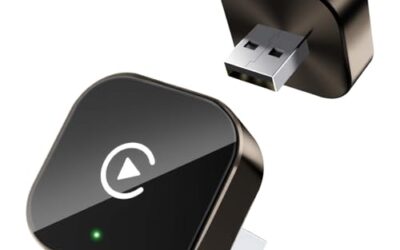
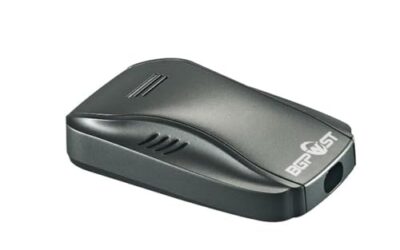
Third-party wireless adapters add another connection layer. The adapter may create its own Bluetooth and Wi-Fi records, so deleting only the vehicle entry may not stop automatic startup. Remove the adapter from the phone’s saved devices or unplug it from the vehicle’s USB data port.
Compatibility limits that change the steps
Android Auto behavior can differ with vehicle model-year, factory head unit, aftermarket receiver, Android OS version, USB connector type, and firmware. A USB-C phone connected to a USB-A vehicle port needs a data-capable cable and a suitable connector. Charging alone does not prove Android Auto compatibility.
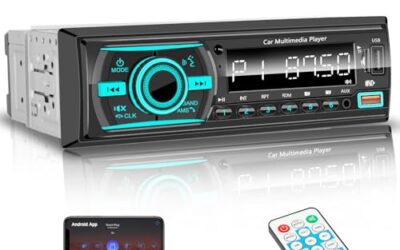
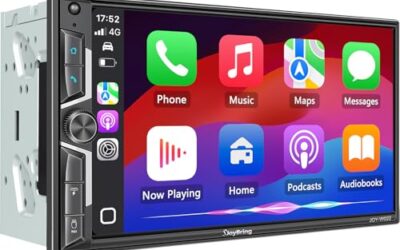
Aftermarket head units can use different labels, launchers, and connection managers. Some require a companion app. Others treat Android Auto as part of a broader smartphone-link feature. Follow the head unit manual instead of forcing a factory menu path onto aftermarket equipment.
Vehicle firmware updates can change pairing behavior. Phone updates can also move Android Auto settings or change whether the service appears as a separate app. Regional software can show different choices. These differences explain why one phone may offer a Disable button while another offers only connection controls.
Google’s Android Auto setup guidance covers supported connection methods and setup conditions. It does not replace instructions for a vehicle-specific head unit.
Common mistakes
- Turning off Bluetooth only: Wireless Android Auto may still use a separate Wi-Fi link or reconnect through the vehicle.
- Deleting the phone app first: Android Auto may be a system component, and app removal may not be available.
- Using a charge-only cable: The phone can charge without carrying Android Auto data.
- Deleting only one pairing record: The phone and vehicle can retain separate saved profiles.
- Resetting the whole head unit: A factory reset also removes radio presets, user profiles, and other saved devices. Use it only when the manual supports that step and smaller fixes fail.
- Changing settings while driving: Park before operating phone or infotainment menus.
- Confusing Android Auto with Bluetooth: Android Auto projection and Bluetooth calling are related but separate functions.
When to get professional help
Stop troubleshooting and seek qualified help when the head unit reboots, loses power, becomes hot, shows smoke, or has damaged wiring. Do not pull trim panels or probe vehicle wiring without the correct service information.
Ask an installer or dealer for help when a factory system remains stuck after removing both pairing records, when firmware updates fail, or when an aftermarket receiver shows wiring or CAN-bus errors. A connection problem can come from the vehicle USB module, head unit, phone software, cable, or adapter. Disabling Android Auto does not repair those faults.
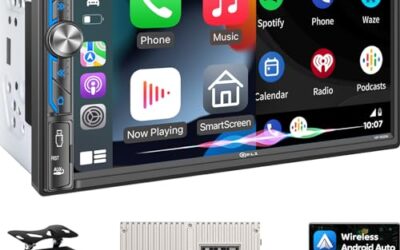
For a replacement head unit, check vehicle fit, steering-wheel controls, backup-camera behavior, USB wiring, and factory amplifier support. The guide to Android audio head units with two cameras covers fit questions that matter before changing factory equipment.
For a closer look at a related choice, see How to Connect Android Auto and How To Remove An Old Car From Android Auto.
FAQ
Can I disable Android Auto without disabling Bluetooth?
Usually, yes. Remove Android Auto startup permission or delete the saved vehicle from Android Auto while leaving Bluetooth paired for calls. Wireless systems vary, so the vehicle may still use Bluetooth and Wi-Fi for separate functions.
Will deleting Android Auto delete Google Maps?
No. Google Maps is a separate app. Disabling Android Auto removes or blocks its vehicle-display connection, not ordinary phone navigation.
Why does Android Auto return after I disable it?
A vehicle, phone update, or third-party adapter may restore connection settings. Delete the phone from the vehicle, remove the vehicle from Android Auto, and check adapter pairing records.
Can I use USB charging after disabling Android Auto?
Often, yes. Charging and data projection are separate functions. Some vehicle USB ports carry both, while others support charging only. The port label and vehicle manual control the result.
Does a factory reset stop Android Auto permanently?
No. A factory reset removes current settings, but reconnecting a compatible phone can restore Android Auto. It also erases other vehicle preferences, so use smaller changes first.
Sources and further reading
- Set up Android Auto (Google): Connection and setup guidance for supported Android Auto systems.