To switch between phones on wireless CarPlay, disconnect the iPhone that is connected, then select the other paired iPhone from your vehicle’s CarPlay or phone menu. Both phones must support CarPlay, and your vehicle or stereo must support wireless CarPlay with multiple paired devices; menu names and connection rules vary by system.
- Park before changing settings or handling a phone.
- Disconnect the active iPhone before asking the car to connect to another one.
- If the second phone does not appear, check that it is paired and that Bluetooth and Wi-Fi are on.
- Some vehicles choose a preferred phone automatically. Their settings may let you change that order.
- Use your owner’s manual for vehicle-specific menu steps and pairing limits.
Most systems let you switch from the vehicle’s screen, not from a universal iPhone control. The exact labels differ. Look for a menu such as Phone, Connections, Devices, Apple CarPlay, or Smartphone Projection. Some systems let you select a second phone directly; others require you to disconnect the current phone first.
- Park the vehicle. Keep your attention on the road when driving. Do not work through pairing menus while moving.
- Open the connection menu. On the center display, find the page that lists paired phones or CarPlay devices.
- Disconnect the active iPhone. Choose a control such as Disconnect, End connection, or Disable CarPlay. The wording depends on the vehicle.
- Select the other iPhone. Choose its name from the device list, then accept any pairing or CarPlay prompt that appears on the phone or display.
- Wait for CarPlay to load. The car may need a short time to establish its wireless connection. Keep the second phone unlocked during setup if a prompt asks you to confirm access.
If the menu offers no disconnect control, turn off CarPlay for the active phone from its iPhone settings or temporarily switch off that phone’s Bluetooth and Wi-Fi. Then select the other phone in the vehicle menu. Turning off wireless features affects other connections too, so restore them afterward if needed.
What you need before switching
Wireless CarPlay needs support from both the iPhone and the vehicle or stereo. A car with wired CarPlay does not become wireless just because an iPhone supports wireless connections. A separate wireless adapter has its own compatibility requirements and may behave differently from a factory system.
Apple’s CarPlay available models page can help identify vehicles with CarPlay support. Check your owner’s manual or stereo instructions to find out whether your specific trim, model year, and head unit support wireless operation and multiple paired phones. CarPlay features can vary across model years and regional versions.
For wireless CarPlay, Bluetooth and Wi-Fi generally need to be available on the iPhone. The vehicle uses wireless connections to establish and run CarPlay. Do not assume every system uses the same pairing sequence: supported cars can pair wirelessly without an initial USB connection, while another vehicle or adapter may require a different setup.
Both drivers should pair their phones with the car before relying on quick switching. If the second iPhone has never been paired, follow the vehicle’s first-time setup prompts while parked. The car may ask for permission to use CarPlay, contacts, or other phone features.
Why does the car reconnect to the wrong phone?
A vehicle may reconnect to the phone it considers preferred, last connected, or currently available. The rule depends on the vehicle’s software. If two paired iPhones are inside the car, both can be available at startup, so the system may not choose the phone you expected.
Look for a preferred-device, priority, or automatic-connection setting in the vehicle’s paired-device list. If there is no such option, disconnect the unwanted phone before starting CarPlay on the other one. Some systems may also let you disable CarPlay for one phone without removing its hands-free calling connection.
Bluetooth calling and wireless CarPlay are related but separate functions. A phone might remain connected for calls while CarPlay is disconnected, or the car might switch audio sources without changing the active CarPlay phone. Check the screen’s active device name rather than relying only on which phone plays audio.
Switching phones by connection type
| Setup | What to do | What can vary |
|---|---|---|
| Factory wireless CarPlay | Disconnect the current iPhone, then choose the other paired phone in the vehicle menu. | Menu labels, connection priority, and number of paired devices depend on the vehicle. |
| Aftermarket stereo | Use the stereo’s device or projection menu to change active phones. | Wireless support and pairing behavior depend on the exact stereo and firmware. |
| Wireless adapter on a wired CarPlay system | Follow the adapter’s instructions to change its connected phone. | Adapter behavior and supported vehicle or stereo combinations differ from native wireless CarPlay. |
| Wired CarPlay | Disconnect the current phone and connect the other phone using the vehicle’s supported USB connection. | USB port, cable, stereo, and phone compatibility can affect operation. |
A USB cable is not a universal fix for wireless pairing. Some vehicles support wired and wireless CarPlay, some support only one mode, and adapters may require a specific wired CarPlay connection in the vehicle. If you are comparing replacement stereos, our car stereo guide covering CarPlay and fitment explains why vehicle fit and feature support matter.
If the second iPhone will not connect
- The phone is absent from the device list: Pair it in the vehicle’s settings first. Check that Bluetooth and Wi-Fi are enabled on the iPhone.
- The phone appears but CarPlay does not start: Check the iPhone’s CarPlay settings and accept any on-screen permission prompt. Also check whether CarPlay is enabled for that phone in the vehicle.
- The first phone keeps taking over: Disconnect it, remove it from the car temporarily, or change the preferred-device setting if the vehicle has one.
- CarPlay connects, then drops: Restart the iPhone and vehicle infotainment system when safely parked. Check for available iOS, stereo, or vehicle software updates using the applicable instructions.
- Only one phone works reliably: Test each phone separately. That can help distinguish a vehicle pairing issue from a setting or software issue on one iPhone.
Start with reversible checks. Avoid deleting every paired device as a first step; removal can also erase saved Bluetooth and hands-free connections. If you do remove a phone, be prepared to pair it again using the vehicle’s setup process.
Common mistakes
- Expecting the phone to switch just because it enters the car. The vehicle may favor another paired iPhone or the last connected phone.
- Confusing Bluetooth audio with CarPlay. A phone can play audio over Bluetooth without running CarPlay.
- Assuming USB pairing is required everywhere. Native wireless systems can pair without an initial cable, but some vehicles and adapters use different setup steps.
- Removing a phone before trying disconnect. Disconnecting usually preserves pairing, so it is a less disruptive first step.
- Following instructions for a different model year. Screens, settings, and software can differ even within one vehicle model line.
When to get professional help
Contact the vehicle dealer, stereo installer, or adapter maker if the system repeatedly fails to pair after you follow the correct instructions, if menus are missing compared with the manual, or if the display reports a system fault. Give them the vehicle year, make, model, trim, stereo or adapter model, iPhone model, and iOS version. Those details help identify compatibility limits without guessing.
For an aftermarket stereo, an installer can check whether the unit supports wireless CarPlay in your vehicle and whether its firmware is current. For a factory system, the dealer can check for vehicle-specific software updates or faults. Avoid resetting vehicle settings or disconnecting vehicle wiring unless the applicable service instructions call for it.
Gear that can help
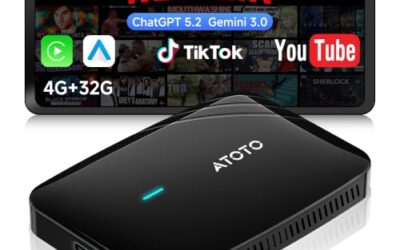
If you need wireless CarPlay adapters for this job, these picks already appear in our wireless CarPlay adapters guides. Check the full guide for fit and who should skip each one.

Pros
- Wireless CarPlay compatibility can reduce the need to connect an iPhone by cable
- USB-C connection and compact mini form factor
- Aluminum-alloy housing is described as supporting heat dissipation
- Supports navigation, music, Siri, phone calls, and messaging apps through CarPlay
Cons
- Compatible only with factory systems that already support wired Apple CarPlay
Specifications
| Color | GRAY |
|---|---|
| Size | MINI |
| Dimensions | 2.362204722 x 0.7480314953 x 0.2755905509 inches |
| Weight | 0.110231131 pounds |
| Product Group | Electronics |
| Binding | Electronics |
Best For / Avoid If
Best for buyers prioritizing
- Wireless CarPlay compatibility can reduce the need to connect an iPhone by cable
- USB-C connection and compact mini form factor
- Aluminum-alloy housing is described as supporting heat dissipation
Consider another option if
- Compatible only with factory systems that already support wired Apple CarPlay

Pros
- Supports factory-installed wired CarPlay vehicles
- Automatic reconnection reduces the need for repeated manual pairing
- Includes free lifetime firmware updates
- Compact construction uses a metal casing and acrylic glass surface
Cons
- Only compatible with vehicles that already have factory-installed wired CarPlay
- Requires Wi-Fi and Bluetooth to be enabled on the phone
Specifications
| Color | silver |
|---|---|
| Product Group | Wireless |
| Binding | Electronics |
Best For / Avoid If
Best for buyers prioritizing
- Supports factory-installed wired CarPlay vehicles
- Automatic reconnection reduces the need for repeated manual pairing
- Includes free lifetime firmware updates
Consider another option if
- Only compatible with vehicles that already have factory-installed wired CarPlay
- Requires Wi-Fi and Bluetooth to be enabled on the phone

Pros
- Combines CarPlay and Android Auto support in one adapter
- Lists compatibility with iPhone 6 and iOS 10 or later
- Three-step Bluetooth pairing and plug-and-play setup
- Compact form factor is designed to minimize obstruction near the USB port
Cons
- Requires a vehicle with factory wired CarPlay
- Android operating-system compatibility is listed as Android 11 or later
Specifications
| Product Group | Electronics |
|---|
Best For / Avoid If
Best for buyers prioritizing
- Combines CarPlay and Android Auto support in one adapter
- Lists compatibility with iPhone 6 and iOS 10 or later
- Three-step Bluetooth pairing and plug-and-play setup
Consider another option if
- Requires a vehicle with factory wired CarPlay
- Android operating-system compatibility is listed as Android 11 or later
Related reading: Wireless CarPlay Adapter Compatibility Explained and Wireless CarPlay Adapter Buying Guide.
FAQ
Can two iPhones connect to wireless CarPlay at the same time?
Many systems connect one iPhone for CarPlay at a time, even if they store several paired phones. Some vehicle functions may allow other phones to remain connected for calls or Bluetooth audio. Check the manual for your system’s limits.
Can I switch phones from the iPhone?
You can disconnect or adjust CarPlay access in iPhone settings, but the vehicle usually controls which phone becomes active. The available controls vary by vehicle and iOS version.
Do I need to forget the car on one iPhone?
Usually not. Try disconnecting the active phone first. Forgetting the vehicle removes its pairing from that iPhone and requires setup again.
Will an iPhone update change the switching steps?
An iOS update can change phone settings or prompts, while vehicle menus depend on its own software. If a step no longer matches the screen, consult the current iPhone and vehicle instructions.
Sources and further reading
- CarPlay Available Models (Apple): Check Apple’s list of vehicles that offer CarPlay.