
To disconnect Apple CarPlay, unplug your iPhone if it uses a cable, or switch the car’s phone or projection setting if CarPlay connects wirelessly. To stop future connections, remove the vehicle from CarPlay settings on your iPhone and, if needed, delete the phone from the car’s paired-device list.
- Unplugging a USB connection usually ends that wired session, but does not remove the pairing.
- Wireless CarPlay may reconnect automatically until you disable or forget the connection.
- Removing a car from iPhone settings and deleting a phone from vehicle settings are separate actions.
- Menu names and available controls differ by vehicle model year, infotainment system, and iOS version.
Use the option that matches your connection. Make changes while parked. Do not handle the phone or search infotainment menus while driving.
Wired CarPlay
- Park safely and place the vehicle in Park, where applicable.
- Disconnect the iPhone’s USB cable from the phone or vehicle port.
- If CarPlay remains on screen, use the vehicle’s Home, Audio, or phone-projection control to return to the normal infotainment screen.
Unplugging ends the wired link, but usually leaves the phone and vehicle paired for later use. Some vehicles have more than one USB port, and only certain ports support data or CarPlay. If the phone keeps connecting, check whether another cable or a wireless connection is active.
Wireless CarPlay
Wireless controls differ across vehicles. While parked, open the vehicle’s phone, Bluetooth, connectivity, or smartphone-projection menu. Select the connected iPhone and choose an option such as Disconnect, Stop, or Disable CarPlay, if available. The exact wording depends on the infotainment system.
If the vehicle has no separate disconnect control, turn off Bluetooth or Wi-Fi on the iPhone for the current session. This can affect other connections, such as calls, audio, or Wi-Fi, and may not prevent the car from reconnecting later. Re-enable those settings when needed.
How to stop CarPlay from connecting automatically
For a lasting change, remove the car from the iPhone’s CarPlay list. This stops that iPhone from treating the vehicle as a saved CarPlay connection. The phone may still appear in the vehicle’s Bluetooth device list, so remove it there too if you want to erase the pairing from both sides.
- On iPhone, open Settings.
- Tap General, then CarPlay.
- Choose your vehicle from the list.
- Tap Forget This Car and confirm.
- In the vehicle’s settings, open its paired-phone or Bluetooth device list.
- Select the iPhone and choose the vehicle’s remove, delete, or unpair command.
iOS menu wording can vary by version. If the car does not appear under CarPlay, check the vehicle’s Bluetooth list and the iPhone’s Bluetooth settings. A phone that has never completed CarPlay setup may not appear in the saved-car list.
Disconnect, forget, or disable: which should you choose?
| Goal | Action | What changes |
|---|---|---|
| End today’s wired session | Unplug the USB cable | CarPlay stops using that cable connection. Saved pairing generally remains. |
| End a wireless session | Use the vehicle’s disconnect control, if available | Current connection ends. The saved pairing may remain. |
| Prevent this iPhone from using CarPlay in this car | Forget the car in iPhone CarPlay settings | The saved CarPlay relationship is removed from the phone. |
| Remove the phone from the vehicle | Delete it from the vehicle’s paired-device list | The car no longer keeps that phone as a saved device, subject to the vehicle’s menu behavior. |
| Stop CarPlay but keep other phone functions | Use a vehicle-specific CarPlay setting, if offered | Bluetooth calls or audio may remain available, depending on the car. |
Can you turn off CarPlay but keep Bluetooth calls?
Often, but not in every vehicle. Some infotainment systems let drivers disable CarPlay while retaining Bluetooth calling or audio. Others combine phone projection and Bluetooth pairing in ways that make the controls less independent.
Try the vehicle’s smartphone-projection settings before deleting the phone entirely. If you remove the iPhone from the car’s paired-device list, calls and Bluetooth audio may stop too. Consult the owner’s manual for the menu and behavior specific to your model year.
What changes with vehicle, phone, or adapter compatibility?
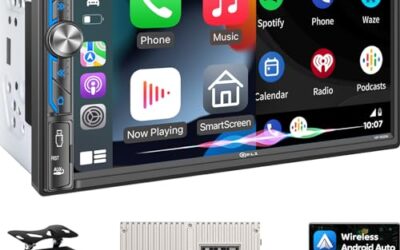
CarPlay behavior depends on the vehicle’s infotainment system, its model year, and whether it supports wired CarPlay, wireless CarPlay, or both. Apple’s list of CarPlay-compatible vehicle models can help identify supported vehicles, but equipment and regional variations may affect a particular car.
iPhone settings can move or change with iOS updates. Follow the menu labels currently shown on your phone rather than assuming every version uses identical wording. An aftermarket stereo may also use different menus from the vehicle’s original system.
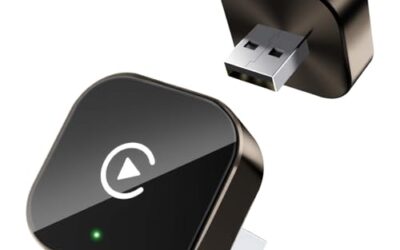
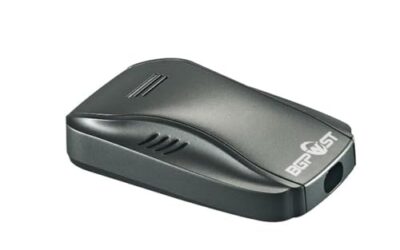
A wireless CarPlay adapter adds another connection point. Removing the phone-to-car pairing may not clear the adapter’s own saved connection. Follow the adapter and stereo instructions if the phone reconnects after you have forgotten the vehicle. For background on adapter fit, see our guides to wireless CarPlay adapters and wireless adapter compatibility.
Common mistakes
- Unplugging the cable and expecting pairing to disappear. Unplugging ends a wired session, but usually does not erase saved settings.
- Forgetting the phone in only one place. iPhone CarPlay settings and the vehicle’s paired-device list are separate.
- Turning off Bluetooth as a permanent fix. That may interrupt calls or audio, and it may not remove the saved CarPlay setup.
- Assuming every USB port supports CarPlay. Some ports provide charging only. Use the port identified by the vehicle manual.
- Resetting all infotainment settings too soon. A full reset can erase other preferences and paired devices. Try the targeted CarPlay and phone-removal controls first.
When to get professional help
Contact the vehicle maker, stereo installer, or a qualified service shop if CarPlay reconnects after you remove the phone from both device lists, or if the infotainment system freezes or loses other functions. A fault may involve vehicle software, an aftermarket installation, or phone compatibility. Avoid disconnecting vehicle wiring or pulling fuses without model-specific instructions.
If the problem began after a software update or stereo change, note the vehicle year, infotainment system, iPhone model, iOS version, and whether the connection is wired or wireless. Those details help support staff narrow down the cause without guessing.
Readers weighing these picks also look at How to Connect Apple CarPlay.
FAQ
Does unplugging my iPhone disconnect CarPlay?
Yes, for a wired session. It usually does not remove the saved pairing, so the car can connect again later.
How do I disconnect wireless CarPlay without forgetting the car?
Use the vehicle’s disconnect or stop-projection control, if available. Menu options vary. Turning off Bluetooth or Wi-Fi may interrupt other phone functions and is not a lasting unpairing step.
Will forgetting a car delete it from my iPhone’s Bluetooth list?
Not necessarily. CarPlay and Bluetooth device records can be managed separately. Check both the iPhone and vehicle menus if you want to remove the connection from each.
Can I disable CarPlay for one driver but keep it for another?
Often, if the vehicle supports separate driver profiles or phone pairings. Set up each driver according to the vehicle manual. A system that stores one shared phone profile may not offer that separation.
Sources and further reading
- CarPlay Available Models (Apple): Check which vehicle models Apple identifies as supporting CarPlay.