
How to activate carplay depends on your vehicle, iPhone, connection type, and head-unit software. First confirm that your car supports Apple CarPlay, then connect your iPhone by USB or pair it wirelessly if your vehicle supports wireless CarPlay.
Keep the vehicle parked during setup. CarPlay controls selected iPhone functions through the vehicle display, but it does not add CarPlay to every factory radio.
Key takeaways
- Check vehicle support by model year and trim before changing settings.
- Use a direct USB data connection for wired CarPlay. A charge-only cable cannot carry CarPlay data.
- Wireless CarPlay needs compatible vehicle hardware, Bluetooth, Wi-Fi, and Siri settings.
- CarPlay uses supported iPhone apps and vehicle controls. It does not mirror every phone app.
- Update iPhone software and vehicle firmware when connection problems continue.
- Do not use the phone while driving. Set destinations and playlists before moving.
Check compatibility before setup
CarPlay support comes from the vehicle radio or an aftermarket head unit. A USB port alone does not prove CarPlay support. Some ports provide charging only, while others carry data and support phone integration.
Vehicle model year, trim, region, and factory radio can change compatibility. One trim may support CarPlay while another trim from the same model year may not. Factory replacement radios can also change the connection method.
Apple maintains a list of CarPlay available models. Use it as a starting point, then check your vehicle manual or radio menu. The vehicle manual has the final word on USB ports, pairing screens, and supported controls.
Your iPhone also needs compatible software and working Siri. Exact software requirements can change, so check current Apple guidance rather than relying on an old phone or vehicle forum post.
Wired and wireless CarPlay use different requirements
| Connection | What you need | Common limit |
|---|---|---|
| Wired CarPlay | Supported radio, compatible iPhone, and USB data cable | Phone stays connected by cable while CarPlay runs |
| Wireless CarPlay | Supported radio, compatible iPhone, Bluetooth, Wi-Fi, and Siri | Some vehicles support wireless pairing only through a specific menu |
| Third-party wireless adapter | Supported wired-CarPlay radio, compatible adapter, and phone connection | It normally cannot add CarPlay to a radio that lacks wired CarPlay |
Native wireless CarPlay can pair without an initial USB connection on supported systems. Other vehicles use USB for first setup or provide a separate wireless pairing process. Follow your vehicle screen and manual instead of applying one method to every car.
How to activate CarPlay with a USB cable
- Park the vehicle. Turn on the ignition or start the vehicle according to its manual. Keep the vehicle stationary during setup.
- Turn on Siri. On the iPhone, open Settings, choose Siri or Apple Intelligence & Siri, and turn on the Siri option shown on your phone. Menu names can vary by iOS version.
- Unlock the iPhone. Use the phone passcode if requested. CarPlay may not begin until the phone accepts a permission prompt.
- Connect to the correct USB port. Use the port marked for smartphone integration or CarPlay when the vehicle labels one. Connect directly to the radio, not through a hub or questionable splitter.
- Accept prompts. Approve CarPlay on the iPhone and vehicle display. Read prompts before allowing contacts, messages, or other functions.
- Open CarPlay from the vehicle menu. Some radios launch it automatically. Others require a CarPlay, smartphone, projection, or source button.
- Set preferences while parked. Arrange CarPlay apps on the iPhone under Settings, General, CarPlay, then select your vehicle. Vehicle controls may limit some choices.
Use a cable that supports data for your iPhone connector. A damaged cable can charge the phone while failing CarPlay. If the iPhone repeatedly connects and disconnects, try a known-good data cable and inspect the connector for dirt or damage. Do not force debris deeper into the port.
How to activate wireless CarPlay
- Park and start the pairing process. Open the vehicle radio’s phone, Bluetooth, wireless projection, or CarPlay menu.
- Turn on Siri and Bluetooth. On the iPhone, open Settings and check Siri settings and Bluetooth. Keep Wi-Fi available because wireless CarPlay uses a wireless connection between phone and vehicle.
- Select the vehicle on the iPhone. Follow the pairing prompt shown by the vehicle. The vehicle may appear under Settings, General, CarPlay after the radio starts pairing.
- Accept matching codes and permissions. Confirm the code shown on both screens. Approve CarPlay access only after checking that the vehicle name matches.
- Choose automatic connection if offered. This lets the phone reconnect when the vehicle starts. Other phones paired to the radio may affect which device connects first.
- Launch CarPlay. Select the CarPlay icon on the vehicle screen if it does not open automatically.
Wireless CarPlay can fail when Bluetooth pairing succeeds but the vehicle does not establish its Wi-Fi link. Remove the vehicle from the iPhone’s CarPlay list and remove the phone from the vehicle’s paired-device list, then pair again. This step deletes the old pairing, so save any settings you need first.
What to do when CarPlay does not appear
Start with safe, reversible checks. Do not replace a radio or reset the phone before checking the cable, source selection, and permissions.
- No CarPlay icon: The radio may be on the wrong source, or the vehicle may not support CarPlay. Open the source or smartphone menu.
- Phone charges but CarPlay does not start: The USB port or cable may carry power without carrying data. Try the vehicle’s labeled data port and a compatible data cable.
- Wireless pairing fails: Check Siri, Bluetooth, Wi-Fi, and the vehicle’s wireless CarPlay mode. A normal Bluetooth call connection is not the same as CarPlay.
- CarPlay worked before: Restart the iPhone and vehicle radio according to their instructions. Check for iOS and head-unit firmware updates.
- CarPlay keeps disconnecting: Inspect cable fit, connector condition, phone heat, and USB port movement. A loose port or damaged cable needs repair or replacement.
- Only some apps appear: CarPlay limits app types and may hide apps that lack CarPlay support. Check Settings, General, CarPlay, and the vehicle entry.
- Another phone connects: Review the vehicle’s paired-device priority. Remove old devices only if you have permission and know the pairing information needed later.
Reset the connection without erasing the iPhone
- Park the vehicle and disconnect the cable.
- On the iPhone, open Settings, General, CarPlay, and select the vehicle.
- Choose Forget This Car when available.
- Remove the iPhone from the vehicle’s Bluetooth or phone list.
- Restart the iPhone and vehicle system according to their instructions.
- Pair again using the wired or wireless method supported by the vehicle.
Do not perform a full iPhone erase or factory radio reset as a first step. Those actions can remove personal settings and paired devices without fixing a bad cable, damaged port, unsupported trim, or radio fault.
CarPlay limits and compatibility boundaries
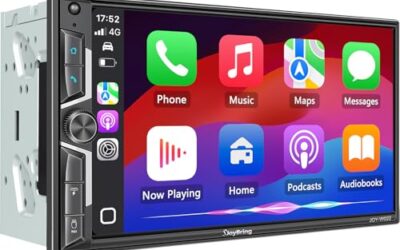
CarPlay is not full screen mirroring. It presents supported apps through a vehicle-friendly interface. Phone calls, navigation, messages, audio, and selected third-party apps may appear, while many video and game apps do not.
CarPlay also depends on the vehicle display and controls. A factory screen may limit touch behavior, show fewer options, or require a steering-wheel button. Some cars disable certain functions while moving.
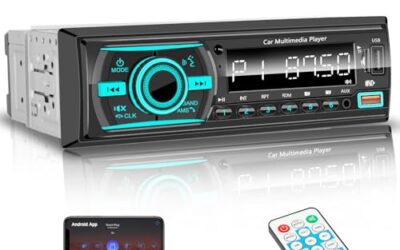
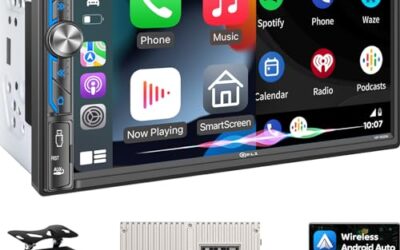
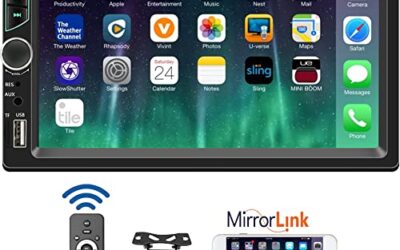
An aftermarket receiver can add CarPlay only when its installation fits the vehicle’s wiring, dash opening, steering-wheel controls, amplifier, backup camera, and other systems. Vehicle voltage and connector design matter during installation. A harness adapter may be required, and incorrect wiring can damage equipment or disable safety-related functions.
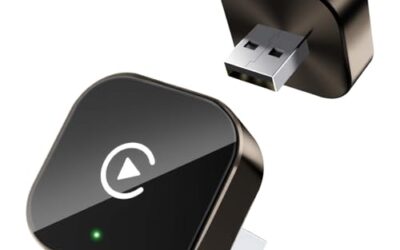
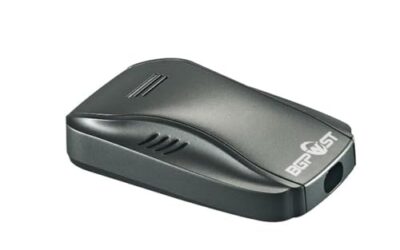
A wireless CarPlay adapter is a separate case. Most adapters expect a factory or aftermarket radio that already supports wired CarPlay. They generally cannot convert a basic USB charging port into CarPlay. Adapter firmware and vehicle compatibility can also affect startup and reconnection.
Common mistakes
- Using a charge-only cable and assuming charging proves data support.
- Connecting to a USB port that does not support smartphone integration.
- Pairing ordinary Bluetooth and expecting the CarPlay interface to appear.
- Leaving Siri disabled while trying wireless setup.
- Assuming every trim, model year, or regional version has the same radio.
- Installing a wireless adapter on a vehicle that lacks wired CarPlay.
- Resetting the radio before checking source selection and cable condition.
- Trying to configure CarPlay while driving.
When to get professional help
Contact a qualified installer or vehicle service professional when the radio reboots, the USB port becomes hot, wiring appears damaged, or other vehicle functions stop working after an installation. Stop using a damaged cable or port if it shows heat, burning odor, exposed conductors, or physical looseness.
Professional diagnosis also makes sense when multiple compatible phones fail on a known-good data cable, the vehicle never shows a CarPlay option despite documented support, or a radio firmware update fails. The fault may involve the USB module, radio software, vehicle network, connector, or power supply.
Do not cut factory wiring or bypass vehicle safety systems to force CarPlay. Follow the radio and vehicle service instructions for your exact model and year.
Readers weighing these picks also look at Wireless CarPlay Adapter Compatibility Explained, Wireless CarPlay Adapter Buying Guide and How to Update a Wireless CarPlay Adapter.
FAQ
Can I activate CarPlay without a USB cable?
Yes, if the vehicle has native wireless CarPlay or a compatible wireless adapter. A vehicle with only wired CarPlay needs a cable unless a suitable adapter supports that exact system.
Why does my iPhone charge but CarPlay does not work?
Charging proves power, not data. Try the correct vehicle USB port, a compatible data cable, an unlocked iPhone, and the vehicle’s CarPlay source.
Does Bluetooth alone activate CarPlay?
No. Bluetooth may handle calls or pairing, while wireless CarPlay also uses the vehicle’s supported wireless connection. Wired CarPlay uses the USB data path.
Can an adapter add CarPlay to any car?
No. Most wireless adapters require a radio that already supports wired CarPlay. They do not normally add CarPlay to a charging-only USB port or unsupported factory radio.
Why does CarPlay show fewer apps than my iPhone?
CarPlay shows supported app types and applies driver-focused limits. Check the CarPlay app list in iPhone settings, but vehicle software can still limit available controls.
Sources and further reading
- CarPlay Available Models (Apple): Check vehicle models and manufacturer support for CarPlay availability.