

To change CarPlay app order, open Settings on your iPhone, select General, then CarPlay, choose your vehicle, and drag apps into place. Your iPhone must have CarPlay set up with that vehicle; menu labels and available apps can vary with iOS version, region, and vehicle system.
- Rearrange apps in iPhone settings, not on your car’s touchscreen.
- Changes apply to the selected vehicle and appear after CarPlay reconnects.
- Use the add and remove controls to manage supported apps, but some Apple apps cannot be removed.
- CarPlay screens differ by vehicle, display layout, and software version.
Apple puts CarPlay layout controls in the iPhone’s settings. Park before changing settings, and do not handle your phone while driving. You can set the order before connecting to the car.
- Open Settings on the iPhone used with CarPlay.
- Tap General, then CarPlay. This menu lists cars that have been paired with the phone.
- Select your vehicle. If the same iPhone connects to more than one car, choose the car whose layout you want to change.
- Tap Customize. You should see apps available for CarPlay and a list that controls their order.
- Drag the reorder handle beside an app to move it up or down. Apps nearer the top generally appear earlier in CarPlay’s app view.
- Connect to CarPlay again and check the display. With wireless CarPlay, reconnect wirelessly; with wired CarPlay, use the vehicle’s supported connection.
If the screen does not change right away, disconnect and reconnect the iPhone. Some vehicle systems may need a moment to refresh their display. Do not assume that moving an app to the top changes every CarPlay screen: the dashboard view, app launcher, and vehicle-specific menus can show information differently.
Where to find CarPlay app customization
The customization menu lives on the iPhone, not in a universal CarPlay setting on the dashboard. On current iOS versions, the usual path is Settings, General, CarPlay, select the vehicle, then Customize. Apple can change menu names or placement in later iOS releases, so a slightly different label does not necessarily mean CarPlay is unavailable.
If CarPlay has not been paired with the car, it may not appear in the vehicle list. Set up CarPlay using the procedure supported by your vehicle and iPhone. Some systems support wireless pairing without an initial USB connection; others use a cable or offer both options. The car’s model year and infotainment system determine which connection methods work. Apple’s CarPlay available models list can help check vehicle support.
For more context on CarPlay and other phone-to-car features, see CarTechTalk’s CarPlay and Android Auto category.
What the app order changes, and what it does not
Reordering changes the sequence of CarPlay app icons for the selected vehicle. It does not rearrange apps on the iPhone Home Screen, change the car’s radio presets, or necessarily alter widgets and dashboard tiles. Those features may follow separate controls or be set by the vehicle maker.
CarPlay can also show different screens depending on the vehicle. A car with a wide display or multiple screens may place apps and dashboard information differently from a car with one smaller display. The iPhone’s app order is a useful starting point, but it cannot override every vehicle-specific screen layout.
CarPlay only shows apps that support CarPlay and are available on the iPhone. App support can vary by app, iOS release, and region. Some apps also require setup or sign-in on the phone before they work in the car. A regular iPhone app will not appear in CarPlay just because it is installed.
How to add or remove apps from CarPlay
In the vehicle’s Customize screen, look for controls beside the app list. Tap the add control for a supported app that is available but not currently included. Tap the remove control for an app you want to take off the CarPlay list. The exact symbols and list placement can vary with iOS.
Removing an app from the CarPlay list does not uninstall it from the iPhone. It only changes whether that app appears in CarPlay for that vehicle. To restore it, return to Customize and add it again if it remains available.
Not every app can be removed. Some built-in Apple apps are required or handled differently from optional apps. An app may also be missing from the add list because it does not support CarPlay, is unavailable in your region, or needs an update. Deleting and reinstalling an app is not a reliable fix for lack of CarPlay support.
CarPlay app order troubleshooting
| Symptom | Likely explanation | Safe check |
|---|---|---|
| Your car does not appear in CarPlay settings | The iPhone may not be paired with that car, or CarPlay setup may have been removed. | Reconnect using the vehicle’s setup instructions, then reopen Settings. |
| An app is missing from Customize | The app may not support CarPlay, may need an update, or may not be available in your region. | Check the app’s iPhone listing and update it through the App Store if an update is available. |
| The order looks unchanged in the car | The phone may be connected to a different vehicle profile, or the screen may not have refreshed. | Check the selected car in Settings, then disconnect and reconnect. |
| An app appears on one screen but not another | The vehicle may use different layouts for its app launcher and dashboard. | Check the launcher and any vehicle display controls separately. |
| Changes do not seem to stay | The wrong car may have been selected, or the phone may be connecting to another device or profile. | Confirm the vehicle entry and test with the intended iPhone. |
Start with the selected vehicle and a fresh connection. If the car itself has stopped recognizing CarPlay, treat that as a connection problem rather than an app-order problem. Check the owner’s manual for the correct USB port, pairing method, and infotainment reset instructions. Do not reset vehicle settings unless you understand what else that reset will erase.
Common mistakes when rearranging CarPlay apps
- Changing the iPhone Home Screen. That layout does not set CarPlay’s app order.
- Customizing the wrong vehicle. Each paired vehicle has its own entry in the CarPlay settings menu.
- Expecting every app to appear. CarPlay only supports apps that meet its requirements and are available to the phone.
- Expecting an instant change on an active connection. Reconnect CarPlay if the car has not refreshed its app view.
- Assuming every vehicle uses the same display. Screen size, software, and vehicle controls can affect where icons appear.
- Making changes while driving. Set the layout while parked so you are not handling the phone on the road.
When to get professional help
App ordering normally needs no service appointment. Contact the vehicle dealer or a qualified installer if the car does not support CarPlay as expected, its infotainment system repeatedly loses the connection, or its screen controls differ from the owner’s manual. These issues can involve vehicle software, a damaged port, wiring, or a specific infotainment configuration rather than the iPhone’s app order.
Before a service visit, note the iPhone model, iOS version, vehicle model year, connection type, and what happens when you connect. Those details help separate an app-layout issue from a pairing or vehicle-system fault.
For a closer look at a related choice, see Wireless CarPlay Adapter Buying Guide, Best Car Stereo With CarPlay for Different Dash Layouts and Best Wireless CarPlay Adapter Under $50.
Gear that can help
If you need wireless CarPlay adapters for this job, these picks already appear in our wireless CarPlay adapters guides. Check the full guide for fit and who should skip each one.
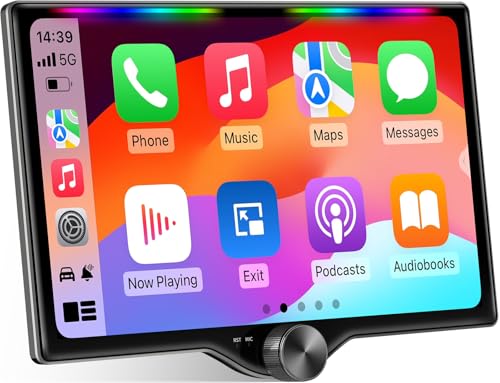
Pros
- Combines wireless and wired CarPlay and Android Auto support
- Offers audio customization through built-in DSP and a 10-band EQ
- Includes dual subwoofer output and a listed 4×60W peak-power specification
- Provides steering-wheel-control integration and Bluetooth hands-free functionality
Cons
- A dash kit, wiring harness adapter, or radio antenna adapter may be required and is not included
- Mirror Link and wired CarPlay or Android Auto connections require the rear USB1 port; the Type-C port supports fast charging only
- Vehicle fit, installation, and required steering-wheel-control interface must be confirmed before purchase
Specifications
| Product Group | Wireless |
|---|
Best For / Avoid If
Best for buyers prioritizing
- Combines wireless and wired CarPlay and Android Auto support
- Offers audio customization through built-in DSP and a 10-band EQ
- Includes dual subwoofer output and a listed 4×60W peak-power specification
Consider another option if
- A dash kit, wiring harness adapter, or radio antenna adapter may be required and is not included
- Mirror Link and wired CarPlay or Android Auto connections require the rear USB1 port; the Type-C port supports fast charging only
- Vehicle fit, installation, and required steering-wheel-control interface must be confirmed before purchase
Pros
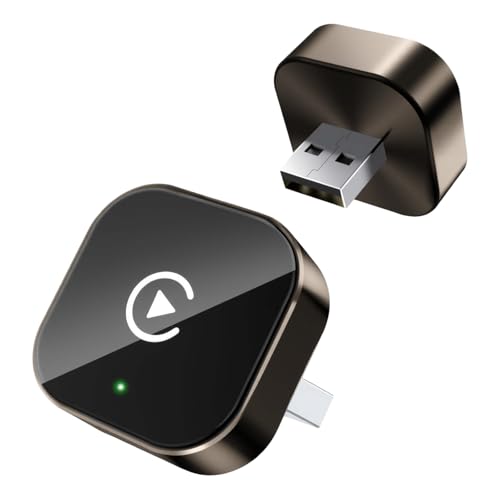
- Designed for compatible factory-installed wired CarPlay systems
- Supports automatic reconnection after initial pairing
- Compact construction is intended to save space in the car
Cons
- Only compatible with vehicles that have factory-wired CarPlay
Specifications
| Color | Brown |
|---|---|
| Size | Square |
| Dimensions | 1 x 0.4 x 1 inches |
| Product Group | Wireless |
| Binding | Electronics |
Best For / Avoid If
Best for buyers prioritizing
- Designed for compatible factory-installed wired CarPlay systems
- Supports automatic reconnection after initial pairing
- Compact construction is intended to save space in the car
Consider another option if
- Only compatible with vehicles that have factory-wired CarPlay

Pros
- Wireless CarPlay compatibility can reduce the need to connect an iPhone by cable
- USB-C connection and compact mini form factor
- Aluminum-alloy housing is described as supporting heat dissipation
- Supports navigation, music, Siri, phone calls, and messaging apps through CarPlay
Cons
- Compatible only with factory systems that already support wired Apple CarPlay
Specifications
| Color | GRAY |
|---|---|
| Size | MINI |
| Dimensions | 2.362204722 x 0.7480314953 x 0.2755905509 inches |
| Weight | 0.110231131 pounds |
| Product Group | Electronics |
| Binding | Electronics |
Best For / Avoid If
Best for buyers prioritizing
- Wireless CarPlay compatibility can reduce the need to connect an iPhone by cable
- USB-C connection and compact mini form factor
- Aluminum-alloy housing is described as supporting heat dissipation
Consider another option if
- Compatible only with factory systems that already support wired Apple CarPlay
FAQ
Can I change CarPlay app order from the car screen?
Usually, no. Apple’s app-order controls are in the iPhone’s Settings app under General and CarPlay. A vehicle may offer separate display or dashboard controls, but those do not replace the iPhone’s Customize list.
Does CarPlay app order sync across all my cars?
Do not assume one layout applies to every vehicle. Select the specific vehicle in the iPhone’s CarPlay settings and check its Customize list. If you use multiple cars, review each entry separately.
Why can’t I add an app to CarPlay?
The app may not support CarPlay, may not be available in your region, or may need an update. Only supported apps appear as options in CarPlay customization.
Can I remove Apple Maps or another built-in app?
Some built-in Apple apps cannot be removed from CarPlay, while other apps may have a remove control. The available controls in your vehicle’s Customize screen determine what you can change.
Sources and further reading
- CarPlay Available Models (Apple): Check whether a vehicle model supports CarPlay.









