Why wireless carplay drains iphone battery usually comes down to power use from wireless communication, navigation, audio, and the iPhone screen. CarPlay itself is not always the only cause: weak cellular coverage, background apps, heat, and a phone that is not charging can add to the drain.
- Wireless CarPlay uses Bluetooth and Wi-Fi connections, while navigation and streaming can keep other phone systems busy.
- Battery loss during a drive may be normal if the iPhone is not receiving enough power to offset its use.
- Compare battery use with CarPlay off, check the car’s charging port, and reduce avoidable phone activity before changing settings.
- Wireless CarPlay support and behavior vary by vehicle model year, head-unit software, iPhone model, and iOS version.
Why wireless CarPlay uses more battery
Wireless CarPlay lets a compatible iPhone connect to the car without a USB cable. The initial connection process varies by vehicle. Some systems can pair wirelessly without a first wired setup, while others use different instructions. Apple’s CarPlay available models page can help identify supported vehicles, but the vehicle manual is the better source for setup details and model-year limits.
After connection, the phone maintains a wireless link with the vehicle. Bluetooth and Wi-Fi have separate roles in wireless CarPlay, and keeping wireless radios active uses energy. Navigation, music, calls, and messaging can add work at the same time. Actual drain depends on the phone, signal conditions, apps, and vehicle system, so there is no single battery-loss rate that applies to every setup.
Navigation and mobile data add workload
Navigation apps may use location services and cellular data for traffic, map details, or other live information. Streaming audio also uses data unless content is stored on the phone. Poor cellular coverage can make the phone work harder to maintain or regain a connection. This can happen during a drive even when CarPlay connection itself seems stable.
Check whether drain is worse in areas with weak service or during long navigation trips. If battery use drops on a familiar route with downloaded maps and audio, cellular activity may be part of the difference. This comparison is a clue, not proof of a fault.
Heat can affect battery behavior
Phones generate heat during demanding tasks. A phone left in direct sun, on a warm dashboard, or inside a poorly ventilated mount can become hotter while navigation and wireless connections run. Temperature can affect charging and battery performance. Move the phone out of direct sun and follow Apple’s guidance for operating temperature if it becomes unusually hot or shows a temperature warning.
Quick symptom-to-cause checklist
| What you notice | Possible cause | First check |
|---|---|---|
| Battery falls slowly during a long trip | Wireless connection, navigation, audio, and screen use together | Compare with a shorter drive or a wired CarPlay connection, if supported |
| Battery falls quickly in one area | Weak cellular coverage or repeated connection changes | Compare with a route that has stronger service |
| Phone stays at the same charge or loses charge while plugged in | Low-power USB port, cable issue, heat, or high phone workload | Check the vehicle manual for the port’s charging capability; try a known-good compatible cable |
| Drain continues well after leaving the car | Background app activity, a separate battery issue, or another setting | Review iPhone Battery settings for app use and activity |
| CarPlay disconnects and reconnects repeatedly | Wireless interference, software issue, or vehicle connection fault | Restart phone and infotainment system using their manuals |
How to diagnose battery drain safely
Start with the least disruptive checks. Change one condition at a time and compare similar trips. A short test cannot prove a battery fault, but a consistent pattern can help separate expected use from a charging or connection problem.
- Check battery use on iPhone. Open Settings, then Battery. Review the time period that includes the drive and check whether navigation, audio, or another app accounts for notable activity. Menu labels can vary by iOS version.
- Compare wireless and wired use. If the vehicle supports wired CarPlay, use a compatible data cable for a comparable trip. Wired CarPlay can reduce reliance on the wireless link, but it does not stop navigation, cellular data, or audio from using power. Some USB ports support data without delivering enough power to charge quickly.
- Check whether the phone is charging. A charging symbol does not mean the battery must gain charge. Power delivery may be lower than the phone’s current use, or charging may be limited by heat. Try another vehicle USB port only if the manual identifies it as suitable, or use a compatible charging method approved for the vehicle.
- Reduce extra workload. Lower screen brightness, close video or other high-use apps, and use downloaded audio or maps where practical. These steps can reduce some phone activity, but they do not disable CarPlay’s required connection.
- Restart and update carefully. Restart the iPhone and infotainment system following their manuals. Check for available iOS and vehicle software updates. Update availability and installation steps depend on the iPhone and vehicle model year. Avoid resetting network or vehicle settings unless simpler checks fail, since resets can remove saved connections.
- Test another compatible phone if available. If another iPhone behaves the same way in the same car, the vehicle’s connection or power source becomes more plausible. If only one phone shows the issue across different cars, phone settings, battery condition, or software become more plausible. Neither result alone confirms a failed component.
Why plugging in may not stop battery loss
USB ports in a vehicle can serve different purposes. A port may support CarPlay data, charging, or both, and its power output varies by vehicle and model year. A phone running navigation, streaming, and wireless or wired communication may use power faster than a particular port supplies it.
Cable condition also matters. A damaged cable or a cable that does not support the needed data connection can cause unreliable CarPlay behavior. Use the connection type and port described in the vehicle manual. Avoid assuming that every USB port in the cabin has the same function.
If the phone becomes hot while charging, remove it from direct sun and let it cool in a safe place. Do not cover the phone or leave it where it can interfere with driving controls. For vehicle-specific charging limits, consult the owner’s manual rather than relying on a universal wattage assumption.
Wireless CarPlay compatibility limits
Wireless CarPlay requires support from both the iPhone and the vehicle’s infotainment system. A car with wired CarPlay does not automatically support wireless CarPlay. Model year, trim, head-unit hardware, regional configuration, and software can change what the vehicle supports. An aftermarket stereo may also have its own phone and firmware requirements.
Apple’s supported-model list is a useful starting point, but it does not explain every trim or regional variation. Check the vehicle manual or the automaker’s documentation for the exact vehicle. For broader stereo fitment context, see CarTechTalk’s guide to car stereos with CarPlay and Android Auto.
Common mistakes
- Blaming CarPlay for every battery drop. Navigation, streaming, weak cellular service, phone age, and background activity can all contribute.
- Assuming a charging icon means net charging. The phone may receive power while still losing charge if its workload is higher.
- Using any USB port as a charging test. Ports differ in purpose and power. Check the vehicle manual.
- Changing many settings at once. That makes it harder to identify which change affected battery use. Test one adjustment at a time.
- Installing an adapter to fix battery drain without checking fit. Third-party wireless adapters have their own vehicle, stereo, and phone compatibility requirements. They also add another device and do not guarantee lower phone power use.
When to get professional help
Contact an Apple service provider or qualified phone repair professional if the iPhone loses charge rapidly in several settings, shuts down unexpectedly, shows a battery service warning, or becomes unusually hot during ordinary use. Battery condition and iOS diagnostics can help identify a phone-side issue.
Ask the vehicle dealer or a qualified automotive electronics shop to inspect the infotainment system if CarPlay repeatedly disconnects, several compatible phones have the same problem, or the vehicle’s USB power behaves inconsistently. Share the vehicle model year, trim, infotainment version if known, iPhone model, iOS version, and the steps that reproduce the fault. Do not disassemble the dashboard or probe wiring unless you have the vehicle-specific service information and qualifications.
Gear that can help
If you need wireless CarPlay adapters for this job, these picks already appear in our wireless CarPlay adapters guides. Check the full guide for fit and who should skip each one.

Pros
- Combines wireless CarPlay and Android Auto in one device
- Supports automatic reconnection after initial Bluetooth pairing
- Includes both USB-A and USB-C connection options
- Retains listed factory control functions, including touchscreen and steering-wheel controls
Cons
- Only compatible with vehicles that already support factory wired CarPlay or wired Android Auto
- Android compatibility requires Android 11 or above
Specifications
| Color | Silver |
|---|---|
| Size | Extra Mini |
| Dimensions | 1 x 0.4 x 1 inches |
| Product Group | Wireless |
| Binding | Electronics |
Best For / Avoid If
Best for buyers prioritizing
- Combines wireless CarPlay and Android Auto in one device
- Supports automatic reconnection after initial Bluetooth pairing
- Includes both USB-A and USB-C connection options
Consider another option if
- Only compatible with vehicles that already support factory wired CarPlay or wired Android Auto
- Android compatibility requires Android 11 or above
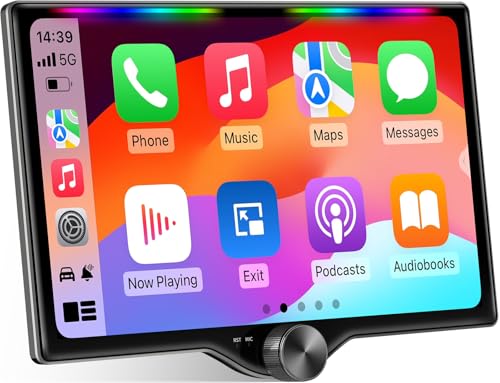
Pros
- Combines wireless and wired CarPlay and Android Auto support
- Offers audio customization through built-in DSP and a 10-band EQ
- Includes dual subwoofer output and a listed 4×60W peak-power specification
- Provides steering-wheel-control integration and Bluetooth hands-free functionality
Cons
- A dash kit, wiring harness adapter, or radio antenna adapter may be required and is not included
- Mirror Link and wired CarPlay or Android Auto connections require the rear USB1 port; the Type-C port supports fast charging only
- Vehicle fit, installation, and required steering-wheel-control interface must be confirmed before purchase
Specifications
| Product Group | Wireless |
|---|
Best For / Avoid If
Best for buyers prioritizing
- Combines wireless and wired CarPlay and Android Auto support
- Offers audio customization through built-in DSP and a 10-band EQ
- Includes dual subwoofer output and a listed 4×60W peak-power specification
Consider another option if
- A dash kit, wiring harness adapter, or radio antenna adapter may be required and is not included
- Mirror Link and wired CarPlay or Android Auto connections require the rear USB1 port; the Type-C port supports fast charging only
- Vehicle fit, installation, and required steering-wheel-control interface must be confirmed before purchase
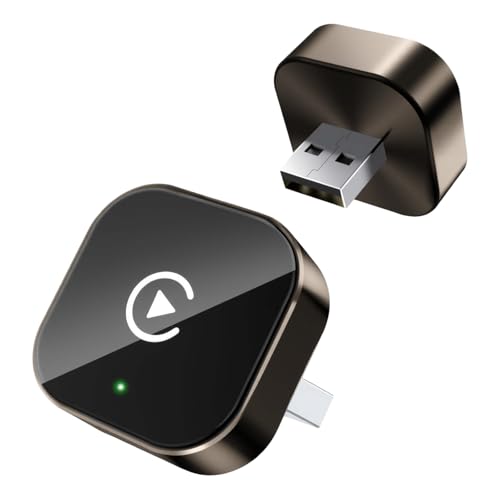
Pros
- Designed for compatible factory-installed wired CarPlay systems
- Supports automatic reconnection after initial pairing
- Compact construction is intended to save space in the car
Cons
- Only compatible with vehicles that have factory-wired CarPlay
Specifications
| Color | Brown |
|---|---|
| Size | Square |
| Dimensions | 1 x 0.4 x 1 inches |
| Product Group | Wireless |
| Binding | Electronics |
Best For / Avoid If
Best for buyers prioritizing
- Designed for compatible factory-installed wired CarPlay systems
- Supports automatic reconnection after initial pairing
- Compact construction is intended to save space in the car
Consider another option if
- Only compatible with vehicles that have factory-wired CarPlay
Readers weighing these picks also look at Wireless CarPlay Adapter Compatibility Explained and Wireless CarPlay Adapter Buying Guide.
FAQ
Does wireless CarPlay always drain more battery than wired CarPlay?
Not in every situation. Wireless CarPlay uses a wireless connection, but overall battery use also depends on navigation, signal, screen activity, charging, and phone workload. A wired connection may reduce wireless communication use, while still allowing other apps to consume power.
Can CarPlay drain battery when the screen is off?
Yes. The phone can remain connected and run navigation, audio, calls, or background tasks while its screen is off. Screen-off use may reduce display power, but it does not stop all activity.
Will turning off Bluetooth stop wireless CarPlay?
It can prevent or disrupt the wireless connection, depending on the vehicle system. Do not treat disabling Bluetooth as a universal battery fix. Use the vehicle and iPhone setup instructions to manage CarPlay connections.
Does low battery health cause wireless CarPlay drain?
A worn battery can make charge loss more noticeable, but that does not prove CarPlay caused the change. Review iPhone battery health and compare behavior outside the car. Seek service if iOS reports a battery problem or the phone shuts down unexpectedly.
Sources and further reading
- CarPlay Available Models (Apple): Check which listed vehicle models support CarPlay.