
To check a dash cam’s firmware version, open its system-information screen or the corresponding settings in its companion app. Record the full version and exact camera model before looking for an update. Do not infer the installed version from the phone app version or install firmware intended for a different model.
You usually need the dash cam, its power cable, and access to either its buttons, companion app, or microSD card. Record the full version number before downloading an update. A wrong firmware package can stop the camera from working.
Key takeaways
- Check the camera menu first. Look for System Information, Version, About, or Firmware.
- Use the companion app when the camera has no screen or hides version details.
- File names and video metadata can help, but they may show camera or codec data instead of firmware.
- Match updates to exact model, hardware revision, region, and camera configuration.
- Keep stable power during any firmware update. Do not remove the memory card or switch off the vehicle.
Where dash cams show firmware versions
Dash cams commonly show firmware information in three places. The camera menu gives the clearest result when available. A phone app may show the version during device setup or inside camera settings. Some models place a version number in a text file on the microSD card.
Menu names vary. One camera may use “Firmware Version,” while another uses “Software Version,” “System Version,” “Device Info,” or “About.” The number may contain letters, dots, dashes, or a regional suffix.
Do not treat every number as firmware. A dash cam can also show serial numbers, Wi-Fi names, app versions, GPS data, video resolution, or memory-card details. Firmware normally appears beside a label that identifies software or system version.
How to check dash cam firmware version from its menu
- Park the vehicle. Keep the vehicle stationary while using the camera menu. Do not handle the camera while driving.
- Power the dash cam. Use its normal power source. Some cameras show limited menu options when running from an internal battery or USB connection.
- Stop recording if needed. Many cameras lock menu access during recording. Press the camera’s record, OK, or confirm button according to its controls.
- Open Settings. Look for a gear icon, menu button, or a long press on the settings key.
- Open system details. Choose System Information, Device Information, Version, About, or Firmware.
- Read and record the value. Write down every letter, number, dot, and suffix. A regional suffix can affect update compatibility.
- Exit without changing settings. Do not select factory reset or format unless you intend to erase settings or the memory card.
Some dash cams use a front screen with physical buttons. Others use a touch display. Button labels and menu order can change after a firmware update, so the owner’s manual remains the best model-specific reference.
How to check firmware with a dash cam phone app
A phone app can show firmware when the camera has no screen. This method usually needs the camera powered on, Wi-Fi or Bluetooth enabled, and the correct companion app installed.
- Park and power the camera. Keep the camera connected to its normal vehicle power source.
- Connect your phone. Join the dash cam’s Wi-Fi network or pair through Bluetooth, based on the camera’s instructions.
- Open the official companion app. Check that the app supports your exact camera model.
- Open device settings. Look for Camera Settings, Device Info, About Device, System Information, or Firmware.
- Record the firmware number. Save a screenshot or write down the complete value.
- Close the connection safely. Return the app to its normal screen before disconnecting the camera.
Phone compatibility can change the steps. An app may support Android but not every Android version. It may also require a current iPhone or Android OS version. A dash cam that uses only 2.4 GHz Wi-Fi may not connect through a phone or vehicle hotspot limited to another band.
App version and camera firmware are separate. Updating the phone app does not necessarily update the camera. The app may show its own version in a separate About screen.
How to check firmware from the microSD card
Some cameras save a text file, setup file, or system report on the microSD card. This method helps when the display is small, damaged, or unavailable.
- Turn off the dash cam correctly. Allow recording to stop before removing the card. Removing power during file writing can corrupt videos.
- Remove the microSD card. Follow the camera manual. Some cameras use a spring-loaded slot.
- Read the card. Use a computer or compatible phone card reader.
- Inspect readable files. Look for files named System, Version, Device, Config, or similar terms.
- Open text files only. Avoid changing or deleting files. Record the value next to firmware, software, or system version.
- Return the card to the camera. Insert it while the camera is off unless the manual gives another instruction.
Video file names can sometimes include firmware-related data, but they are not a reliable method by themselves. A file may show recording date, camera model, resolution, or an internal file number. Check a labeled system file or camera menu before using that number for an update.
What to do when the version is hard to find
Start with the model number. It may appear on the camera body, mounting bracket, box, app connection screen, or original receipt. Similar product names can use different hardware and different firmware.
Search the owner’s manual for “firmware,” “version,” “system information,” and “update.” Use the manual for the exact model, not a visually similar camera. A rear camera, LTE module, parking-mode accessory, or separate display may have its own software version.
If the camera will not enter its menu, connect it to stable power and remove optional accessories one at a time. A faulty rear camera cable, GPS mount, hardwire kit, or USB adapter can interrupt startup. Do not repeatedly unplug the camera during boot.
Factory reset may restore menu access, but it can erase settings. It does not repair failed hardware, damaged storage, or an incorrect firmware installation. Record important settings first.
Firmware version versus app version
| Version type | Where it appears | What it controls |
|---|---|---|
| Dash cam firmware | Camera menu, device information, or system file | Camera operation, recording behavior, menus, and hardware control |
| Phone app version | App About screen or phone app store | Phone interface, connection features, downloads, and account functions |
| Memory-card file system | Computer or camera storage menu | How files are stored and managed on the card |
| Accessory firmware | Accessory settings or separate app page | Functions for GPS, LTE, rear cameras, or other connected hardware |
These versions can differ. A current app may connect to older camera firmware, while a new camera update may require a newer app. The manufacturer’s update notes should identify any required pairing.
Check these details before a firmware update
Firmware updates can add features, correct faults, or change how the camera handles memory cards and accessories. They can also fail when the file does not match the hardware.
- Exact model: Match the full model name, not only the brand or product family.
- Hardware revision: Some cameras use revision labels, board numbers, or different production versions.
- Region: North American, European, Asian, and other regional versions may use different firmware. Video standards, language packs, Wi-Fi rules, and GPS settings can vary.
- Camera package: A front-only model may not use the same firmware as a front-and-rear kit.
- Power source: Use the power method required by the manual. A weak USB adapter or failing vehicle outlet can interrupt an update.
- Memory card: The camera may require a supported capacity, file system, or card speed. Some updates require formatting the card first.
- Phone and app: A newer firmware file may require a specific Android or iPhone app version.
- Settings backup: An update can reset Wi-Fi, date, time, parking mode, resolution, or custom settings.
Download firmware only from the official support page or official app path for the exact camera. Do not rename files unless the instructions say to do so. Do not use firmware from a similar model because the housing and menu look alike.
Safe firmware update sequence
- Save important recordings to another device.
- Record the current firmware number and settings.
- Read the update instructions for the exact camera and region.
- Prepare the required memory card or app connection.
- Connect stable power before starting.
- Start the update from the camera or official app.
- Wait until the camera confirms completion. Do not remove power, card, or phone connection during the process.
- Allow the camera to restart fully.
- Check the new firmware version.
- Restore settings and test a short recording while parked.
Hardwired parking-mode systems need extra care. Vehicle voltage can fall during engine-off operation, especially with an older battery or cold weather. Follow the dash cam and hardwire-kit instructions for update power. Do not run an update when the camera may lose power.
Common mistakes
Reading the wrong number
Serial numbers and app versions often appear near firmware information. Use the label beside the number. A long alphanumeric ID without a software label may be the device serial number.
Using firmware for a similar model
Model families can share cases but use different processors, lenses, displays, or rear-camera connections. Similar names do not prove compatibility.
Removing the card during recording
Sudden removal can corrupt the current video and damage the card’s file system. Stop recording and power down first.
Updating through unstable power
A loose cable, weak adapter, failing USB port, or low vehicle battery can interrupt installation. An interrupted update may leave the camera unable to boot.
Formatting without saving footage
Formatting erases recordings. Copy needed evidence before formatting the card. A camera may require formatting after an update, but that step should follow its instructions.
Assuming an update fixes every problem
Firmware can address software faults, but it cannot repair a damaged lens, failed capacitor, broken cable, bad memory card, or water damage. Persistent problems need separate diagnosis.
When to get professional help
Contact the manufacturer or a qualified installer when the camera shows no power after a correct update, repeatedly reboots, overheats, or refuses a model-matched firmware file. Provide the exact model, serial number, current firmware version, region, memory-card type, and a clear description of the failure.
Ask for help before attempting recovery procedures. Forced recovery files, button combinations, and board-level repairs vary by model. The wrong procedure can erase configuration or leave the camera unusable.
Seek installation help when the problem involves a hardwire kit, fuse tap, rear-camera cable routed through a hatch, or a vehicle with unusual power behavior. Vehicle model-year, trim, fuse layout, and accessory wiring can change the safe installation method.
Related reading: How To Use A Dash Cam With A Heated Windshield.
Related reading: How To Check If A Dash Cam Is Recording.
Related reading: Dash Cam With GPS.
Gear that can help
If you need dash cams for this job, these picks already appear in our dash cams guides. Check the full guide for fit and who should skip each one.

Pros
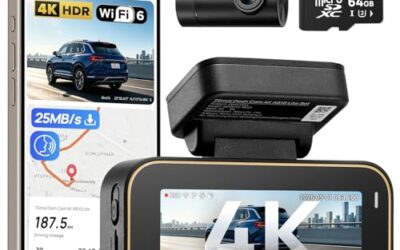
- High-resolution 4K front and 1080P rear recording
- STARVIS 2 sensor with WDR and HDR features for varied lighting conditions
- Supercapacitor design is specified as more heat-resistant than a lithium battery
- Includes an 18-month warranty and customer support
Cons
- A hardwire kit is needed for the listed parking modes
Specifications
| Color | black |
|---|---|
| Size | F7NP-128GB SD Card |
| Dimensions | 3.7401574765 x 1.46062991977 x 0.79133858187 inches |
| Weight | 0.25 Pounds |
| Product Group | Electronics |
| Binding | Electronics |
Best For / Avoid If
Best for buyers prioritizing
- High-resolution 4K front and 1080P rear recording
- STARVIS 2 sensor with WDR and HDR features for varied lighting conditions
- Supercapacitor design is specified as more heat-resistant than a lithium battery
Consider another option if
- A hardwire kit is needed for the listed parking modes
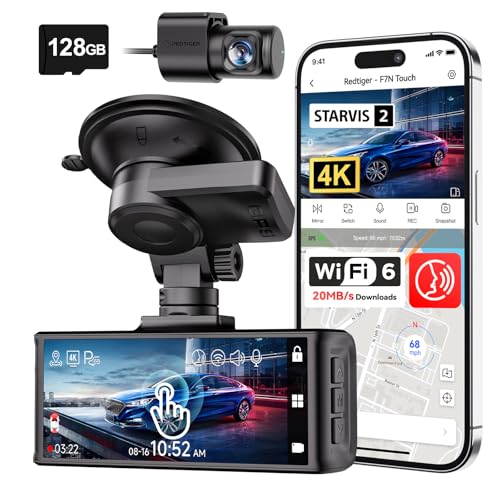
Pros
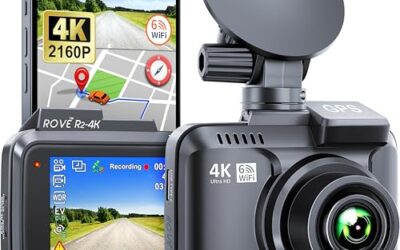
- High-resolution 4K front and 1080P rear recording
- Multiple control options, including voice commands, touchscreen, and physical buttons
- Built-in GPS and wireless smartphone connectivity
- Includes a 128GB card and supports automatic loop recording
- Includes an 18-month guarantee and 24/7 customer support
Cons
- Parking monitoring requires a separate hardwire kit
- Rear camera resolution is limited to 1080P compared with the 4K front camera
Specifications
| Color | Black |
|---|---|
| Dimensions | 2.362204722 x 1.2598425184 x 3.8188976339 inches |
| Weight | 0.25 pounds |
| Product Group | Wireless |
| Binding | Electronics |
Best For / Avoid If
Best for buyers prioritizing
- High-resolution 4K front and 1080P rear recording
- Multiple control options, including voice commands, touchscreen, and physical buttons
- Built-in GPS and wireless smartphone connectivity
Consider another option if
- Parking monitoring requires a separate hardwire kit
- Rear camera resolution is limited to 1080P compared with the 4K front camera

Pros
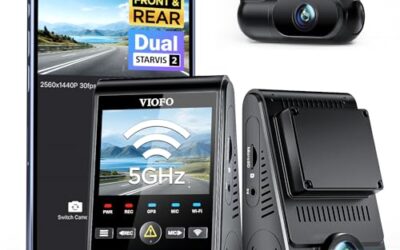
- 4K front and 2.5K rear recording
- Built-in GPS and 5GHz WiFi connectivity
- 64GB SD card included
- G-sensor helps preserve impact-related footage
Cons
- Parking monitoring requires a separately sold hardwire kit
- Some Viidure app features, including video speed adjustment and cloud uploads, require membership
Specifications
| Color | Black |
|---|---|
| Size | A13-WiFi+GPS-64GB |
| Dimensions | 19.49999998011 x 6.49999999337 x 10.49999998929 Inches |
| Product Group | Wireless |
| Binding | Electronics |
Best For / Avoid If
Best for buyers prioritizing
- 4K front and 2.5K rear recording
- Built-in GPS and 5GHz WiFi connectivity
- 64GB SD card included
Consider another option if
- Parking monitoring requires a separately sold hardwire kit
- Some Viidure app features, including video speed adjustment and cloud uploads, require membership
FAQ
Can I check dash cam firmware without a memory card?
Often, yes. Use the camera menu or companion app. Some cameras need a card for normal startup and may not show full information without one.
Does the serial number show firmware version?
No. A serial number identifies the unit. Firmware version identifies installed camera software. Use the system information label or official app screen.
Can I update firmware from my phone?
Some cameras support app-based updates. Others require a microSD card. The exact model, phone OS, app version, Wi-Fi connection, and region control this feature.
Will firmware updates delete videos?
They may not, but some update instructions require card formatting or recommend a backup. Copy important recordings before starting.
What if two cameras show different firmware versions?
That can be normal. Front and rear cameras, LTE modules, GPS units, and displays may use separate software. Check each device’s information screen.
Related CarTechTalk guides
For vehicle-specific camera planning, read dash cam choices for Ford Bronco and dash cam options for Hyundai Kona. For broader camera equipment context, see the Dash Cams & Vehicle Cameras category.
The safest process stays simple: identify the exact camera, read its labeled firmware value, and match any update to the correct hardware and region. Keep stable power and preserve recordings before changing software.