To prepare car tech for a cross country road trip, test charging, navigation, safety, diagnostic, and emergency systems before departure. Match every device to your vehicle’s model year, power outlets, phone OS, connector type, and software version.
Car technology can reduce travel problems, but it cannot replace vehicle maintenance, safe driving, or roadside help. Test equipment at home, carry backup methods, and keep critical tools usable without cellular service.
Key takeaways
- Test USB ports, 12-volt outlets, wireless charging, and cables with your actual phones.
- Download offline maps, travel documents, and emergency contacts before entering weak-signal areas.
- Check dash cam storage, date, time, camera angle, and power behavior.
- Use an OBD2 scanner to read information, not to repair faults or replace professional diagnosis.
- Pack tire, battery, and lighting tools that match your vehicle and driving plan.
- Keep devices cool, secured, and reachable without creating a distraction.
1. Check vehicle power before the trip
Start with every power source your vehicle offers. Test the front and rear USB ports, 12-volt outlets, wireless charging pad, and built-in inverter. A port may charge one phone but fail with another cable, adapter, or high-demand device.
USB-A and USB-C are connector types, not guarantees of charging speed. A USB-C port may support power delivery, data, or both. Your vehicle model year and trim determine the port’s actual function. The owner’s manual provides the safest reference.
Charge each phone through its normal cable while running navigation and audio. Watch for repeated disconnects, slow charging, heat, or battery drain. These signs can point to a damaged cable, weak adapter, dirty port, or power limit.
Carry a simple charging backup
Pack cables for every phone, but avoid carrying loose cords that can interfere with pedals or controls. Keep one spare cable in a separate bag. A power bank can charge a phone away from the vehicle, but its capacity and output must match the phone’s needs.
Power banks and battery chargers should remain within their temperature limits. Do not leave lithium-ion batteries in a hot parked vehicle for long periods. Follow each device manual for storage and charging instructions.
Do not run high-load accessories from a small 12-volt outlet without checking its rating. Air compressors, coolers, heated devices, and inverters can draw far more current than a phone charger. Excess load can blow a fuse or overheat a poor-quality adapter.
2. Prepare navigation for weak service areas
Download offline maps for every state, province, or region on your route. Include fuel stops, overnight locations, alternate routes, and the final destination. Offline navigation can continue when cellular service drops, but live traffic, road closures, weather, and business hours may not update.
Open downloaded maps before leaving home. Search for several locations while the phone uses airplane mode or has cellular data disabled. This test shows whether the app stored map data or only saved a shortcut.
Keep a paper route summary or written destination list. GPS signals can be blocked by tunnels, dense structures, terrain, or device problems. A second phone can help, but two phones using the same weak network may lose service together.
Check phone and vehicle compatibility
Wired Apple CarPlay and Android Auto depend on vehicle software, phone OS version, cable quality, and USB data support. Some USB ports provide charging only. Wireless systems also depend on vehicle hardware and phone support.
Pair the main phone before departure. Test calls, audio, route guidance, voice commands, and reconnect behavior after turning the vehicle off and on. Do not assume a cable that charges the phone can carry CarPlay or Android Auto data.
Apple lists supported vehicles on its CarPlay available models page. Google provides setup steps through its Android Auto support page. Vehicle support can vary by model year and trim.
3. Inspect dash cam and camera systems
A dash cam needs stable power, working storage, correct time, and a clear view. Turn it on with the vehicle and confirm that recording starts without repeated restarts. Review a short clip after the test drive.
Check the camera angle from the driver’s view. The road should fill most of the frame without blocking important controls or creating a windshield obstruction. Follow local rules for windshield-mounted devices.
Confirm date, time zone, daylight saving settings, and loop recording. Incorrect time can make footage harder to organize after an incident. A memory card with errors can stop recording or produce damaged files.
Use storage approved for your camera’s capacity and recording format. Format the card through the camera when its manual calls for that process. Save important clips to another device and keep the camera’s power cable secured.
Built-in vehicle cameras may record different areas and behave differently from aftermarket dash cams. Some stop recording when the vehicle is off. Others require a separate power setup for parking mode. Do not alter vehicle wiring unless the installation instructions support your model.
4. Scan for warning lights before leaving
An OBD2 scanner can read diagnostic trouble codes and live data on many cars, trucks, and SUVs. It cannot repair the cause of a code. Clearing a code only removes stored information temporarily and may reset emissions readiness monitors.
Check the connector location in your owner’s manual. Most US-market light vehicles built after the 1996 emissions transition use an OBD2 diagnostic connector, but access, supported functions, and manufacturer-specific data vary by vehicle model year.
Scan the vehicle while parked. Save the codes and freeze-frame details before clearing anything. A generic scanner may read engine and emissions data but miss transmission, airbag, ABS, body, or advanced driver-assistance faults.
Do not disconnect the battery or clear codes before an emissions inspection. The vehicle may need several drive cycles before monitors become ready. Some faults return quickly, while others need specific operating conditions.
For background, SAE J1962 covers the diagnostic connector and SAE J1979 covers common diagnostic test modes. The standards do not turn a basic scanner into a complete factory scan tool.
5. Check tires, TPMS, and roadside air tools
Set tire pressure when tires are cold. Use the pressure on the driver’s door label or owner’s manual, not the maximum pressure molded into the tire sidewall. Load, weather, tire size, and vehicle setup can affect the correct value.
Inspect tread, sidewalls, valve stems, and the spare tire. A tire pressure monitoring system may warn about pressure loss, but it does not replace a physical inspection. Some vehicles do not monitor the spare.
Test a tire inflator with the same vehicle outlet you plan to use. Confirm that the connector reaches each tire and that the inflator does not trip the outlet fuse. Small inflators may need cooling breaks according to their instructions.
A tire plug kit does not fix every puncture. Sidewall damage, large cuts, separated tread, and damaged wheels require tire service. Never crawl under a vehicle supported only by a jack.
For more detail, see this guide to digital tire pressure gauges with memory. Tire pressure guidance from NHTSA also covers inspection, inflation, and TPMS limits.
6. Test the battery and jump-start plan
Battery trouble often appears after long stops, cold weather, heat exposure, or repeated accessory use. Check the battery terminals for looseness, corrosion, or damage. A visual check cannot measure battery health, so use a compatible tester or request a professional test.
Confirm whether your vehicle has a conventional 12-volt battery, an auxiliary battery, a start-stop system, or a high-voltage hybrid or EV system. Jump points may differ from battery location. Follow the vehicle manual, especially for hybrids and vehicles with battery monitoring sensors.
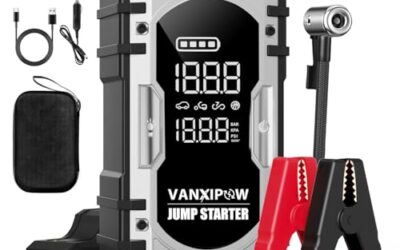
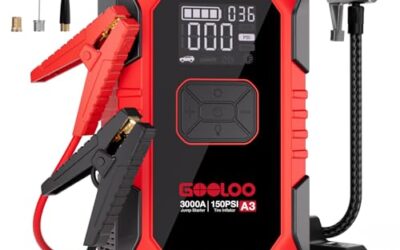
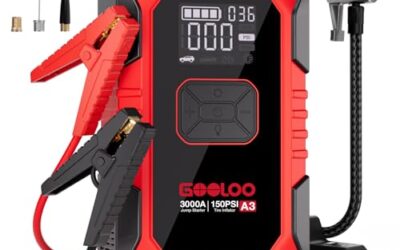
A jump starter must match the vehicle’s battery system and engine size. It also needs enough charge before departure. Test its display, clamps, cable condition, and storage case. Do not use damaged cables or connect clamps based on color alone.
EVs and hybrids need a separate plan. A high-voltage traction battery cannot be treated like a normal 12-volt battery. Charging stops depend on connector type, station access, route coverage, weather, battery temperature, and vehicle software. Pack the correct charging cable and understand the vehicle’s emergency procedures.
7. Prepare emergency communication and vehicle tracking
Save emergency contacts, insurance details, roadside assistance information, medical information, and vehicle identification details offline. Store copies on the phone and in a secure paper form.
Location sharing can help family members follow a trip, but it depends on phone power, account settings, cellular service, and privacy choices. Review who can see the location and when sharing ends.
Satellite communicators and emergency beacons have their own coverage, activation, subscription, and sky-view limits. Test account activation and messaging before travel. An emergency device should not sit sealed in luggage where the driver cannot reach it.
8. Secure and organize electronics
Loose phones, tablets, cameras, scanners, and power banks can become projectiles during hard braking or a crash. Store them in closed compartments or secure mounts. Keep bags away from pedals, airbags, and the driver’s view.
Use a mount that fits the phone and vehicle. A mount that blocks the windshield, instrument panel, or airbag path creates a safety problem. Adjust navigation before moving and use voice controls where practical.
Heat can damage phones, cameras, power banks, and charging adapters. Keep electronics out of direct sun when parked. Let hot devices cool before charging if their manuals warn against charging at high temperature.
Pre-trip car tech checklist
| System | Test | Backup |
|---|---|---|
| Charging | Charge each phone while navigation and audio run | Spare cable and charged power bank |
| Navigation | Use downloaded maps with cellular data disabled | Paper route summary |
| CarPlay or Android Auto | Test calls, audio, route guidance, and reconnecting | Phone navigation app |
| Dash cam | Review a clip and check time, storage, and angle | Spare compatible memory card |
| OBD2 scanner | Read and save codes before travel | Repair shop or roadside diagnosis |
| Tires | Set cold pressure and inspect tread and spare | Inflator, gauge, and roadside service |
| Battery | Inspect terminals and test starting performance | Compatible jump starter |
| EV charging | Test cable and plan stops for vehicle range | Alternate charging locations |
Common mistakes
- Relying on live navigation without downloading maps.
- Assuming every USB port supports data or fast charging.
- Using the tire sidewall maximum instead of vehicle-recommended pressure.
- Clearing diagnostic codes before recording them.
- Leaving a dash cam with an incorrect date or failing memory card.
- Storing lithium-ion batteries in a hot parked vehicle.
- Using a jump starter without checking vehicle-specific connection points.
- Mounting devices near airbags or in the driver’s sight line.
- Planning an EV route around distance alone without checking connector and station access.
When to get professional help
Get professional help before departure for a battery that repeatedly fails, a warning light that returns, charging-system problems, damaged wiring, overheating electronics, or brake, airbag, ABS, steering, or tire faults.
Use a repair shop when a scan shows manufacturer-specific codes, multiple control modules report faults, or the vehicle enters reduced-power mode. A code identifies a system condition or testing result. It does not prove which part must be replaced.
For safety recalls, search the vehicle identification number through NHTSA’s recall lookup. Recall repairs require the correct vehicle and campaign details.
Gear that can help
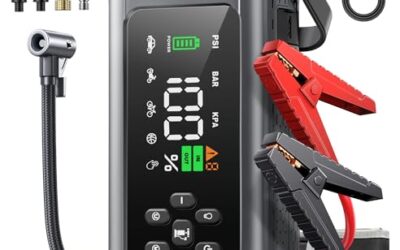
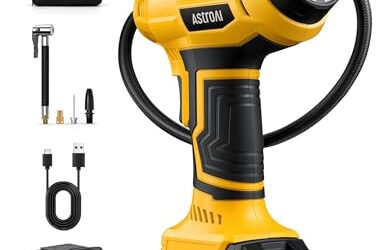
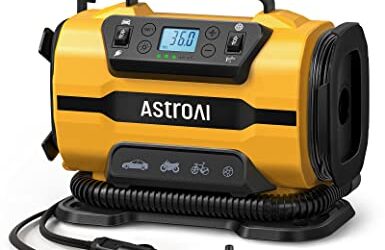
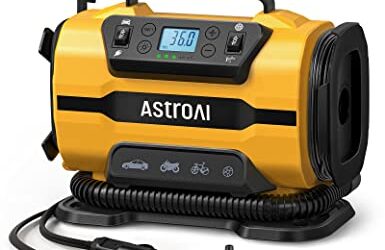
If you need jump starters or tire inflators or fast car chargers for this job, these picks already appear in our jump starters guides. Check the full guide for fit and who should skip each one.

Pros
- Combines jump-starting, tire inflation, high-volume air movement, device charging, and emergency lighting in one unit
- Supports a wide stated range of vehicle applications, including gas engines and diesel engines up to 14.0L
- Includes automatic tire-pressure shut-off and five inflation presets
- Comes with jumper cables, an extended air hose, four air nozzles, a USB-A to USB-C cable, instructions, and a carrying case
Cons
- The unit weighs 4.85 lb
- The manufacturer recommends charging the device every 4-5 months if it remains idle
Specifications
| Color | Black |
|---|---|
| Dimensions | 9.1338582584 x 2.7952755877 x 5.4330708606 inches |
| Weight | 2.8439631798 pounds |
| Product Group | Automotive Parts and Accessories |
Best For / Avoid If
Best for buyers prioritizing
- Combines jump-starting, tire inflation, high-volume air movement, device charging, and emergency lighting in one unit
- Supports a wide stated range of vehicle applications, including gas engines and diesel engines up to 14.0L
- Includes automatic tire-pressure shut-off and five inflation presets
Consider another option if
- The unit weighs 4.85 lb
- The manufacturer recommends charging the device every 4-5 months if it remains idle

Specifications
| Color | Light Yellow |
|---|---|
| Size | Standard |
| Dimensions | 11.8 x 10.2 x 6.3 inches |
| Product Group | Automotive Parts and Accessories |
| Binding | Tools & Home Improvement |

Pros
- Four-port design support multiple devices at once
- Includes high-wattage 240W USB-C cable in box
- Wide 12V-24V vehicle voltage input support
Cons
- Per-port wattage split rules during multi-device use not fully specified
- Product listing includes unreleased future phone models
Specifications
| Color | Black |
|---|---|
| Product Group | Wireless |
Best For / Avoid If
Best for buyers prioritizing
- Four-port design support multiple devices at once
- Includes high-wattage 240W USB-C cable in box
- Wide 12V-24V vehicle voltage input support
Consider another option if
- Per-port wattage split rules during multi-device use not fully specified
- Product listing includes unreleased future phone models
FAQ
Should I bring an OBD2 scanner on a long road trip?
Bring one if you know how to read basic codes and save scan results. It can help a repair shop understand a warning light, but it cannot repair the fault or replace diagnosis.
Can offline maps replace cellular service?
Offline maps can provide stored roads and destinations without cellular data. They may not show current traffic, closures, weather, business hours, or newly changed roads.
Do all cars support wireless Android Auto or Apple CarPlay?
No. Support depends on vehicle model year, trim, factory hardware, phone OS, and software. Some vehicles support wired service only, while some USB ports provide charging without data.
Can I charge a phone from any 12-volt outlet?
Most phone adapters work with standard vehicle 12-volt systems, but outlet ratings and vehicle wiring vary. High-load devices need separate checks against the owner’s manual.
Is a jump starter enough for roadside battery trouble?
It may start a vehicle with a discharged 12-volt battery when correctly matched and charged. It cannot fix a failed battery, alternator, starter, damaged cable, or high-voltage system.
Sources and further reading
- Tire Safety (NHTSA): Tire pressure, inspection, and TPMS safety information.
- J1962 Diagnostic Connector standard (SAE International): Connector requirements used for vehicle diagnostic equipment.
- J1979 E/E Diagnostic Test Modes standard (SAE International): Common diagnostic data and test modes for vehicle scan tools.