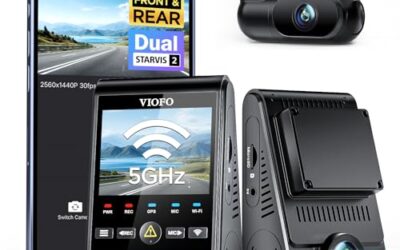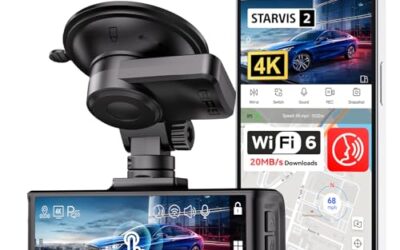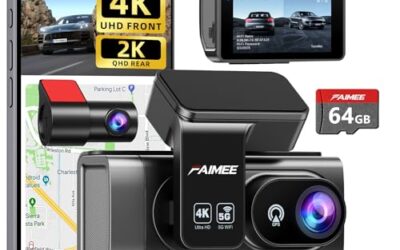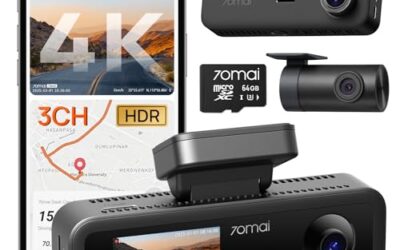

To turn off dash cam audio recording, use the microphone or audio-recording control in that camera’s menu or companion app. Confirm the setting with a newly saved clip rather than relying only on a microphone icon. The control and whether it applies to every channel depend on the model.
Menu names vary by brand, model, firmware version, and control method. A camera may use a touch screen, buttons, Wi-Fi phone app, desktop utility, or voice command. The steps below cover the common paths without assuming one model uses another model’s menu.
Key takeaways
- Turn off microphone recording, not video recording.
- Check both camera settings and phone-app settings.
- Test a new clip after changing the option.
- Existing files may keep audio already recorded.
- Parking mode, rear cameras, and external microphones can change behavior.
- Local recording and live phone viewing may use separate audio controls.
How to turn off dash cam audio recording
- Power on the dash cam while the vehicle is parked.
- Stop active recording if the camera locks its menu during recording. Press the record button once if needed.
- Open Settings, Setup, Video, Recording, or a similar menu.
- Find an option named Microphone, Audio Recording, Record Sound, Audio, or MIC.
- Set the option to Off, Disabled, or Mute.
- Exit the menu and wait for the camera to save the change.
- Start a new recording and speak near the camera for a few seconds.
- Play the clip on the camera, in its phone app, or on a computer. Confirm no voice or cabin sound plays.
Some cameras show a microphone icon on the recording screen. A crossed-out microphone usually means audio is disabled, but icon designs differ. Use a recorded test clip as the final check.
Where the audio setting usually appears
Dash cam screen and buttons
Many screen-equipped cameras place audio under Video Settings. Button-only cameras may use a short menu list shown on a small display. Look for a microphone symbol or a setting that switches between On and Off.
Some buttons mute audio during recording without changing the stored default. A quick press may silence one recording session, while a menu change may apply to every later clip. Test after power cycling the camera to learn which behavior applies.
Phone app
Wi-Fi dash cams often expose settings through a companion app. Connect the phone to the camera’s Wi-Fi network, open the device settings, and look under Video, Recording, or Camera Settings. The phone may need iOS or Android permissions for app access, but those permissions do not always control audio stored by the camera.
App labels can differ across firmware versions. An app may show Audio Recording, Microphone, or Record Audio. Change the camera setting inside the app, not only the phone’s microphone permission page.
Desktop software or memory card settings
Some cameras use desktop software for configuration. Remove the memory card only after recording stops. Open the camera’s configuration tool, change the audio option, save the profile, and return the card if the software requires it.
Do not edit random configuration files unless the camera manual gives exact instructions. An incorrect value can stop recording or reset other settings. The camera manual remains the safest guide for model-specific menu names.
Audio recording versus phone microphone access
These controls can look similar but do different jobs. Dash cam audio recording controls the microphone built into the camera or connected to it. Phone microphone permission controls whether an app can use the phone’s microphone.
| Control | What it changes | What it may not change |
|---|---|---|
| Dash cam audio setting | Sound saved with new camera video files | Audio already stored in older files |
| Phone microphone permission | Phone app access to the phone microphone | Camera microphone recording |
| Mute button | Audio for a current session or clip, depending on model | Saved default setting on some cameras |
| External microphone setting | Input from a connected microphone, if supported | Other audio inputs or internal microphone behavior |
Turning off phone permissions may block voice features, two-way communication, or app recording while leaving camera clips unchanged. Turn off the camera’s own audio option for silent saved video.
How to confirm audio is off
Record a fresh clip after changing the setting. Do not rely only on the menu label or microphone icon. Speak close to the camera, tap a safe nearby surface, and play the file with volume turned up.
Check the file on another device if playback inside the app is unclear. A computer media player can show whether an audio track exists, though player behavior varies. Some players display a silent audio track as if sound were present. Listen to the clip and inspect its media details when needed.
Use a new file for testing. Turning off audio usually does not remove sound from clips recorded earlier. Those files may keep their original audio until deleted or overwritten.
Why audio may keep recording
The setting changed only for live preview
Some apps include a mute control for live viewing. That control may silence phone playback without changing audio stored on the memory card. Change the recording setting in camera configuration.
The camera did not save the change
Power loss during a menu change can restore the old setting. Let the camera finish saving before unplugging it. If the setting resets after every startup, inspect the memory card, power connection, and firmware instructions.
Parking mode uses separate settings
Parking mode may use a different recording profile. A camera can record normal driving clips without audio but use another profile for impact or motion events. Check parking-mode settings if silent driving clips still contain sound during parked recording.
An external microphone remains active
Some dash cams support an external microphone. The internal microphone option may not control that input. Look for External Mic, MIC Input, or a separate audio source setting. Disconnect the external microphone only after stopping recording.
Firmware changed menu behavior
Firmware updates can move settings or restore factory defaults. Model number, firmware version, and regional software can affect menu names. Record the current settings before updating, then test audio again after the update.
The file came from an older recording
Loop recording can make old clips appear beside new clips. Check the file date and record a fresh test clip. Emergency or locked files may remain on the card longer than ordinary loop files.
How to turn off audio on common dash cam control types
Touch-screen camera
- Tap the screen to wake the camera.
- Stop recording.
- Open the gear icon or Settings menu.
- Open Video Settings or Recording Settings.
- Set Microphone or Audio Recording to Off.
- Return to recording and test a new file.
Button-operated camera
- Stop recording with the record button.
- Press Menu or Setup.
- Use arrow buttons to reach Audio, MIC, or Record Sound.
- Press OK and select Off.
- Press Menu again to exit and save.
- Check a new clip.
Wi-Fi camera
- Park the vehicle before connecting.
- Open the dash cam app.
- Connect to the camera’s Wi-Fi network if required.
- Open device settings, not only live view.
- Change Audio Recording or Microphone to Off.
- Save the setting and record a test clip.
Compatibility and privacy limits
Not every dash cam supports audio shutoff. Some cameras record sound whenever video records. Others offer mute controls only through a specific firmware version or app. A camera with no audio option may require a manufacturer-approved configuration method, a firmware update, or replacement with a model that supports audio control.
Power source can affect behavior. A camera powered through a USB adapter, fuse tap, or hardwire kit may restart when the vehicle starts. A restart can load a saved profile, factory default, or parking-mode profile. Vehicle model-year and accessory wiring can affect startup timing, but they usually do not change where the audio menu appears.
Regional privacy rules can apply to recording conversations inside or outside a vehicle. Rules vary by state and situation, including whether people need notice or consent. Turning audio off reduces recorded sound but does not answer every privacy question. Do not use a dash cam to record people in situations where local rules prohibit it.
Audio also may come from a rear camera module, cabin camera, Bluetooth accessory, or separate security system. Turning off front-camera audio may not silence every device in a multi-camera setup.
Common mistakes
- Muting phone playback: Lowering phone volume does not remove audio from the saved file.
- Changing phone permissions only: App access and camera recording use separate controls.
- Checking an old clip: Existing files normally keep audio recorded before the change.
- Assuming a crossed microphone icon is proof: Confirm with a fresh clip.
- Changing settings while driving: Park before using a screen, buttons, or phone app.
- Removing power during a save: The camera may lose the new setting or damage the current file.
- Deleting the wrong files: Locked incident clips may contain needed evidence. Copy important video before deleting files.
- Covering the microphone: Tape or material can block vents, trap heat, or leave muffled sound rather than disable recording.
When to get professional help
Contact the camera maker or an installer if audio returns after every restart, the menu will not save, or the camera records sound with no visible audio control. Provide the exact model, firmware version, app version, and a description of the test clip.
Seek installation help if the camera uses a hardwire kit, external microphone, cabin camera, or vehicle-integrated system. Do not cut wires or short connector pins to disable a microphone. Incorrect wiring can damage the camera, fuse circuit, or vehicle electronics.
If the camera repeatedly resets, corrupts files, or loses settings, stop relying on it for incident recording until the fault is fixed. A failing memory card or unstable power feed can cause broader recording problems than audio alone.
Gear that can help
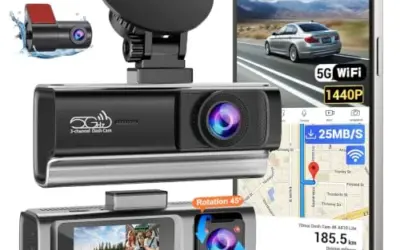
If you need dash cams for this job, these picks already appear in our dash cams guides. Check the full guide for fit and who should skip each one.

Pros
- Records front-facing video in 4K UHD resolution
- Includes a pre-installed 32GB memory card and supports cards up to 256GB
- Offers 5GHz WiFi connectivity and app-based video access
- Compact, screen-free design is intended to minimize visual distraction
Cons
- The Type-C hardwire kit required for 24-hour parking mode is not included
- The included memory card capacity is 32GB, reduced from the previously stated 64GB
Best For / Avoid If
Best for buyers prioritizing
- Records front-facing video in 4K UHD resolution
- Includes a pre-installed 32GB memory card and supports cards up to 256GB
- Offers 5GHz WiFi connectivity and app-based video access
Consider another option if
- The Type-C hardwire kit required for 24-hour parking mode is not included
- The included memory card capacity is 32GB, reduced from the previously stated 64GB

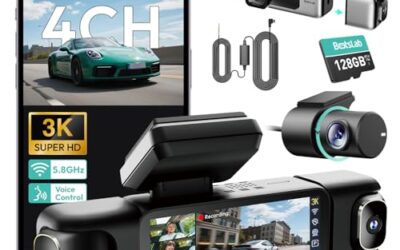
Pros
- Multiple camera views are designed to reduce blind spots and capture more driving footage
- GPS data can be reviewed through the app or GPS player
- The included 128GB card reduces the need to purchase storage separately
- Adjustable cameras are listed as compatible with sedans, SUVs, trucks, vans, and rideshare vehicles
Cons
- A hardwire kit is required for 24-hour parking mode and is not included
Specifications
| Color | Black |
|---|---|
| Dimensions | 1 x 1 x 1 inches |
| Product Group | Wireless |
Best For / Avoid If
Best for buyers prioritizing
- Multiple camera views are designed to reduce blind spots and capture more driving footage
- GPS data can be reviewed through the app or GPS player
- The included 128GB card reduces the need to purchase storage separately
Consider another option if
- A hardwire kit is required for 24-hour parking mode and is not included

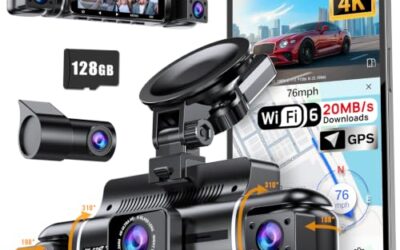
Pros
- Four-camera coverage records the front, rear, and both sides of the vehicle
- A 64GB memory card is included for immediate recording
- GPS and 5GHz Wi-Fi support app-based video management and location tracking
- The G-sensor automatically locks footage when sudden shakes or collisions are detected
Cons
- The parking monitoring function requires a separately purchased hardwire kit
Specifications
| Color | Gold |
|---|---|
| Dimensions | 1.5 x 2.2 x 6.3 inches |
| Product Group | Electronics |
Best For / Avoid If
Best for buyers prioritizing
- Four-camera coverage records the front, rear, and both sides of the vehicle
- A 64GB memory card is included for immediate recording
- GPS and 5GHz Wi-Fi support app-based video management and location tracking
Consider another option if
- The parking monitoring function requires a separately purchased hardwire kit
FAQ
Does turning off dash cam audio stop video recording?
No. The camera should continue saving video while excluding microphone sound. Confirm with a new clip because some models tie audio and video controls together.
Will turning off audio delete sound from old files?
No. The setting normally affects new recordings. Copy important files, then delete old files through the camera or computer if needed.
Can a phone app turn off dash cam audio?
Often, yes, if the camera supports app-based configuration. Change Audio Recording or Microphone inside camera settings, not only the phone’s permission menu.
Why does audio return after a firmware update?
An update may restore default settings or create a new recording profile. Recheck normal and parking-mode settings, then test a fresh clip.
Can covering the microphone disable recording?
Do not use that method. It may reduce sound without disabling the audio track and can interfere with ventilation or damage the camera.
For camera fit and vehicle-specific setup questions, see CarTechTalk’s guides to the best dash cam for ford bronco and best dash cam for hyundai kona. The Thinkware dash cam comparison also covers differences among several camera systems.