
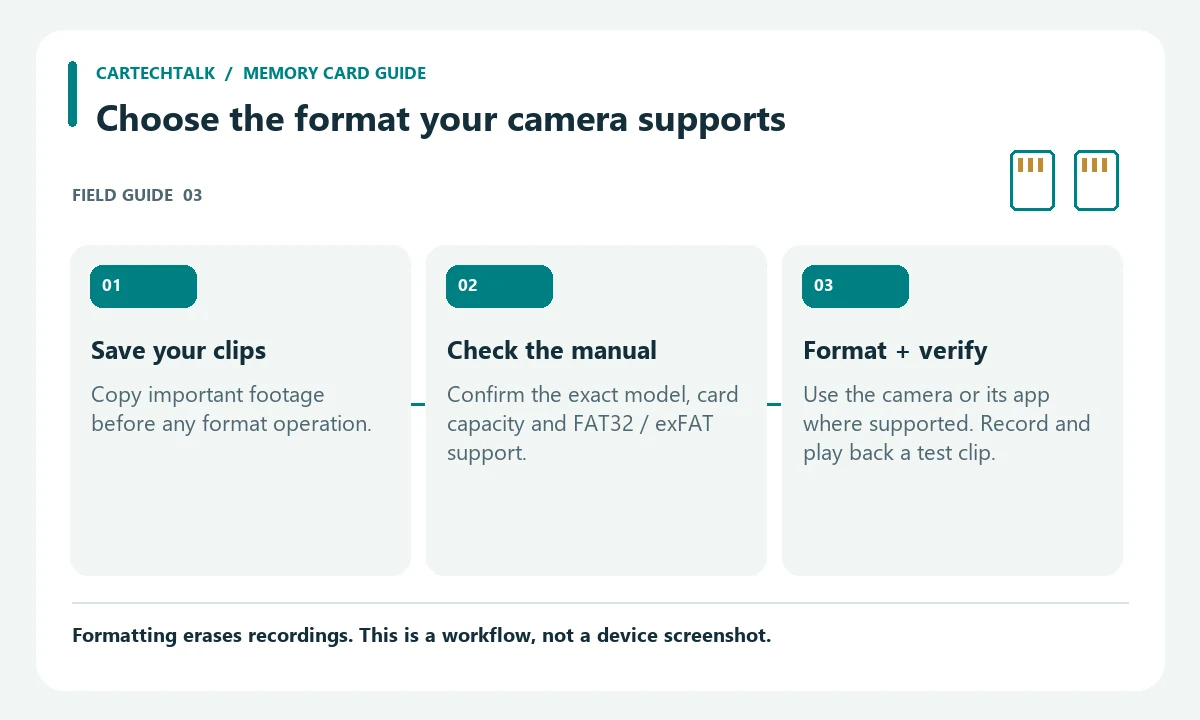
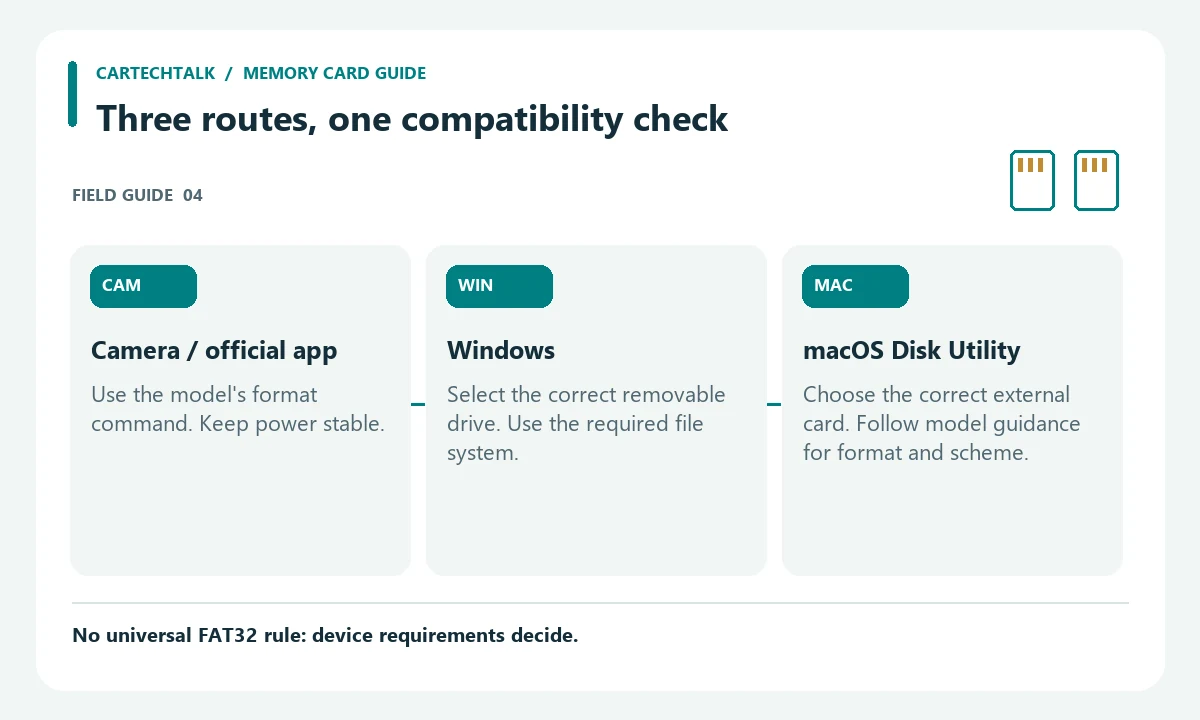
Back up important recordings, check your dash cam’s exact memory-card requirements, then use its in-camera or official-app format command where supported. If a computer format is required, choose the file system specified for that model, then put the card back in the camera and verify recording and playback.
Formatting erases files, including clips you may have protected or locked. Do not start until you have copied any footage you need. FAT32 and exFAT support depends on the camera and firmware; card capacity alone is not enough to decide.
Check the model before choosing FAT32 or exFAT
Find the model number and firmware version, then consult its manual or the manufacturer’s support page. Confirm supported card capacity, recommended card series, recording-speed requirements and file system. A card that works in one dash cam is not automatically compatible with another.
For example, VIOFO documents different FAT32/exFAT support across its models. That is why a universal instruction to format every dash-cam card as FAT32 is not reliable. If the instructions are unclear, ask support for the exact model rather than guessing.
Method 1: format in the camera or its official app
- Save important clips and safely stop recording. Power off before inserting or removing the card unless the manual explicitly says otherwise.
- Install a supported card and power the camera using a stable supply.
- Find the model’s Format Card or Format microSD command in the camera settings or official app. Menu names and button shortcuts vary; do not copy another model’s shortcut.
- Read the erase warning, confirm the correct operation and wait for completion without interrupting power.
- Start a short recording, stop it normally and check that the file plays back. Set the date/time again if the camera requires it.
Use the official instructions rather than a generic screenshot. The diagrams here show a workflow, not a manufacturer interface.
Method 2: format using Windows
- Connect the card through a compatible reader. Identify the correct removable drive by capacity and contents, then back it up.
- Open File Explorer, right-click that drive and choose Format. Check the drive again before proceeding.
- Select the file system and other options required by the dash-cam maker. If FAT32 is required but Windows does not offer it for that card, use the maker’s recommended utility or supported in-camera method; do not substitute NTFS.
- Complete the format, safely eject the card, reinstall it with the camera off, and carry out any in-camera preparation specified in its manual.
- Record and play back a test clip before relying on the camera.
Method 3: format using macOS
Open Disk Utility and carefully identify the external card, not your Mac’s internal drive. Back it up, then use Erase with the format required by the camera: MS-DOS (FAT) where FAT32 is specified, or exFAT only where supported. Follow the manufacturer’s partition-scheme instructions if the Erase dialog offers that choice; GUID is not a universal dash-cam requirement. Safely eject and test the card in the camera.
If the camera still reports a card error
| Symptom | Next check |
|---|---|
| Card not recognized | Confirm capacity, file system, supported card model and proper insertion |
| Format fails or card becomes read-only | Try a supported reader; check an SD adapter lock if present; suspect a failing card if errors recur |
| Clips stop or cannot play | Verify a recommended endurance card, current supported firmware and recording settings |
Repeated formatting is not a cure for worn-out flash memory. For recording symptoms, see why a dash cam stops recording. If the issue is accessing clips from the phone rather than the card itself, use dash-cam phone connection troubleshooting.
Readers weighing these picks also look at Dash Cam WiFi Explained.
Frequently asked questions
How often should I format?
Follow the camera maker’s maintenance schedule and save important clips first. Loop recording manages ordinary capacity; a full card does not by itself mean you should erase evidence you still need.
Will formatting fix every memory error?
No. An unsupported, counterfeit or worn card, a reader problem or a camera fault can require a different remedy.
Should I buy a new dash cam?
Not simply because its card needs formatting. Check card compatibility and the manufacturer’s troubleshooting instructions first.
Equipment relevant to this guide
These are endurance microSD card examples, not universal compatibility recommendations. Both examples are 128GB: use them only if the exact camera supports that capacity and card series. Reformatting a working supported card does not require a purchase.

Pros
- High-endurance design is intended for continuous recording applications
- Supports U3 and V30 video-speed classifications
- Includes an adapter for added device compatibility
- Designed for use in harsh conditions according to the listing
Cons
- The stated recording time is for Full HD video, and actual saved hours are lower for 4K UHD video
- Compatibility and video support can vary by host device, file attributes, and usage conditions
- Nintendo Switch 2 compatibility is not supported
Specifications
| Color | Black |
|---|---|
| Size | 128 GB |
| Dimensions | 0.4 x 0.6 x 0.1 inches |
| Weight | 0.0100089866948 pounds |
| Product Group | Personal Computer |
| Binding | Personal Computers |
Best For / Avoid If
Best for buyers prioritizing
- High-endurance design is intended for continuous recording applications
- Supports U3 and V30 video-speed classifications
- Includes an adapter for added device compatibility
Consider another option if
- The stated recording time is for Full HD video, and actual saved hours are lower for 4K UHD video
- Compatibility and video support can vary by host device, file attributes, and usage conditions
- Nintendo Switch 2 compatibility is not supported

Pros
- Built for long-duration recording and repeated rewriting
- Supports high-resolution FHD and 4K video
- Specified operating temperature range of -25°C to 85°C
- Warranty coverage is listed as up to five years
Cons
- Warranty duration may vary by capacity or other conditions
Specifications
| Color | White |
|---|---|
| Size | 128GB |
| Dimensions | 0.03937 x 0.59055 x 0.43307 Inches |
| Weight | 0.000551155655 Pounds |
| Product Group | Personal Computer |
| Binding | Personal Computers |
Best For / Avoid If
Best for buyers prioritizing
- Built for long-duration recording and repeated rewriting
- Supports high-resolution FHD and 4K video
- Specified operating temperature range of -25°C to 85°C
Consider another option if
- Warranty duration may vary by capacity or other conditions
Sources and further reading
Verify a new recording before relying on the card
After formatting, make a short test recording using the camera instructions and play the resulting file back. Check that both video and the expected timestamp are present. If recording still fails, work through the dash cam recording checklist rather than repeatedly erasing the card.