
To check whether a dash cam is recording, confirm its recording indicator and then open a recently saved clip from the memory card or app. A powered screen or live preview alone does not prove that footage is being written. Check each connected camera channel and the clip’s timestamp.
- Check for a red dot, REC label, flashing status light, or recording timer.
- Confirm the memory card is inserted, recognized, and supported by the camera.
- Stop recording safely, then open the newest file and check playback.
- Check loop recording, parking mode, hardwire power, and camera temperature if recording stops.
- Start the vehicle or power the camera. Many dash cams start recording when they receive power through the 12-volt outlet, USB port, or hardwire kit. Some cameras need a separate press of the power or record button. Wait through the startup screen before judging the status.
- Look for the recording symbol. Common indicators include a red dot, a flashing red light, a REC label, or a timer that counts upward. The exact symbol depends on camera firmware and model. Read the camera manual if the screen shows an unfamiliar icon.
- Check whether the timer changes. A recording timer should advance while the camera captures video. A frozen timer, paused icon, or menu screen can mean recording has stopped. Some models turn off their display while recording, so a blank screen alone does not prove failure.
- Check storage status. The camera should show free space, card status, or a memory-card icon. An error such as “No SD card,” “Card error,” or “Please format card” means the camera may not save footage. Do not format the card before copying files you may need.
- Make a short test drive or stationary test. Let the camera record for several minutes. Keep the vehicle parked if you only need to test recording. Avoid touching the camera while driving.
- Stop recording correctly. Press the stop button if the camera has one. If the camera shuts down with vehicle power, wait until it finishes saving before removing the card. Sudden power loss can corrupt the last file.
- Play the newest file. Open the card through the camera menu, a phone app, or a computer. Check that the video opens, shows the correct view, and includes a current timestamp. A file with zero length, a broken preview, or an old date points to a storage, power, clock, or firmware problem.
What the dash cam lights and screen mean
Dash cams use different indicators, so color alone cannot confirm recording. One model may use a red flashing light for active recording. Another may use a blue light for power and a separate icon for recording. Some cameras hide all lights after startup to reduce distraction.
| Indicator | What it may mean | What to check next |
|---|---|---|
| Flashing red dot or REC label | Recording likely active | Play the newest saved file |
| Solid power light | Camera has electrical power | Check recording status and storage |
| Memory-card warning | Card missing, full, unsupported, or corrupted | Copy needed files and inspect card compatibility |
| Frozen timer | Recording may be paused or software may have stopped | Press record, restart camera, and test a file |
| Blank screen | Screen saver, display timeout, or power problem | Press a button and check the indicator |
| Camera app disconnected | Wi-Fi link ended, not always recording failure | Check the camera itself and saved files |
A phone connection is separate from recording. Wi-Fi may disconnect while the camera continues saving video. Conversely, a phone may connect to the camera while recording is paused. Use the camera indicator and a saved file as stronger checks than app connection alone.
How to verify saved dash cam footage
Check file time and duration
Open the newest clip and compare its time with your test. The file should have a recent creation time and a normal duration for your loop-recording setting. Camera clocks can drift or reset after a weak internal battery, firmware reset, or long power loss.
Check front and rear camera files
A dual-channel camera may save front and rear video in separate folders or files. One lens can stop recording while the other continues. Review both views if the system supports them. Check rear-camera cable connections if the rear file is missing, frozen, or black.
Check audio and GPS separately
Video can save even when audio or GPS data does not. A muted microphone does not mean the camera failed to record. GPS may need satellite reception and may not show data inside a garage, tunnel, or dense city area. These features depend on the camera model, firmware, and settings.
Check the file on another device
If playback fails in the camera menu, try a computer or a supported phone app. A computer may show a card error that the camera hides. Use a compatible video player for the file type. Copy important footage before changing settings or repairing the card.
Why a dash cam has power but is not recording
Unsupported or damaged memory card: Dash cams write data continuously, which can expose card faults faster than normal file storage. Card capacity, speed class, file system, and endurance rating can vary by camera. A card that works in a phone may still fail in a dash cam.
Full card with loop recording disabled: Loop recording normally overwrites older unlocked clips. If loop recording is off, the camera may stop when storage fills. Emergency files marked as protected can also consume space and block new recordings.
Parking mode confusion: Parking mode may use motion detection, impact detection, time-lapse, or low-bitrate recording. Some systems stop normal driving clips when parking mode remains active. Hardwire kits can also need a switched-power connection and a low-voltage cutoff setting.
Incorrect power connection: A USB port may provide power only with the vehicle on. A 12-volt outlet may remain live after shutdown or turn off during engine cranking. Hardwire installation depends on the vehicle fuse panel, ignition behavior, camera voltage requirements, and kit wiring.
Overheating or cold-weather shutdown: A camera mounted behind glass can become hotter than the cabin. Some models stop recording or reboot when internal temperature limits are reached. Cold weather can also reduce battery performance and affect startup behavior.
Firmware or software fault: A camera may freeze, reboot, or stop writing files after a firmware problem. Record the exact error, save needed footage, and follow the model-specific reset procedure. Do not assume a factory reset repairs a failing card or power circuit.
Dash cam recording checklist
- Camera powers on without repeated rebooting.
- REC icon, recording timer, or active status light appears.
- Memory card shows as recognized.
- Current date and time appear correctly.
- Test clip opens on the camera or another device.
- Video includes the expected front, rear, or interior view.
- Loop recording has room to overwrite older clips.
- Protected event files do not fill the card.
- Power remains stable during engine start and shutdown.
- Parking mode switches correctly for the vehicle.
How to check a dash cam while driving
Do not handle the camera, phone, or memory card while driving. Set the camera before moving, then use its indicator or voice prompt without taking your eyes from traffic. A passenger can check the display, or you can inspect files after parking.
If the screen turns off, check the screen timeout setting before assuming recording stopped. Many dash cams blank the display during normal operation. Voice alerts can also indicate recording start, card errors, or parking-mode changes, but sound settings may disable them.
Common mistakes
Assuming a lit screen means recording
Power and recording are separate states. A camera can remain powered on in a menu, pause state, or card-error screen. Check the REC indicator and saved footage.
Removing the card while the camera is active
Active writing can damage the current file or the card file system. Turn the camera off and wait for shutdown before removing the card.
Formatting before copying evidence
Formatting removes files. Copy important clips first. If a computer asks to format a card that contains needed footage, cancel the prompt and make a recovery plan.
Using a phone app as the only proof
Wi-Fi status shows a network connection, not guaranteed video capture. The app may disconnect because of phone OS behavior, distance, or background restrictions while recording continues.
Ignoring vehicle-specific power behavior
Model-year wiring differs. USB ports, 12-volt outlets, fuse circuits, and accessory power can behave differently during startup and shutdown. A hardwire kit must match the camera voltage and vehicle installation method.
When to get professional help
Get help from an automotive electrician or qualified installer when the camera repeatedly loses power, drains the battery, overheats, or interferes with vehicle wiring. Seek service if a properly supported card fails after testing, the camera reboots with stable power, or a hardwire kit causes fuse or warning-light problems.
Do not probe unknown vehicle wires or alter airbag wiring to find an ignition source. Modern vehicles can use low-voltage communication networks and sensitive control modules. Follow the camera and vehicle service instructions for fuse selection, grounding, and cable routing.
Check the vehicle model-year, camera voltage, connector type, memory-card limits, phone OS, and firmware version when troubleshooting. A setup that works in one vehicle may fail in another because accessory power timing and connector behavior differ.
Gear that can help
If you need dash cams for this job, these picks already appear in our dash cams guides. Check the full guide for fit and who should skip each one.

Pros
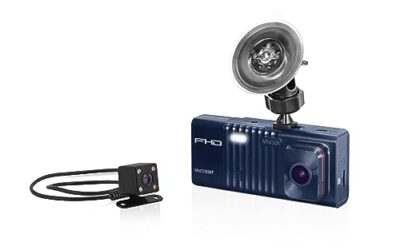
- Three-camera coverage records the road ahead, rear view, and cabin simultaneously
- GPS data is embedded in recordings for route and speed reference
- Includes a 128GB memory card and supports automatic collision footage protection
- Supports wireless control and video downloads through the TERUNSOUl app
Cons
- Parking mode requires a separate hardwire kit
- The listing does not identify the exact iOS or Android version requirements
Specifications
| Color | Black |
|---|---|
| Dimensions | 1.574803148 x 3.149606296 x 1.3779527545 inches |
| Weight | 0.551155655 pounds |
| Product Group | Electronics |
Best For / Avoid If
Best for buyers prioritizing
- Three-camera coverage records the road ahead, rear view, and cabin simultaneously
- GPS data is embedded in recordings for route and speed reference
- Includes a 128GB memory card and supports automatic collision footage protection
Consider another option if
- Parking mode requires a separate hardwire kit
- The listing does not identify the exact iOS or Android version requirements

Pros
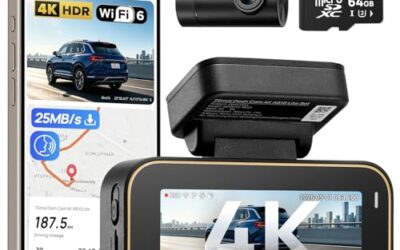
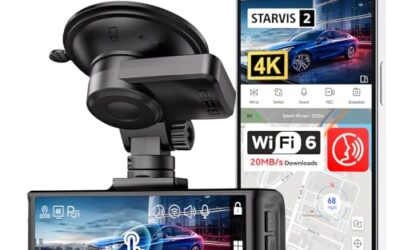
- 4K recording is specified for both the front and rear cameras
- Includes a 128GB card for recording out of the box
- Provides built-in GPS and dual-band WiFi 6 connectivity
- Includes a stated 3-year guarantee and 24/7 customer support
Cons
- The hardwire kit needed for 24-hour parking monitoring is sold separately
Specifications
| Color | Black |
|---|---|
| Size | 3 |
| Dimensions | 1.3779527545 x 3.7401574765 x 1.7716535415 Inches |
| Weight | 0.3968320716 Pounds |
| Product Group | Electronics |
Best For / Avoid If
Best for buyers prioritizing
- 4K recording is specified for both the front and rear cameras
- Includes a 128GB card for recording out of the box
- Provides built-in GPS and dual-band WiFi 6 connectivity
Consider another option if
- The hardwire kit needed for 24-hour parking monitoring is sold separately

Pros
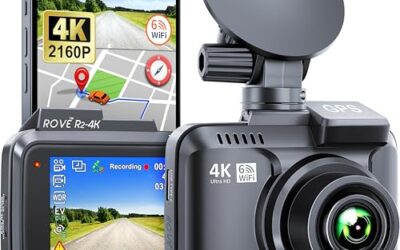
- Records front-facing video in 4K UHD resolution
- Includes a pre-installed 32GB memory card and supports cards up to 256GB
- Offers 5GHz WiFi connectivity and app-based video access
- Compact, screen-free design is intended to minimize visual distraction
Cons
- The Type-C hardwire kit required for 24-hour parking mode is not included
- The included memory card capacity is 32GB, reduced from the previously stated 64GB
Best For / Avoid If
Best for buyers prioritizing
- Records front-facing video in 4K UHD resolution
- Includes a pre-installed 32GB memory card and supports cards up to 256GB
- Offers 5GHz WiFi connectivity and app-based video access
Consider another option if
- The Type-C hardwire kit required for 24-hour parking mode is not included
- The included memory card capacity is 32GB, reduced from the previously stated 64GB
FAQ
Can a dash cam record without its screen being on?
Yes. Many cameras turn off the display while recording to reduce distraction and power use. Check for a recording light, voice prompt, timer, or saved video.
Why does my dash cam say recording but save no video?
Possible causes include a damaged or unsupported card, corrupted file system, unstable power, full protected storage, overheating, or a firmware fault. Test with needed files copied first and follow the camera manual.
Does a dash cam record when the car is off?
Only if the camera has a suitable parking-mode power source and the feature is enabled. A hardwire kit, dedicated battery pack, or live vehicle outlet may be required. Vehicle battery protection settings can stop recording.
How often should I check dash cam footage?
Check after installation, card replacement, firmware updates, unusual reboots, and any incident. A short monthly playback check can reveal clock, storage, or power problems before footage matters.
Can a full memory card stop recording?
Yes. Loop recording normally replaces older files, but protected event clips can fill storage. If loop recording is disabled or the card has an error, the camera may stop saving new video.
Related CarTechTalk guides
For vehicle-specific camera fitment, see our guide to the best dash cam for ford bronco and our coverage of the best dash cam for hyundai kona. For parking and rear-view setups, compare the best backup camera for a camper.