
To protect dash cam footage after an accident, stop the camera from recording, preserve the memory card, and copy files to more than one safe location. Keep original files unchanged, record useful details, and share copies instead of handing over your only card or file.
Footage can disappear when a camera keeps recording, a loop-recording system overwrites older clips, or a damaged memory card fails during repeated use. The steps below apply to front cameras, rear cameras, cabin cameras, and systems that save video through a phone app.
Key takeaways
- Stop driving and stop camera recording when safety allows.
- Lock the accident clip using the camera button or app.
- Remove the memory card only after the camera powers down.
- Copy original video files before editing, trimming, or converting them.
- Keep at least two copies in separate locations.
- Save related files such as GPS data, audio, still images, and event logs.
- Check time zone and clock accuracy before describing when events happened.
- Share footage with insurers, police, or attorneys through copies.
What to do immediately after an accident
Handle people and traffic first. Call emergency services when needed, move away from traffic only when safe, and follow instructions from police or other officials. Do not operate a camera, phone, or memory card while driving.
Once the scene is safe, stop the dash cam. Unplug its power cable, turn off the ignition if appropriate, or use its power button. A camera connected to parking mode may keep recording after the engine stops. Disconnect that power source only if doing so does not create another safety problem.
Many cameras use loop recording. This system saves short clips and later replaces old clips with new ones. Continued recording can overwrite the accident video, especially when the card has limited free space. A G-sensor event lock can help, but it is not a substitute for manual preservation.
How to protect dash cam footage after an accident
- Stop recording. Turn off the camera or disconnect power after the scene is safe. Avoid pressing buttons repeatedly because some models protect or delete files through different menus.
- Lock the relevant clip. Press the event, emergency, or lock button if the camera has one. Use the companion phone app when required. Lock video before removing power where possible.
- Write down scene details. Record date, approximate time, location, direction of travel, weather, lane position, and the camera’s front, rear, or cabin view. Note whether audio was enabled.
- Power down fully. Wait until recording stops and status lights go dark. Removing a card during writing can corrupt one or more files.
- Remove the memory card carefully. Hold the card by its edges. Place it in a labeled case, envelope, or other dry container. Do not use the card for more recording.
- Make an original copy. Use a computer or the camera app to copy every related file into a new folder. Include files before and after the impact, not only the clip with the collision.
- Keep file structure intact. Some cameras store video, GPS data, thumbnails, event records, or calibration files in separate folders. Copy the complete folder structure when possible.
- Make a second copy. Store one copy on a separate drive and another in secure cloud storage or with a trusted person. Keep the original memory card untouched.
- Review copies, not originals. Check that files open, play from start to finish, and show the correct camera view. Do not rename or convert original files until backup copies exist.
- Share controlled copies. Give insurers, police, or legal representatives a duplicate. Keep a record of who received it, when, and through which method.
Preserve more than the impact moment
Accidents often depend on events several seconds or minutes before impact. Save the approach, traffic signal, lane changes, braking, horn use, and the other vehicle leaving the scene. Rear or cabin video may show details missing from the front view.
Keep audio when it captures useful warnings or statements, but understand that audio can raise privacy or consent questions. Laws differ by state and situation. Do not publish recordings online simply because you believe another driver caused the crash.
Save the camera’s date and time display as recorded. Dash cam clocks can drift, use the wrong time zone, or fail to adjust for daylight saving time. Treat the displayed time as camera data, not automatic proof of official time.
GPS information can help show route, speed, and location when the camera records it. GPS accuracy varies with signal conditions and device design. Do not treat an on-screen speed value as exact without supporting evidence.
How to copy footage without changing it
A computer provides more control than repeated downloads through a phone app, but either method can work. Create a folder with the vehicle, incident date, and camera position. Copy files rather than moving them.
Keep original file extensions. Do not apply filters, crop the image, add captions, or export through an editor as your first preservation step. Video editing can remove metadata, change compression, or make it harder to show that a file remains unchanged.
After copying, open the duplicate files. Check front, rear, and cabin views separately. Confirm that sound plays when relevant. Compare file names and file sizes with the memory card. A file that appears in a folder but will not play may be incomplete or damaged.
For a stronger record, calculate a file hash with a standard computer tool and save the result with the case notes. A hash is a digital fingerprint for one file. Changing even a small part of that file usually changes its hash. This does not prove that video shows truth, but it helps identify whether a copy changed after creation.
Memory card and cloud backup limits
Keep the original card in its current state. Do not format it, run repair tools, or insert it into the camera again. A camera may create new folders, update files, or overwrite locked footage during startup.
Cloud backup can protect against card loss, but phone apps may compress video, omit rear-camera files, or download only selected clips. Compare cloud copies with files from the card. A full-resolution file usually gives investigators more detail than a preview or messaging-app version.
Cloud accounts also have access and retention rules. Use a private account, strong password, and two-factor authentication where available. Do not place sensitive cabin audio or personal data in a public folder.
Compatibility issues that can affect recovery
| Issue | What it changes | Safer action |
|---|---|---|
| microSD card format | Some cameras accept only certain capacities or file systems. | Use a computer or the camera app for copying. Avoid formatting the card. |
| Phone operating system | iPhone and Android apps may handle downloads, storage, and permissions differently. | Keep a computer copy when the app cannot export original files. |
| Firmware version | Menu names, file locations, and event-lock behavior can change. | Use the manual for the installed firmware version. |
| Power connection | USB-C, mini-USB, 12-volt, and hardwire kits may power the camera differently after ignition shutdown. | Stop recording through the camera controls before removing power when possible. |
| Camera system layout | Front, rear, cabin, and external modules may save separate files. | Copy every camera folder and match clips by timestamp. |
Vehicle model year can matter when a camera uses a hardwire kit, USB port, fuse tap, or factory accessory circuit. Newer vehicles may keep accessory power active after the engine stops. Some vehicles also disable outlets during battery protection events. Follow the camera and vehicle manuals rather than pulling an unfamiliar fuse.
What to give an insurer, police officer, or attorney
Provide a short description with the copy. State which camera produced each file, the recorded time, the camera clock setting if known, and whether the file is an original export or a duplicate. Include contact details only when required.
Ask how the recipient wants large files delivered. Email services may reduce quality or reject large attachments. A secure upload link can preserve full resolution, but keep your own copy before sending it.
Do not add claims that the video cannot show. Describe visible actions and camera data separately from conclusions about fault. The footage may support an account of events, but legal decisions depend on the full record and local rules.
Common mistakes
- Continuing to drive with the camera running: Loop recording may replace the collision clip.
- Removing power during file writing: The current file may become incomplete.
- Formatting the card: Formatting can remove data and complicate recovery.
- Saving only a phone preview: The app may store a lower-resolution copy.
- Editing before backup: Cropping, captions, and conversion can remove useful metadata.
- Saving only the impact frame: Earlier actions often provide needed context.
- Posting online: Public sharing can expose faces, plates, voices, and unrelated passengers.
- Assuming event lock means permanent storage: Locked files can still be lost through card failure, formatting, or user action.
- Changing the original file name: Renaming can make later file matching harder. Use a copy for organization.
When to get professional help
Stop using the card and seek a qualified data-recovery service when the computer cannot read it, files disappear, video will not play, or the card becomes unusually slow. Do not run repeated repair attempts on important evidence.
Contact an attorney when a serious injury, disputed fault, criminal allegation, privacy issue, or request for original evidence exists. Legal rules for recording audio, sharing personal information, and preserving evidence vary by jurisdiction.
Ask a camera installer or vehicle technician for help when a hardwire kit will not shut down, the camera drains the battery, or removing power could affect another vehicle circuit. Model-year wiring and connector layouts differ.
Related dash cam guidance
Camera placement and system layout affect what footage exists before an accident. CarTechTalk covers Thinkware dash cam systems and their front, rear, and cabin camera options, plus dash cam fit and camera choices for the Ford Bronco. Browse the Dash Cams & Vehicle Cameras category for related setup guidance.
For a closer look at a related choice, see Best Dash Cam Cameras With Night Vision.
Gear that can help
If you need dash cams for this job, these picks already appear in our dash cams guides. Check the full guide for fit and who should skip each one.

Pros
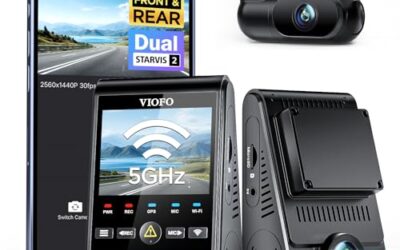
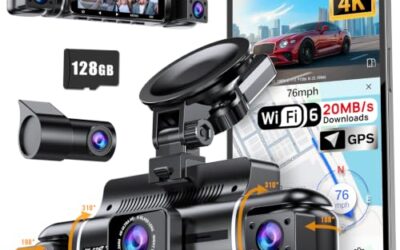
- Multiple camera views are designed to reduce blind spots and capture more driving footage
- GPS data can be reviewed through the app or GPS player
- The included 128GB card reduces the need to purchase storage separately
- Adjustable cameras are listed as compatible with sedans, SUVs, trucks, vans, and rideshare vehicles
Cons
- A hardwire kit is required for 24-hour parking mode and is not included
Specifications
| Color | Black |
|---|---|
| Dimensions | 1 x 1 x 1 inches |
| Product Group | Wireless |
Best For / Avoid If
Best for buyers prioritizing
- Multiple camera views are designed to reduce blind spots and capture more driving footage
- GPS data can be reviewed through the app or GPS player
- The included 128GB card reduces the need to purchase storage separately
Consider another option if
- A hardwire kit is required for 24-hour parking mode and is not included

Pros
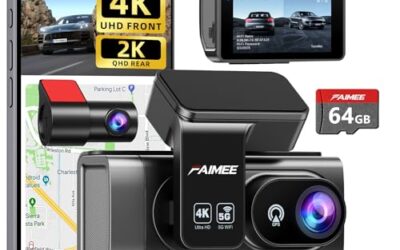
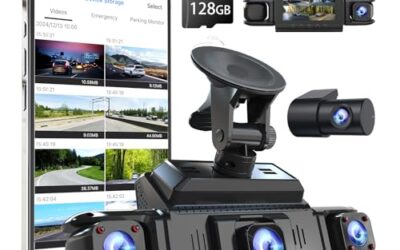
- Four-camera coverage records the front, rear, and both sides of the vehicle
- A 64GB memory card is included for immediate recording
- GPS and 5GHz Wi-Fi support app-based video management and location tracking
- The G-sensor automatically locks footage when sudden shakes or collisions are detected
Cons
- The parking monitoring function requires a separately purchased hardwire kit
Specifications
| Color | Gold |
|---|---|
| Dimensions | 1.5 x 2.2 x 6.3 inches |
| Product Group | Electronics |
Best For / Avoid If
Best for buyers prioritizing
- Four-camera coverage records the front, rear, and both sides of the vehicle
- A 64GB memory card is included for immediate recording
- GPS and 5GHz Wi-Fi support app-based video management and location tracking
Consider another option if
- The parking monitoring function requires a separately purchased hardwire kit

Pros
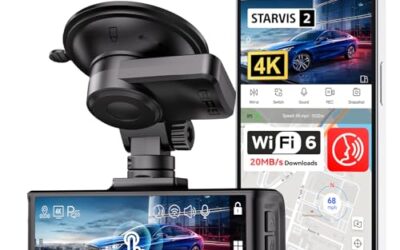
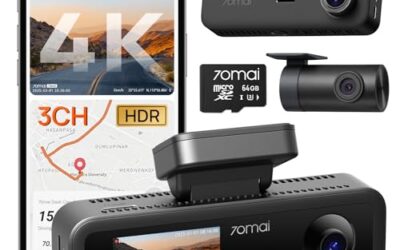
- High-resolution 4K front and 1080P rear recording
- STARVIS 2 sensor with WDR and HDR features for varied lighting conditions
- Supercapacitor design is specified as more heat-resistant than a lithium battery
- Includes an 18-month warranty and customer support
Cons
- A hardwire kit is needed for the listed parking modes
Specifications
| Color | black |
|---|---|
| Size | F7NP-128GB SD Card |
| Dimensions | 3.7401574765 x 1.46062991977 x 0.79133858187 inches |
| Weight | 0.25 Pounds |
| Product Group | Electronics |
| Binding | Electronics |
Best For / Avoid If
Best for buyers prioritizing
- High-resolution 4K front and 1080P rear recording
- STARVIS 2 sensor with WDR and HDR features for varied lighting conditions
- Supercapacitor design is specified as more heat-resistant than a lithium battery
Consider another option if
- A hardwire kit is needed for the listed parking modes
FAQ
Should I remove the dash cam memory card after an accident?
Remove it after recording stops and the camera powers down. Keep it out of the camera afterward so new files cannot overwrite existing footage.
Can I use a dash cam app to save accident footage?
Yes, when the app exports original files. Check the downloaded copy for full resolution, correct camera view, sound, and continuous playback. Keep a card or computer copy too.
Should I give the original memory card to an insurer?
Usually keep the original and provide a duplicate unless an authorized investigator requests the card through a documented process. Record what you provide and keep a backup.
How long should I keep dash cam footage?
Keep accident-related files until claims, investigations, and legal matters end. Retention periods vary by case and jurisdiction, so ask the insurer or attorney handling the matter.
Can deleted dash cam footage be recovered?
Sometimes, but recovery depends on overwriting, card condition, file-system damage, and camera behavior. Stop using the card and seek professional recovery help promptly.