
To blur faces and license plates in dash cam footage, work on a copy in a video editor with masks, blur or pixelation tools. Track moving subjects and inspect the exported video before sharing it. Keep the original footage unchanged if it may be needed as evidence.
Key takeaways
- Keep original footage unchanged and work from a duplicate.
- Use a blur or pixelation mask over each face and license plate.
- Track moving subjects, then inspect the result frame by frame.
- Blur more area than the visible feature alone when motion or compression may expose edges.
- Export a new copy and avoid overwriting evidence footage.
- Phone OS, app version, video codec, and dash cam firmware can change available tools.
What you need before editing
Start with the original dash cam file copied from its microSD card, internal storage, phone, or cloud account. Make a second copy for editing. Keep the untouched file in a separate folder with its original filename and creation details.
Most editors can open common dash cam formats such as MP4 or MOV. Some cameras save segmented files, unusual codecs, HDR video, or proprietary containers. If an editor refuses the file, use a current video converter or the camera maker’s desktop software. Preserve the original file because conversion can change metadata, image quality, or playback behavior.
You also need an editor that supports one or more of these functions:
- Blur or pixelation effect.
- Shape, mask, sticker, or overlay layer.
- Keyframes for manual movement.
- Motion tracking or object tracking.
- Frame-by-frame preview.
- Export at the source resolution and frame rate.
App menus differ across iPhone and iPad versions of iOS, Android versions, Windows, and macOS. Firmware can also affect file format and resolution. A dash cam that records 4K, HDR, or high frame rate video may require more storage and processing power than a phone editor handles well.
How to blur faces and license plates in dash cam footage
1. Copy footage before editing
Remove the microSD card safely or copy the file through the dash cam app. Save the original to a computer or external drive. Do not edit directly from a card that may be reused for recording.
Give the working copy a clear name, such as 2026-10-09-intersection-working.mp4. Keep the original in a separate folder. If footage may support an insurance claim, collision report, or legal matter, retain the original and record which copy you edited.
2. Import the clip and inspect the timeline
Open the working copy in your editor. Watch the full clip once before applying effects. Note every face, front plate, rear plate, reflection, and screen inside the vehicle that may reveal personal information.
Dash cam footage often includes more than one privacy target. A parked vehicle may enter view late in the clip. A pedestrian may appear only for a few seconds. A plate can become readable after a car changes direction or moves closer.
3. Add a blur or pixelation mask
Select a blur, mosaic, or pixelation effect. Draw a mask over the face or license plate. Use an oval or rectangle that covers the full feature, not only the central text or eyes.
Pixelation hides detail by replacing it with larger blocks. Blur softens detail but may leave shapes or characters partly recognizable at low strength. Use the setting that blocks identification while keeping the rest of the scene useful. Stronger blur can cover a larger area but may hide nearby traffic details.
For a license plate, include the plate frame and a small margin around it. For a face, cover the complete face and move the mask with the head. Hair, hats, sunglasses, and skin tone can still identify someone when only eyes receive coverage.
4. Track moving subjects
If your editor offers motion tracking, place the mask over the target at its clearest point and start tracking. The software follows changes in position across the clip. Tracking can fail when a vehicle passes behind another object, lighting changes, the target leaves the frame, or the image becomes blurred by motion.
Review the tracking path. Correct the mask whenever it drifts. A mask that covers empty road while leaving a plate visible does not protect the clip.
5. Use keyframes when tracking fails
Keyframes mark the mask position at selected points in time. Place one at the start of movement, another when the target changes direction, and more whenever the mask no longer covers the feature.
- Place the playhead at the first frame containing the face or plate.
- Draw the mask and add a position keyframe.
- Move forward until the mask reaches an edge or loses alignment.
- Move the mask back over the target and add another keyframe.
- Repeat until the target leaves the frame.
- Check nearby frames at normal speed and slow speed.
Keyframes work well for short clips and simple movement. Long clips with several vehicles may take more time than automatic tracking, but manual review remains necessary.
6. Cover targets entering or leaving the frame
A face or plate can appear at the edge before the editor creates a mask. Scrub frame by frame around every entry and exit point. Extend the effect slightly before the target becomes readable and slightly after it leaves.
Use separate masks when two targets move in different directions. One large mask may hide private details but also remove useful evidence, road signs, or traffic signals.
7. Review the edited video
Watch the entire edited file after rendering. Check high-speed playback first, then inspect difficult sections frame by frame. Look for:
- Mask drift.
- Readable plate characters at the start or end of a mask.
- Faces exposed during camera shake.
- Reflections in windows, mirrors, or body panels.
- Targets revealed during a transition or cut.
- Blur effects that disappear after export.
Inspect the exported file, not only the editor preview. Some apps change resolution, crop the image, remove effects, or apply a lower-quality preview during editing.
8. Export a new file
Export with the same orientation and, where possible, the original resolution and frame rate. A lower-resolution export may make signs, plates, and faces harder to review. A larger export does not restore detail lost during earlier compression.
Use a new filename that identifies it as edited, such as 2026-10-09-intersection-blurred.mp4. Keep the original separate. Do not replace evidence footage with the privacy-edited copy.
Phone editing versus computer editing
| Method | Useful for | Limits |
|---|---|---|
| Phone or tablet app | Short clips, quick sharing, simple masks | Small screens make frame review harder; app features vary by iOS and Android version |
| Computer editor | Long clips, several targets, keyframes, detailed review | Requires more storage and may need codec support |
| Dash cam companion app | Fast transfer and basic privacy edits when supported | Tools may depend on camera model, firmware, phone OS, and connection method |
| Online editor | Browser-based processing without installing software | Uploading footage creates a privacy concern and may expose location or incident details |
Phone editing fits short clips recorded by cameras that transfer files through Wi-Fi or a USB connection. Large 4K files can take longer to copy and may fill phone storage. Computer editing gives better timeline control and a larger preview, especially for rear-camera footage or clips containing several moving vehicles.
Blur, pixelation, or solid cover?
Blur softens detail. Pixelation replaces detail with blocks. A solid opaque shape hides the target more completely but can remove nearby visual context. Choose based on the purpose of the shared clip.
For privacy sharing on social media, a strong blur or pixelation effect may work if reviewed carefully. For a clip that shows a collision, use the smallest cover that blocks personal information while retaining road position, traffic lights, vehicle movement, and impact timing.
No visual effect guarantees that a person or vehicle cannot be identified. Clothing, vehicle color, location, time, reflections, audio, and surrounding events may reveal identity. Crop audio or remove metadata when those details create a separate privacy risk.
Dash cam footage details that affect editing
Resolution and compression
Higher resolution can show smaller faces and plates, but it also creates larger files. Heavy compression can produce blocks around a plate, causing a tracking tool to lose the target. Review the original before assuming an editor caused the problem.
Wide-angle lenses
Wide-angle dash cams distort objects near frame edges. A plate may stretch or change shape as a vehicle passes. Use a mask that follows the visible shape rather than a fixed rectangle copied from the center of the image.
Night footage and headlights
Headlight flare, rain, and low light can hide a target in one frame and reveal it in another. Check both bright and dark sections. Tracking may fail when the target blends into glare or shadow.
Front and rear cameras
Dual-camera systems may save front and rear views as separate files or as one combined video. Edit every view that contains a face or plate. A privacy edit on the front view does not cover the same person in the rear view.
Common mistakes
- Editing the only copy: Exported files can lose metadata or suffer a failed render. Keep the original untouched.
- Blurring only the plate characters: The plate shape, frame, and nearby identifying marks may remain visible. Cover the full plate area.
- Trusting automatic tracking: Tracking can drift during occlusion, glare, or rapid movement. Inspect the result.
- Checking only the preview: Export settings can change the effect. Review the final file.
- Using a screenshot: A screenshot removes motion context and may retain visible details in other frames. Edit the video itself.
- Uploading sensitive footage: Cloud editors may expose location, audio, timestamps, or incident details. Use local editing for sensitive clips.
- Overwriting the evidence file: A privacy version and an original serve different purposes. Keep both with clear names.
- Ignoring audio: Voices, names, navigation prompts, and radio audio may identify people or locations. Mute or trim audio when needed.
When to get professional help
Use a professional video editor when footage contains many moving targets, several camera views, long recording segments, or material needed for court or an insurance investigation. Ask for the original files to remain untouched and request an exported privacy copy separately.
A forensic video specialist may be more suitable when timing, frame order, metadata, or image authenticity matters. Do not apply filters to the original evidence file. Give the specialist the card image or original file set when preservation matters.
Related dash cam reading
Camera placement and recording format affect how much editing work follows. CarTechTalk’s guide to the Thinkware Dash Cam F70 PRO, ARC, and U3000 PRO covers differences among camera systems. Vehicle-specific installation factors appear in the guides to a dash cam for Ford Bronco and a dash cam for Hyundai Kona.
Gear that can help
If you need dash cams for this job, these picks already appear in our dash cams guides. Check the full guide for fit and who should skip each one.

Pros
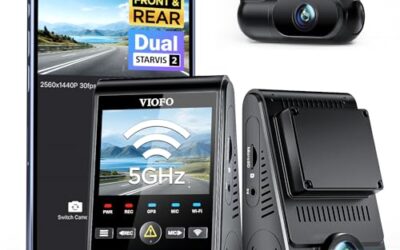
- High-resolution 4K front and 1080P rear recording
- STARVIS 2 sensor with WDR and HDR features for varied lighting conditions
- Supercapacitor design is specified as more heat-resistant than a lithium battery
- Includes an 18-month warranty and customer support
Cons
- A hardwire kit is needed for the listed parking modes
Specifications
| Color | black |
|---|---|
| Size | F7NP-128GB SD Card |
| Dimensions | 3.7401574765 x 1.46062991977 x 0.79133858187 inches |
| Weight | 0.25 Pounds |
| Product Group | Electronics |
| Binding | Electronics |
Best For / Avoid If
Best for buyers prioritizing
- High-resolution 4K front and 1080P rear recording
- STARVIS 2 sensor with WDR and HDR features for varied lighting conditions
- Supercapacitor design is specified as more heat-resistant than a lithium battery
Consider another option if
- A hardwire kit is needed for the listed parking modes
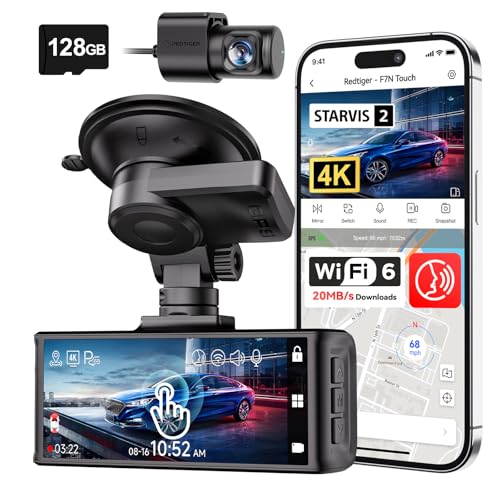
Pros
- High-resolution 4K front and 1080P rear recording
- Multiple control options, including voice commands, touchscreen, and physical buttons
- Built-in GPS and wireless smartphone connectivity
- Includes a 128GB card and supports automatic loop recording
- Includes an 18-month guarantee and 24/7 customer support
Cons
- Parking monitoring requires a separate hardwire kit
- Rear camera resolution is limited to 1080P compared with the 4K front camera
Specifications
| Color | Black |
|---|---|
| Dimensions | 2.362204722 x 1.2598425184 x 3.8188976339 inches |
| Weight | 0.25 pounds |
| Product Group | Wireless |
| Binding | Electronics |
Best For / Avoid If
Best for buyers prioritizing
- High-resolution 4K front and 1080P rear recording
- Multiple control options, including voice commands, touchscreen, and physical buttons
- Built-in GPS and wireless smartphone connectivity
Consider another option if
- Parking monitoring requires a separate hardwire kit
- Rear camera resolution is limited to 1080P compared with the 4K front camera

Pros
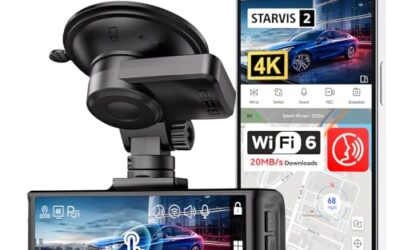
- 4K front and 2.5K rear recording
- Built-in GPS and 5GHz WiFi connectivity
- 64GB SD card included
- G-sensor helps preserve impact-related footage
Cons
- Parking monitoring requires a separately sold hardwire kit
- Some Viidure app features, including video speed adjustment and cloud uploads, require membership
Specifications
| Color | Black |
|---|---|
| Size | A13-WiFi+GPS-64GB |
| Dimensions | 19.49999998011 x 6.49999999337 x 10.49999998929 Inches |
| Product Group | Wireless |
| Binding | Electronics |
Best For / Avoid If
Best for buyers prioritizing
- 4K front and 2.5K rear recording
- Built-in GPS and 5GHz WiFi connectivity
- 64GB SD card included
Consider another option if
- Parking monitoring requires a separately sold hardwire kit
- Some Viidure app features, including video speed adjustment and cloud uploads, require membership
FAQ
Can I blur a face or plate with a phone?
Yes. Use an app with masks, blur effects, keyframes, or object tracking. Large 4K clips may require more storage and processing time, and menus vary by iOS and Android version.
Is blurring better than pixelation?
Neither works automatically in every clip. Blur softens detail, while pixelation replaces detail with blocks. Both need inspection after export.
Can automatic tracking protect every frame?
No. Tracking can fail during glare, occlusion, camera shake, fast motion, or target overlap. Correct the mask with keyframes and inspect the full clip.
Should I blur dash cam footage before giving it to police or an insurer?
Keep the untouched original. Ask the receiving organization whether it wants the original, an edited privacy copy, or both. Provide clear filenames and preserve the original file structure when possible.
Does cropping remove the need to blur faces and plates?
Only if cropping removes every frame and view containing the target. Check the full video because a face or plate may enter the remaining frame later.