
To export dash cam video without losing quality, copy the original video file from the memory card or use the camera app’s original-file download option. Avoid re-encoding or sending it through services that compress video. Check the exported file before deleting or formatting anything on the camera.
Before starting, identify where the camera stores files, charge the camera or phone, and have enough storage for the original clips. Export methods vary by camera model, firmware, memory-card format, phone OS, and app. A camera that uses a Wi-Fi app may offer a lower-quality preview download while keeping the full file on its card.
Key takeaways
- Copy original files from the microSD card when maximum quality matters.
- Do not use screen recording, messaging apps, or social platforms as your master copy.
- Check resolution, frame rate, file size, and duration before deleting camera footage.
- Use the camera app’s original or full-resolution option when available.
- Keep the original file unchanged for insurance, police, or court use.
- Phone storage, operating system, file system, and camera firmware can limit exports.
What causes dash cam video quality loss?
Quality loss usually comes from recompression, resizing, transcoding, or an incomplete transfer. The camera records a file with set image data. An app or service may decode that file, reduce its size, and create a new copy.
Common examples include sending video through text messaging, uploading it to a social platform, exporting from an app with a “share” option, or recording playback on another screen. These methods can lower resolution, remove detail, reduce frame rate, or add visible compression blocks.
A file can also appear worse when a player scales a 1080p clip across a 4K display. That changes how the video looks on screen, not necessarily the data inside the file. Check file properties before judging an export.
Original file versus converted copy
| File type | What it means | Best use |
|---|---|---|
| Original camera file | Matches the camera’s recorded settings and metadata as stored. | Master archive, insurance, police, or legal review. |
| Direct card copy | Same file copied to another device without video conversion. | Safest export method for full quality. |
| App download | May be original or may be a lower-resolution phone copy. | Quick review after checking file properties. |
| Edited export | New file created after trimming, cropping, or transcoding. | Sharing a short section while retaining original footage. |
| Screen recording | New video captured from playback on a display. | Last resort only, not an evidence master. |
How to export dash cam video without losing quality
1. Protect the original recording first
Stop overwriting the relevant clip before exporting it. Many dash cams use loop recording. When the card fills, the oldest unlocked files may be replaced.
Press the camera’s event or lock button if the model provides one. Some cameras protect a file only after impact detection. Others save protected clips in a separate folder. The exact behavior depends on firmware and camera settings.
Remove power only after the camera finishes writing. Pulling power during recording can create an incomplete file or corrupt the card’s file system. If the camera uses a supercapacitor or internal battery, let its shutdown cycle finish.
2. Copy footage from the microSD card
Direct card copying gives the clearest path to the original file. Turn off the camera, remove its microSD card, and insert the card into a computer using a compatible reader.
- Open the card’s video folders.
- Locate the date, event, front-camera, rear-camera, or parking-mode folder.
- Copy the relevant files to a computer or external drive.
- Keep folder structure and original filenames until the backup finishes.
- Open the copied file and compare it with the card copy.
Do not move files first if the footage matters. Copy them, confirm the destination, then keep the card untouched. A card reader may need an adapter, and some computers may not support the card’s file system without additional software.
Some cameras split long recordings into short segments. Copy adjacent files before and after the event. A collision or traffic incident may begin in one segment and end in another.
3. Use the camera app at full resolution
Wi-Fi dash cams often create their own network. Connect the phone to the camera’s Wi-Fi, open its official app, and select the camera storage or download view.
Look for labels such as original, full resolution, native quality, or download from device. Avoid preview, compressed, small, or share copies when the app offers separate choices. App wording differs by brand and firmware.
Keep the phone near the camera during transfer. A weak Wi-Fi link can interrupt downloads. Do not switch the phone back to cellular data if the app requires the camera’s local network. On iPhone, Wi-Fi behavior can change when the camera network has no internet connection. Android phones may also switch networks based on system settings.
After downloading, compare the phone file’s size and properties with the file on the card. A much smaller file may be an app-generated copy rather than the original recording.
4. Check file properties before sharing
Use your computer or phone’s file information screen. Record these values:
- Resolution, such as 1920 by 1080 or 3840 by 2160.
- Frame rate, such as 30 or 60 frames per second.
- Video codec, such as H.264 or H.265.
- File size and duration.
- Audio track, if the camera records sound.
- Creation time and camera metadata, when available.
Matching resolution alone does not prove that quality stayed the same. A 4K file can be heavily compressed. Bitrate, codec settings, and frame rate also affect detail and motion clarity. A file that keeps the same duration and resolution may still have less image data after conversion.
5. Trim only after making a master copy
Keep the untouched camera file before trimming. Then create a working copy for edits. This protects the original if an editor changes frame rate, metadata, audio, or encoding settings.
For a simple cut, use an editor that can copy the original video stream without re-encoding when the file format permits. This is often called stream copy or lossless trimming. Some editors re-encode every export, even when the output settings match the input.
Set export resolution and frame rate to match the source. Avoid cropping unless needed. Cropping removes part of the image and may reduce the output resolution. Adding stabilization, sharpening, brightness changes, or privacy blur creates a new processed file.
How to share dash cam footage without losing quality
Share the original file through a method that does not transcode it. Cloud storage, a direct file transfer, a USB drive, or an email attachment can preserve the file if the service accepts its size and format.
Many messaging and social-media services recompress video. Their in-app video preview may look clear while the downloaded copy has lower resolution or bitrate. Use a file attachment or cloud link when the recipient needs original footage.
Set access controls on cloud links. Use expiration dates or limited permissions for sensitive footage. Dash cam video may show license plates, home addresses, faces, GPS data, or audio conversations.
Do not delete the master after sending a link. Cloud files can be moved, compressed, deleted, or affected by account access changes. Keep at least one local copy and one separate backup when the footage matters.
Dash cam export limits by storage method
| Method | Quality risk | Practical limit |
|---|---|---|
| MicroSD card reader | Low if files are copied without conversion. | Requires compatible card reader and enough destination storage. |
| Camera Wi-Fi app | Medium because apps may create compressed downloads. | Transfer speed, phone storage, Wi-Fi range, and app behavior matter. |
| USB connection | Usually low when the camera exposes original files. | Some cameras charge only over USB or use proprietary software. |
| Cloud upload | Usually low for file storage, but preview or download settings may alter copies. | Internet speed, account storage, file limits, and privacy controls matter. |
| Text or social sharing | High because automatic compression is common. | Use only for casual viewing unless the recipient receives the original attachment. |
Common mistakes
- Recording the camera screen: This captures a display, not the original file. Reflections, moiré, glare, and screen scaling reduce useful detail.
- Using a playback preview: Preview streams may use lower quality to improve app speed.
- Deleting files after one export: A failed or compressed transfer can leave no original backup.
- Ignoring rear-camera files: Dual-channel systems may store front and rear video in separate folders.
- Changing the card in the camera: Formatting or repairing a card can erase evidence.
- Using the wrong card reader: Some readers support full-size SD cards but require a microSD adapter.
- Renaming everything immediately: Renaming can remove useful date or camera clues. Preserve originals, then organize copies.
- Exporting with a different frame rate: Frame conversion can create motion artifacts or dropped frames.
- Confusing high resolution with high quality: Resolution is only one part of video quality. Compression and bitrate also matter.
When to get professional help
Stop repeated attempts if the memory card becomes unreadable, the camera shows card errors, or files disappear after power loss. Continued use can overwrite recoverable data.
A digital-forensics professional may help with important footage, especially after corruption or accidental formatting. Do not install recovery software onto the affected card. Save recovered files to another drive.
Ask for help when footage may support a serious crash, insurance dispute, or court matter. Keep the card, original files, camera settings, and a record of each copy. Local evidence rules and privacy laws vary, so legal guidance may be appropriate.
For camera selection and vehicle-specific installation issues, see CarTechTalk’s Dash Cams & Vehicle Cameras category, plus guides covering the Thinkware F70 PRO, ARC, and U3000 PRO and dash cams for Ford Bronco.
Related reading: How To Aim A Rear Dash Cam.
Related reading: How To Remove Dash Cam Adhesive Without Damaging Glass.
Related reading: Best Dash Cam Under $150 for Reliable Video Protection.
Gear that can help
If you need dash cams for this job, these picks already appear in our dash cams guides. Check the full guide for fit and who should skip each one.

Pros
- High-resolution 4K front and 1080P rear recording
- STARVIS 2 sensor with WDR and HDR features for varied lighting conditions
- Supercapacitor design is specified as more heat-resistant than a lithium battery
- Includes an 18-month warranty and customer support
Cons
- A hardwire kit is needed for the listed parking modes
Specifications
| Color | black |
|---|---|
| Size | F7NP-128GB SD Card |
| Dimensions | 3.7401574765 x 1.46062991977 x 0.79133858187 inches |
| Weight | 0.25 Pounds |
| Product Group | Electronics |
| Binding | Electronics |
Best For / Avoid If
Best for buyers prioritizing
- High-resolution 4K front and 1080P rear recording
- STARVIS 2 sensor with WDR and HDR features for varied lighting conditions
- Supercapacitor design is specified as more heat-resistant than a lithium battery
Consider another option if
- A hardwire kit is needed for the listed parking modes
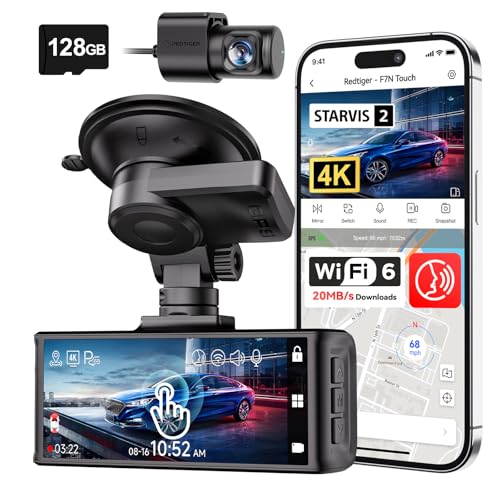
Pros
- High-resolution 4K front and 1080P rear recording
- Multiple control options, including voice commands, touchscreen, and physical buttons
- Built-in GPS and wireless smartphone connectivity
- Includes a 128GB card and supports automatic loop recording
- Includes an 18-month guarantee and 24/7 customer support
Cons
- Parking monitoring requires a separate hardwire kit
- Rear camera resolution is limited to 1080P compared with the 4K front camera
Specifications
| Color | Black |
|---|---|
| Dimensions | 2.362204722 x 1.2598425184 x 3.8188976339 inches |
| Weight | 0.25 pounds |
| Product Group | Wireless |
| Binding | Electronics |
Best For / Avoid If
Best for buyers prioritizing
- High-resolution 4K front and 1080P rear recording
- Multiple control options, including voice commands, touchscreen, and physical buttons
- Built-in GPS and wireless smartphone connectivity
Consider another option if
- Parking monitoring requires a separate hardwire kit
- Rear camera resolution is limited to 1080P compared with the 4K front camera

Pros
- 4K front and 2.5K rear recording
- Built-in GPS and 5GHz WiFi connectivity
- 64GB SD card included
- G-sensor helps preserve impact-related footage
Cons
- Parking monitoring requires a separately sold hardwire kit
- Some Viidure app features, including video speed adjustment and cloud uploads, require membership
Specifications
| Color | Black |
|---|---|
| Size | A13-WiFi+GPS-64GB |
| Dimensions | 19.49999998011 x 6.49999999337 x 10.49999998929 Inches |
| Product Group | Wireless |
| Binding | Electronics |
Best For / Avoid If
Best for buyers prioritizing
- 4K front and 2.5K rear recording
- Built-in GPS and 5GHz WiFi connectivity
- 64GB SD card included
Consider another option if
- Parking monitoring requires a separately sold hardwire kit
- Some Viidure app features, including video speed adjustment and cloud uploads, require membership
FAQ
Does copying a dash cam file reduce quality?
A direct file copy does not reduce quality. Quality changes when software converts, compresses, resizes, or edits the video during export.
Should I export dash cam video through Wi-Fi or a card reader?
Use a card reader for the safest path to the original file. Use Wi-Fi when convenience matters and the app offers a full-resolution download.
Why does exported video look blurry on my phone?
The app may download a preview copy, or the phone may scale the video during playback. Check resolution, bitrate, file size, and duration before assuming the file changed.
Can I send dash cam footage by text message?
You can, but messaging services often compress video. Send the original file through cloud storage or another file-transfer method instead.
Should I keep the microSD card after exporting?
Yes, if the footage matters. Keep the card and untouched files until the incident, claim, or investigation ends.