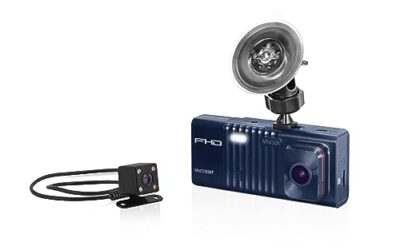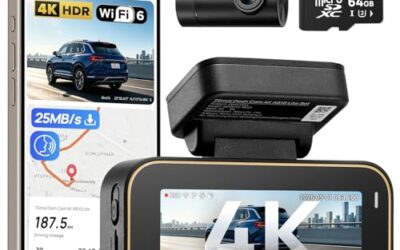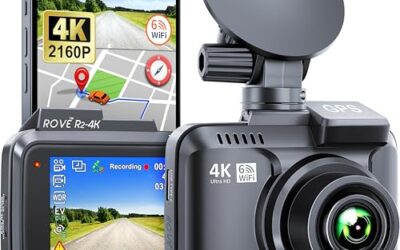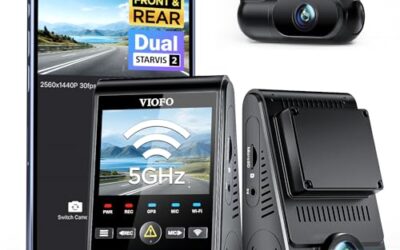

To set the date and time on a dash cam, open its camera menu or companion app, select the date, time and time zone, then save the settings. Menu names and GPS time-sync options vary by model and firmware. Recheck a saved recording after restarting the camera to confirm that the timestamp remains correct.
Exact menu names differ by brand, model, firmware version, phone OS, and connection type. Use the dash cam manual for button locations and menu order. The steps below cover the common process without assuming one camera layout.
Key takeaways
- Set date, time, time format, time zone, and daylight-saving behavior.
- Use the dash cam screen when the camera has physical buttons or a touch display.
- Use the phone app when settings appear only through Wi-Fi or Bluetooth.
- GPS can set time on some cameras, but GPS reception and menu settings affect results.
- A clock that keeps resetting points to a saved-settings, power, firmware, or internal battery problem.
- Check a new recording after saving. The timestamp should match your phone or another trusted clock.
What you need before setting the dash cam clock
Park safely before handling the camera. Keep the vehicle stationary, and do not operate a phone while driving. The camera may need accessory power, a charged battery, or a USB connection before its settings menu becomes available.
- Camera access: Find the Menu, Settings, Date/Time, or System option.
- Manual or app: Menu names and button actions vary by model.
- Correct time zone: Know whether the camera uses a city, UTC offset, or regional setting.
- Phone connection: Some cameras require their own Wi-Fi network and companion app. Your phone may lose normal internet access while connected.
- Power: A weak vehicle battery, loose USB plug, damaged cable, or unstable hardwire kit can interrupt saving.
Vehicle model year can matter when the camera uses a factory USB port or 12-volt outlet. Newer vehicles may shut accessory power off quickly. Some ports supply power only after ignition, while others remain active after the vehicle is parked. That behavior affects clock retention and parking mode.
How to set the date and time on a dash cam with its screen
- Park the vehicle and turn on the dash cam. Wait until recording stops or use the camera’s stop-recording control.
- Press Menu, Settings, or the button marked with a gear icon.
- Open Date/Time, Time Settings, or System Settings.
- Set the year, month, and day. Check the order carefully. Some cameras use month/day/year, while others use day/month/year.
- Set the hour and minute. Check AM and PM if the camera uses 12-hour format.
- Choose 12-hour or 24-hour display if that option exists.
- Set the time zone or UTC offset. Select the location that matches where the vehicle is used.
- Set daylight-saving behavior if the camera offers an automatic option. Some cameras require manual changes twice each year.
- Press OK, Save, or the camera’s confirmation button.
- Exit the menu, create a short recording, and review its file details or on-screen timestamp.
Some cameras save settings only after you leave the menu. Others save each field immediately. If the old time returns, repeat the process while the camera has stable power, then check whether a factory reset or firmware update changed the clock setting.
How to set time through a dash cam phone app
App-controlled cameras usually connect through Wi-Fi, Bluetooth, or both. Phone OS support can differ. An app that works on one Android version or iOS version may show different menus on another version. Update the app only through the official app store, and use the camera maker’s current instructions for pairing.
- Park and power the camera.
- Open the companion app on your phone.
- Connect to the dash cam. This may require joining the camera’s Wi-Fi network or enabling Bluetooth.
- Open Device Settings, Camera Settings, or System.
- Select Date/Time.
- Choose manual time entry or a phone-sync option.
- Check time zone, daylight-saving, date format, and 12-hour or 24-hour display.
- Tap Save, Apply, or the equivalent control.
- Disconnect from the camera and record a short clip.
- Review the clip in the app or on a computer. Confirm the timestamp matches local time.
Phone sync can copy the phone’s clock, but it may not correct a wrong phone time zone. Check the phone’s automatic date and time setting first. A camera connected to a phone in another region can also receive an unwanted local time if the app uses phone location or regional settings.
Manual time, GPS time, and network time
| Time method | How it works | Limit |
|---|---|---|
| Manual | You enter date, time, and often time zone. | Clock can drift or reset after power loss. |
| Phone sync | App copies time from a connected phone. | Wrong phone region or app permissions can create wrong time. |
| GPS | Camera receives time data from satellites after acquiring a signal. | Indoor parking, windshield shading, tunnels, and weak reception can delay or prevent updates. |
| Network or cloud | Camera or app obtains time through an internet connection. | Many cameras lack this feature, and camera Wi-Fi may not provide internet access. |
GPS time is not available on every dash cam. A camera may have GPS for location data but still require manual time-zone selection. GPS can provide a reference time while the displayed clock remains shifted by an incorrect regional setting.
Do not assume a GPS antenna fixes every timestamp issue. The camera may need a clear signal, a connected GPS module, current firmware, and a setting that allows automatic time updates. Test the result outdoors with the vehicle in an open area.
Why dash cam time keeps resetting
Power interruption
A camera can lose its clock after its power feed drops. Inspect the USB plug, adapter, hardwire kit, fuse connection, and camera socket. A loose connection can stop recording and erase settings during engine start or vehicle shutdown.
Vehicle voltage and connector type matter. A camera built for a 5-volt USB input should not receive direct 12-volt battery power. A hardwire kit must match the camera input and vehicle wiring method. Use the supplied adapter or a correctly rated replacement.
Internal backup component failure
Many dash cams use a small rechargeable cell or capacitor to preserve time and settings for a limited period. Age, heat, or repeated deep discharge can reduce its ability. The camera may work while powered but revert to an old date after every shutdown.
GPS or time-zone mismatch
A camera can show a time that is consistently early or late when the time zone is wrong. A one-hour change often points to daylight-saving settings, but other offsets can result from the wrong UTC selection.
Firmware or factory reset
Firmware changes can alter menu behavior or reset preferences. A factory reset normally clears user settings, but it does not repair a failing power circuit or internal clock component. After an update or reset, set the date and time again.
Memory card trouble
A damaged or incompatible microSD card can cause recording errors and confusing file timestamps. It may not be the cause of a clock reset, but it can prevent a new test clip from saving. Use the card type and capacity allowed by the camera manual, then format it through the camera when appropriate. Formatting permanently deletes files, so copy needed footage first.
Timestamp on video versus file creation time
Dash cam footage can contain two different time references. The first is the date and time printed into the image by the camera. The second is the file creation or modification time shown by a phone or computer.
These values may differ after copying files, moving them between storage systems, or using an app that changes file metadata. Check the visible timestamp inside the video and the file details separately. The camera clock controls the burned-in timestamp when that feature is enabled.
If you need footage for an insurance claim, collision review, or legal matter, keep the original card or original file copy. Do not edit the only copy. Follow the instructions from your insurer, attorney, or local authority for evidence handling. Timestamp accuracy does not by itself prove where or when an event occurred.
Common mistakes
- Changing only the hour: The date may still be wrong after a long shutdown or reset.
- Ignoring time zone: A correct clock value can become wrong when the camera applies another region’s offset.
- Forgetting daylight saving: Some cameras lack automatic seasonal adjustment.
- Setting the clock while recording: The camera may reject changes or save only part of them.
- Using the wrong app: Similar camera names can have separate apps and firmware.
- Formatting before backing up: Formatting deletes stored clips.
- Trusting a copied file date: Computer metadata may not match the timestamp printed in video.
- Using an unsafe power adapter: Incorrect voltage or wiring can damage the camera or vehicle circuit.
When to get professional help
Ask an automotive electronics installer or qualified technician for help when the camera repeatedly loses settings with stable power, the hardwire kit is connected to vehicle wiring, or the camera becomes hot, smells burnt, or shows melted connectors. Stop using damaged wiring.
Professional help also makes sense when the camera draws power while parked and causes a low vehicle battery. Parking-mode systems can require low-voltage cutoff settings, fuse selection, and vehicle-specific installation. The correct setup can vary by model year, fuse panel, battery type, and whether the vehicle has a start-stop or hybrid system.
For broader camera selection, see CarTechTalk’s Dash Cams & Vehicle Cameras category. Vehicle-specific placement can also affect GPS reception and power routing, as covered in the guide to the best dash cam for ford bronco and the guide to the best dash cam for hyundai kona.
Next step: Dash Cam With GPS.
Gear that can help
If you need dash cams for this job, these picks already appear in our dash cams guides. Check the full guide for fit and who should skip each one.

Pros
- 4K front and 2.5K rear recording
- Built-in GPS and 5GHz WiFi connectivity
- 64GB SD card included
- G-sensor helps preserve impact-related footage
Cons
- Parking monitoring requires a separately sold hardwire kit
- Some Viidure app features, including video speed adjustment and cloud uploads, require membership
Specifications
| Color | Black |
|---|---|
| Size | A13-WiFi+GPS-64GB |
| Dimensions | 19.49999998011 x 6.49999999337 x 10.49999998929 Inches |
| Product Group | Wireless |
| Binding | Electronics |
Best For / Avoid If
Best for buyers prioritizing
- 4K front and 2.5K rear recording
- Built-in GPS and 5GHz WiFi connectivity
- 64GB SD card included
Consider another option if
- Parking monitoring requires a separately sold hardwire kit
- Some Viidure app features, including video speed adjustment and cloud uploads, require membership

Pros
- Provides four-camera coverage around the vehicle
- Includes night vision with eight infrared lights and WDR technology
- Supports time-lapse, loop recording and incident-lock functions
- Offers Wi-Fi app integration for iOS and Android devices
Cons
- GPS tracking requires a separately sold GPS logger
- Parking mode requires a separately sold ACC hardwire kit
Specifications
| Color | Black |
|---|---|
| Size | Compact size |
| Dimensions | 6.5 x 1.8 x 2.5 inches |
| Weight | 0.3125 pounds |
| Product Group | Wireless |
| Binding | Electronics |
Best For / Avoid If
Best for buyers prioritizing
- Provides four-camera coverage around the vehicle
- Includes night vision with eight infrared lights and WDR technology
- Supports time-lapse, loop recording and incident-lock functions
Consider another option if
- GPS tracking requires a separately sold GPS logger
- Parking mode requires a separately sold ACC hardwire kit

Pros
- Three-camera coverage records the road ahead, rear view, and cabin simultaneously
- GPS data is embedded in recordings for route and speed reference
- Includes a 128GB memory card and supports automatic collision footage protection
- Supports wireless control and video downloads through the TERUNSOUl app
Cons
- Parking mode requires a separate hardwire kit
- The listing does not identify the exact iOS or Android version requirements
Specifications
| Color | Black |
|---|---|
| Dimensions | 1.574803148 x 3.149606296 x 1.3779527545 inches |
| Weight | 0.551155655 pounds |
| Product Group | Electronics |
Best For / Avoid If
Best for buyers prioritizing
- Three-camera coverage records the road ahead, rear view, and cabin simultaneously
- GPS data is embedded in recordings for route and speed reference
- Includes a 128GB memory card and supports automatic collision footage protection
Consider another option if
- Parking mode requires a separate hardwire kit
- The listing does not identify the exact iOS or Android version requirements
FAQ
Can a dash cam set its own time?
Some models use GPS, phone sync, or network time. Others need manual entry. GPS availability does not guarantee automatic time-zone selection.
Why is dash cam time one hour wrong?
Check time zone and daylight-saving settings first. A wrong UTC offset can create other fixed differences.
Does removing the microSD card reset the clock?
Usually, card removal alone should not reset the clock. A power interruption, weak internal backup component, firmware behavior, or factory reset can cause the same symptom.
Can I change the date and time while driving?
Do not operate camera controls or a phone while driving. Park safely before changing settings.
Does correct timestamp prove video authenticity?
No. A timestamp records the camera’s settings. It does not independently prove location, identity, or event timing.