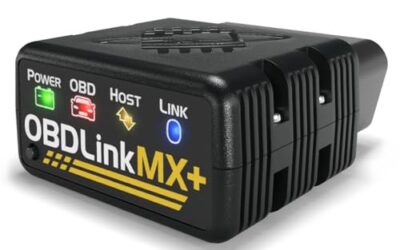
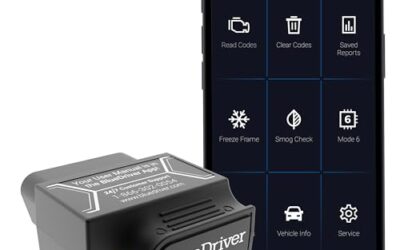
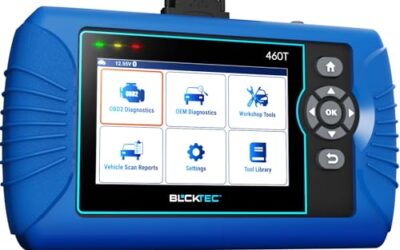
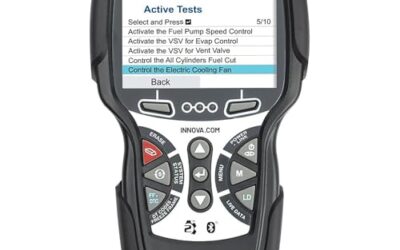
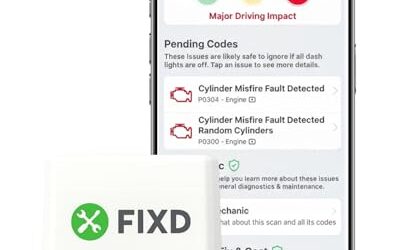
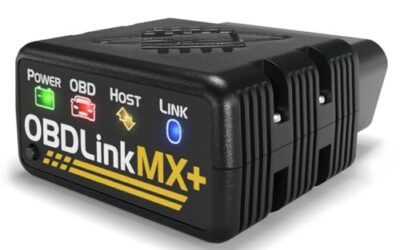
A Bluetooth OBD2 scanner is a device that plugs into your vehicle’s OBD2 port and connects wirelessly to your smartphone via Bluetooth technology. This allows you to read diagnostic trouble codes, monitor live data, and perform basic maintenance tasks from your phone without being tethered to the car. In this guide, we will explain the process of connecting a Bluetooth OBD2 scanner, including prerequisites, step-by-step instructions, compatibility limits, and troubleshooting tips.
Understanding how to connect a Bluetooth OBD2 scanner is essential for vehicle owners who want to maintain their cars efficiently. These tools have become popular due to their convenience and the ability to access detailed vehicle information on the go.
Key takeaways
- Bluetooth OBD2 scanners provide wireless access to vehicle diagnostics.
- Ensure compatibility with your vehicle’s model year and phone OS.
- Follow the scanner’s manual for pairing instructions.
- Always interpret codes with a professional guide for accurate diagnosis.
- Bluetooth offers freedom but may have connection range limitations.
What is a Bluetooth OBD2 Scanner?
The OBD2 standard, or On-Board Diagnostics II, was mandated by the U.S. Environmental Protection Agency in 1996 for all light-duty vehicles sold in the United States. It requires vehicles to have a standardized 16-pin diagnostic connector under the dashboard to allow access to the vehicle’s computer systems. A Bluetooth OBD2 scanner is an adapter that plugs into this port and uses Bluetooth wireless communication to send data to a smartphone application.
The app then interprets the data, displaying information such as diagnostic trouble codes (DTCs), live sensor readings like engine temperature or speed, and other vehicle parameters. This setup is useful for routine maintenance, emissions testing, and identifying issues before they become major problems. Unlike wired scanners that require a direct cable connection, Bluetooth models offer greater mobility, allowing you to check your vehicle while parked or even in the garage.
However, there are limitations. Not all scanners support every vehicle protocol or feature. Some basic models may only read codes, while advanced ones provide freeze frame data, which captures the vehicle’s state at the time a code was stored. Compatibility can depend on the vehicle’s year, make, model, and even the specific engine type. For instance, vehicles from different manufacturers may require different communication protocols, which some scanners address through firmware updates or additional hardware.
Prerequisites for Using a Bluetooth OBD2 Scanner
To successfully connect a Bluetooth OBD2 scanner, you need several items. First, your vehicle must have an OBD2 port, which is standard on all cars, trucks, and SUVs manufactured since 1996 in the United States. The port is typically located on the driver’s side, under the dashboard, and is a 16-pin connector. If your vehicle is older, it may only have an OBD1 port, which is not compatible with standard OBD2 scanners.
Your smartphone needs to support Bluetooth connectivity. Most Android phones running Android 4.4 or higher and iOS devices from iOS 4.0 or later can pair with Bluetooth OBD2 scanners. However, the specific app you choose must be compatible with your phone’s operating system. Some apps are available only on Android due to its open nature, while others are optimized for iOS.
You will also need a compatible Bluetooth OBD2 scanner. These devices come in various forms, from simple code readers to advanced multi-function tools. Ensure the scanner supports Bluetooth and has the necessary firmware for your vehicle. Downloading the manufacturer’s app from the Apple App Store or Google Play Store is a prerequisite before you begin the connection process.
Step-by-Step Guide to Connecting a Bluetooth OBD2 Scanner
Step 1: Locate the OBD2 Port
Start by opening the driver’s door and looking under the dashboard. The OBD2 port is usually near the steering column or on the driver’s side kick panel. It is a 16-pin connector designed for diagnostic tools. If the port is dirty or damaged, clean it gently with a cotton swab and isopropyl alcohol to ensure a secure connection.
Step 2: Insert the Scanner
Take your Bluetooth OBD2 scanner and plug it into the OBD2 port. The scanner should fit snugly into the connector. Once inserted, the scanner will typically power on automatically, indicated by an LED light turning on. Some models have a power button that you need to press to activate it.
Step 3: Enable Bluetooth on Your Smartphone
On your phone, go to the Bluetooth settings menu. Turn on Bluetooth if it is not already enabled. Make your phone discoverable so it can find nearby devices. This step is crucial because the scanner will appear as a Bluetooth device during the pairing process.
Step 4: Put the Scanner in Pairing Mode
Depending on the model, you may need to put the scanner into pairing mode. This is often done by pressing a specific button on the scanner or following the instructions in the user manual. Common pairing modes include holding a button until the LED flashes or selecting a pairing option on the scanner’s display.
Step 5: Pair the Scanner with Your Phone
In your phone’s Bluetooth settings, you should see a list of available devices. Look for your scanner’s name or model number and select it. If prompted, enter a pairing code, which is usually 0000, 1234, or 9999. Once paired, the scanner should connect automatically to the app.
Step 6: Open and Connect the App
Launch the diagnostic app on your phone. It should detect the connected scanner. If it does not, look for a scan or connect button in the app interface. Once connected, you can begin reading diagnostic information. The app will guide you through the process, allowing you to view codes, live data, and other features.
After completing these steps, you should be able to use the scanner for various diagnostic tasks. The connection process is designed to be simple, but it is important to follow each step carefully to avoid errors. For vehicles with multiple electronic control units (ECUs), the scanner may need to communicate with each one, but most Bluetooth models handle this seamlessly.
Compatibility Limits and Considerations
While Bluetooth OBD2 scanners are widely compatible, there are several factors that can affect their performance. Vehicle model year is one of the most important. Scanners designed for 1996-2007 vehicles may not work with newer models due to changes in the OBD2 protocol or additional modules. Newer vehicles from 2008 onward often have more advanced systems that require specific scanner capabilities.
Phone operating system compatibility is another consideration. Android users have access to a wider variety of apps, but iOS users may find that some features are limited or unavailable. The Bluetooth version of the scanner also plays a role; Bluetooth 4.0 or higher provides better range and speed, while older versions may have shorter connection distances or slower data transfer.
Some scanners are universal and work with most vehicles, but others are brand-specific. For example, a scanner made for GM vehicles may not work with Ford or Toyota models without additional programming. Always check the manufacturer’s compatibility chart for your specific vehicle. If you are unsure, contact the manufacturer or a dealer for confirmation.
Regional differences also exist. In the United States, OBD2 is standardized, but in other countries, there may be variations in the port or required protocols. For international travel, ensure your scanner is suitable for the regions you will be in.
Troubleshooting Bluetooth OBD2 Scanner Connection Problems
If you encounter issues during the connection process, start with the basics. Make sure the OBD2 port is clean and the scanner is properly inserted. Restart your phone and the scanner to clear any temporary glitches.
Verify that Bluetooth is enabled on your phone and that the scanner is in pairing mode. Sometimes, the scanner needs to be reset or re-paired. In the Bluetooth settings on your phone, try forgetting the device and re-adding it to the list.
If the scanner still does not appear, update the app to the latest version. Some scanners require a firmware update, which can often be performed through the app or by connecting the scanner to a computer using a USB cable if available. Check the manufacturer’s website for support resources and troubleshooting guides.
Another common issue is poor connection range. If the scanner is too far from the phone, move closer or ensure there are no obstacles blocking the Bluetooth signal. Some scanners have a range of up to 30 feet, but this can vary based on the environment.
Common Mistakes When Using a Bluetooth OBD2 Scanner
One frequent mistake is not reading the user manual. Each scanner has unique instructions for pairing and operation that may differ from others. Skipping this step can lead to connection failures.
Another error is assuming that the scanner will diagnose and fix all problems. It can only read codes and data; you must still address the underlying issue with the help of a mechanic if necessary.
Users also sometimes ignore compatibility requirements. Buying a scanner that is not compatible with your vehicle can result in wasted time and money. Always verify compatibility before purchasing.
Finally, some people disconnect the scanner too early or turn off the car before the app has finished reading data. This can cause incomplete readings or errors. Always let the app complete its tasks before disconnecting.
When to Get Professional Help
If the Bluetooth OBD2 scanner fails to connect after several attempts, or if you are not comfortable interpreting the diagnostic codes, it is best to seek help from a professional mechanic. They have access to more advanced diagnostic equipment and can provide expert analysis.
Professional assistance is also recommended for vehicles with aftermarket modifications, such as performance parts or accessories that can interfere with the OBD2 system. In cases where the scanner indicates a serious issue, such as a failing engine or transmission, a shop visit is necessary rather than relying solely on the scanner.
Additionally, if you are unsure about the meaning of the codes or the next steps, consulting a professional ensures that you do not overlook important information that could affect vehicle safety.
Useful Diagnostic Functions After Connection
Once connected, the app typically offers several functions. You can read stored diagnostic trouble codes, which indicate specific issues in the vehicle’s systems. Live data allows you to monitor real-time parameters such as engine RPM, fuel trim, or oxygen sensor readings. Some apps also support freeze frame data, which captures the vehicle’s conditions at the moment a code was set.
Other functions may include clearing codes after repairs, viewing pending codes, or accessing manufacturer-specific information. The exact features depend on the scanner model and app. Always refer to the app’s help section for detailed instructions on each function.
| Function | Description | When to Use |
|---|---|---|
| Read Codes | Displays stored diagnostic trouble codes | When the check engine light is on |
| Live Data | Real-time sensor readings | For performance monitoring |
| Freeze Frame | Captures vehicle state at code set time | For diagnosing intermittent issues |
FAQ
What is the primary purpose of a Bluetooth OBD2 scanner?
The primary purpose is to read diagnostic trouble codes, monitor live data, and provide information about your vehicle’s systems through a smartphone app.
How do I determine if my vehicle is compatible with a Bluetooth OBD2 scanner?
Check the scanner’s compatibility list for your vehicle’s year, make, and model. Most scanners are compatible with vehicles from 1996 onward, but confirm specific features.
Can a Bluetooth OBD2 scanner work with any smartphone?
Most modern smartphones support Bluetooth, but the app must be compatible with your phone’s operating system. Android and iOS have different app options.
What should I do if the scanner does not connect to my phone?
Restart your phone and scanner, ensure Bluetooth is on, and check the manual for pairing instructions. Update the app if necessary.
Are there any safety warnings when using an OBD2 scanner?
Always disconnect the scanner before driving if it affects the vehicle’s systems. Use the scanner only for diagnostic purposes and never attempt repairs based on its readings alone.