
How to set up a car tech gift before giving it: test its vehicle fit, power connection, phone support, firmware, and basic operation before wrapping it. Keep the recipient’s accounts private, avoid changing vehicle settings without permission, and return every borrowed part to its original place.
A few minutes in your driveway can catch the problems that make car electronics frustrating gifts. A device may need a certain USB connector, a 12-volt socket, a specific phone OS, an app account, or a vehicle model-year range. Setup also gives you time to remove your own data and pack instructions with the gift.
Key takeaways
- Identify vehicle, phone, connector, voltage, and regional compatibility first.
- Test basic functions without saving your account or personal data.
- Update firmware only with stable power and a reliable internet connection.
- Do not hide a device in a way that blocks airbags, controls, cameras, or visibility.
- Keep receipts, serial numbers, manuals, spare parts, and reset instructions.
Start with gift and vehicle details
Read the device manual before connecting it to a vehicle. Product names can cover several versions, and a feature may work only with certain vehicles, phones, apps, or regions.
Write down these details:
- Vehicle make, model, model-year, trim, and factory options.
- Phone brand, model, operating system, and OS version.
- Available ports, such as USB-A, USB-C, a 12-volt outlet, OBD2, or a hardwire connection.
- Power requirements, including voltage, current, fuse rating, and ignition behavior.
- Required app, account, subscription, cellular service, or regional service.
Model-year differences can change USB behavior, infotainment support, fuse locations, OBD2 access, and camera wiring. Two vehicles with the same name may use different connectors or software. A USB-C port may provide charging but lack data support. A 12-volt outlet may stay powered after the ignition turns off, which can drain a battery if a device remains connected.
How To Set Up A Car Tech Gift Before Giving It
- Inspect the package. Check the main device, cables, mounts, adapters, memory card, remote, manuals, and protective film. Look for bent pins, cracked plastic, damaged cable insulation, or loose parts. Keep packaging until the recipient accepts the gift and basic compatibility is clear.
- Match connections before applying power. Compare the plug with the vehicle port. Never force USB, power, camera, or OBD2 connectors. A port shape alone does not prove electrical or data compatibility. Check the manual for voltage, polarity, fuse protection, and supported connectors.
- Use a safe test location. Park outside or in a well-ventilated area. Set the parking brake. Keep the vehicle stationary while pairing or configuring equipment. Do not test a dash camera, phone mount, display, or navigation feature while driving.
- Install the companion app on your own phone only when needed. Use the official app store and check the app name carefully. Create no account in the recipient’s name without permission. If setup requires an account, use a temporary test account, guest mode, or setup screen that lets the recipient complete registration.
- Check firmware and app versions. Connect to reliable Wi-Fi when possible. Keep the device powered through its approved source during an update. Do not unplug it, close the app, or turn off the vehicle during firmware installation. Some updates reset settings or change menu locations.
- Test one core function. For a dash camera, confirm recording starts and the memory card is recognized. For a Bluetooth adapter, check pairing and audio. For a tire gauge, confirm the display and measurement mode. For an OBD2 scanner, confirm the connector fits and the app can communicate. For a charger, confirm the plug and charging indicator match the manual.
- Set basic preferences without personalizing too far. Set language, time format, measurement units, screen brightness, and alert volume when these choices help immediate use. Leave driver profiles, home addresses, contacts, cloud accounts, and saved routes for the recipient.
- Check privacy settings. Remove your phone, Wi-Fi details, Bluetooth name, location history, contacts, cloud account, and payment information. Review app permissions. Location, microphone, camera, storage, and Bluetooth access should match the device’s function.
- Reset the device when testing ends. Use the manufacturer’s factory-reset option if you added an account or paired a phone. Delete test recordings and saved diagnostics. Confirm the device returns to its first-use screen. Some memory cards and apps need separate formatting or account removal.
- Pack a quick-start note. Include the vehicle connection point, first setup step, app name, reset path, and any compatibility limit you found. Add the manual, spare cable, adapter, memory card case, and receipt. Do not write down passwords in the package.
Setup checks by gift type
Dash cameras and vehicle cameras
Test the camera position from the driver’s normal view. The mount should not block the windshield, mirror, airbag path, controls, or required sight lines. Camera placement rules can vary by state and local jurisdiction, so the recipient should choose the final location.
Check whether the camera uses a USB cable, 12-volt adapter, fuse tap, or hardwire kit. A hardwire installation can affect vehicle wiring, battery discharge, warranty concerns, and airbag systems. Leave that work to a qualified installer unless the recipient has the right instructions and tools.
Check recording resolution, date and time, loop recording, parking mode, and memory-card limits. A camera may record normally without supporting every feature on every card. Do not leave your test footage on the card. For more gift ideas in this category, see the gifts for new car owners.
Bluetooth, CarPlay, and Android Auto devices
Confirm whether the recipient’s vehicle supports wired or wireless operation. Factory infotainment systems can differ by model-year and trim. Apple CarPlay requires a compatible iPhone and vehicle system. Android Auto requires a compatible Android phone and vehicle system. Wireless support can require separate hardware even when wired support works.
Test pairing with your phone, then remove your phone from the device and vehicle menus. Do not leave contacts, messages, call history, or navigation destinations behind. Give the recipient the exact app or phone setting needed for first pairing. Apple lists compatible vehicles on its CarPlay available models page, while Google explains setup on its Android Auto setup page.
OBD2 scanners and diagnostic tools
Check the vehicle’s diagnostic connector location and the scanner’s coverage. Many tools read generic powertrain data, but advanced functions can depend on vehicle make, model-year, module, software, subscription, or region. A tool that reads check-engine codes may not support airbag, ABS, body, battery, or manufacturer-specific systems.
Test communication with the engine off unless the manual says otherwise. Do not clear codes as part of gift setup. Clearing a code can erase useful information without repairing the cause, and it can reset emissions readiness monitors. Save any test data, then remove your phone and reset the tool. The SAE J1962 connector and J1979 diagnostic test modes describe common diagnostic interfaces and functions, but they do not make every scanner universal.
Tire gauges, inflators, and battery devices
For a tire gauge or inflator, check the valve connection, unit setting, hose fit, and power source. Tire pressure targets come from the vehicle placard or owner’s manual, not the maximum pressure molded into the tire sidewall. Do not test an inflator on a tire without watching pressure.
For a battery charger or jump starter, check battery type, voltage, polarity, clamp order, and charging mode. A 12-volt automotive device may not suit a 6-volt system, an EV traction battery, or every AGM, gel, lithium, or flooded battery. A jump starter may power accessories without starting every engine. Keep the product manual with the gift and never use damaged cables or swollen batteries.
EV charging equipment
Identify whether the gift supports Level 1 or Level 2 charging, the connector standard, circuit rating, and vehicle inlet. North American vehicles may use different connector systems, and an adapter may support physical connection without supporting every charging feature.
Portable charging equipment can draw substantial current for long periods. Do not use an extension cord, outlet adapter, or household receptacle unless the manual and electrical installation support it. A hardwired home charger needs a suitable circuit and qualified electrical work. The recipient should check vehicle, charger, and electrical-panel requirements before regular use.
Compatibility checklist
| Check | Why it matters | What to record |
|---|---|---|
| Vehicle model-year and trim | Ports, software, fuse layouts, and modules can change. | Make, model, year, trim |
| Phone OS | Apps and wireless features may support only certain versions. | iOS or Android version |
| Connector | Matching shapes do not prove data or power compatibility. | USB, 12-volt, OBD2, or hardwire type |
| Power | Wrong voltage, polarity, or current can damage equipment. | Manual’s power requirements |
| Firmware and app | Older software may block pairing or features. | Version after update |
| Region and service | Cellular, radio, navigation, and emergency features can vary. | Country and service requirements |
Common mistakes
- Opening every sealed accessory and losing return eligibility.
- Pairing the gift with your personal phone and forgetting to remove it.
- Installing a memory card without checking the device’s supported type and capacity.
- Updating firmware while power is unstable.
- Mounting equipment before checking airbags, visibility, controls, and cable routing.
- Assuming an OBD2 scanner covers ABS, airbag, hybrid, or EV systems.
- Using an adapter that changes plug shape but not voltage, wiring, or communication.
- Clearing diagnostic codes during testing.
- Leaving a device connected to a continuously powered outlet.
- Giving only the device and omitting its app, cable, manual, or reset steps.
When to get professional help
Use a qualified technician or installer for hardwired cameras, alarm systems, remote starters, fuse-panel work, airbag-adjacent wiring, and equipment that requires trim removal. Seek electrical help for a Level 2 EV charger or any circuit that needs new wiring, breaker work, or outlet changes.
Stop testing if a cable heats up, a fuse blows, a battery smells unusual, smoke appears, an airbag warning turns on, or the vehicle loses normal functions. Disconnect power only when the manual makes that safe. Do not keep cycling a fault in search of a successful setup.
How to wrap the gift for easy first use
Place the device, accessories, manual, and quick-start note together. Mark cables by function if several look alike. Include the receipt and serial number separately from the device. Write down the setup order, not your account credentials.
If compatibility remains uncertain, give the gift unopened with the vehicle and phone details needed for a final check. A clean return path is better than forcing a connection that could damage the vehicle or device.
For a closer look at a related choice, see Car Accessories for Christmas Gift Giving and Automotive Christmas Lights.
Gear that can help
If you need jump starters or dash cams or tire inflators for this job, these picks already appear in our jump starters guides. Check the full guide for fit and who should skip each one.
Pros
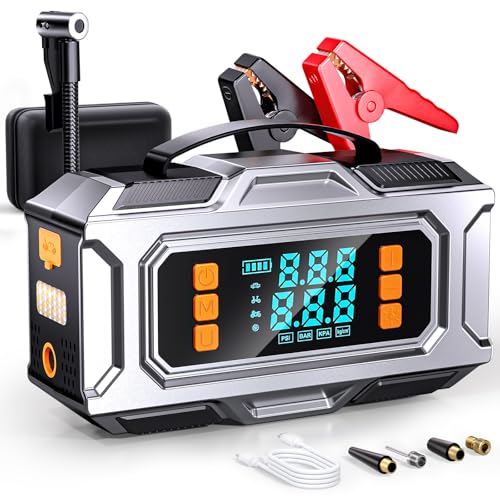
- Combines jump starting, tire inflation, device charging, and 12V accessory power in one unit
- Supports both gas and diesel vehicles within the stated engine-size limits
- Auto-shutoff inflator can be set using PSI, BAR, KPA, or KG/CM² units
- Includes a storage box, USB-C charging cable, air hose, nozzles, and user manual
Cons
- The manufacturer advises waiting two minutes between jump-start attempts and limiting attempts to three consecutively
- The compressor should cool for five minutes after 20 minutes of continuous inflation
- The unit should be recharged every two to three months during storage
Specifications
| Color | Black Silver |
|---|---|
| Dimensions | 4.3 x 7.6 x 2.5 inches |
| Weight | 2.5 Pounds |
| Product Group | Automotive Parts and Accessories |
Best For / Avoid If
Best for buyers prioritizing
- Combines jump starting, tire inflation, device charging, and 12V accessory power in one unit
- Supports both gas and diesel vehicles within the stated engine-size limits
- Auto-shutoff inflator can be set using PSI, BAR, KPA, or KG/CM² units
Consider another option if
- The manufacturer advises waiting two minutes between jump-start attempts and limiting attempts to three consecutively
- The compressor should cool for five minutes after 20 minutes of continuous inflation
- The unit should be recharged every two to three months during storage

Pros
- Three-camera coverage records the road ahead, rear view, and cabin simultaneously
- GPS data is embedded in recordings for route and speed reference
- Includes a 128GB memory card and supports automatic collision footage protection
- Supports wireless control and video downloads through the TERUNSOUl app
Cons
- Parking mode requires a separate hardwire kit
- The listing does not identify the exact iOS or Android version requirements
Specifications
| Color | Black |
|---|---|
| Dimensions | 1.574803148 x 3.149606296 x 1.3779527545 inches |
| Weight | 0.551155655 pounds |
| Product Group | Electronics |
Best For / Avoid If
Best for buyers prioritizing
- Three-camera coverage records the road ahead, rear view, and cabin simultaneously
- GPS data is embedded in recordings for route and speed reference
- Includes a 128GB memory card and supports automatic collision footage protection
Consider another option if
- Parking mode requires a separate hardwire kit
- The listing does not identify the exact iOS or Android version requirements
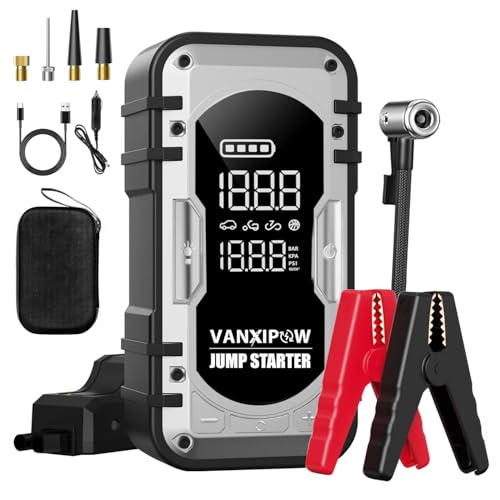
Pros
- Combines jump-starting, tire inflation, emergency lighting, and USB charging in one device
- Listed compatibility covers a broad range of 12V vehicles and engines up to 9.0L gas or 8.0L diesel
- Stated weight of 615 grams supports portable use
- LCD screen displays battery level, inflation mode, and real-time tire pressure
Cons
- The air pump should not be used continuously and requires cooling when it becomes seriously hot
- The product has one USB output port
Specifications
| Color | black silver |
|---|---|
| Dimensions | 6.9 x 2.3 x 3.5 Inches |
| Weight | 1.873929227 pounds |
| Product Group | Automotive Parts and Accessories |
Best For / Avoid If
Best for buyers prioritizing
- Combines jump-starting, tire inflation, emergency lighting, and USB charging in one device
- Listed compatibility covers a broad range of 12V vehicles and engines up to 9.0L gas or 8.0L diesel
- Stated weight of 615 grams supports portable use
Consider another option if
- The air pump should not be used continuously and requires cooling when it becomes seriously hot
- The product has one USB output port
FAQ
Should I install the app before giving the gift?
Install it only to test basic operation or update firmware. Remove your account, phone, Bluetooth pairing, location data, and saved content before wrapping the device.
Can I test an OBD2 scanner without driving?
Usually, basic power and communication checks happen while parked. Follow the scanner manual, avoid live-data testing on public roads, and never clear codes as a setup shortcut.
Should I update firmware before giving car electronics?
Update when the device has stable power and the app supports the process. Firmware can change settings or require a reset, so test the core function afterward.
What if the recipient’s vehicle is unknown?
Do not force a connector or install a hardwired device. Keep the gift returnable and include the model-year, phone, port, and power details needed for a later fit check.
Should I install a dash camera for someone else?
Temporary plug-in testing is usually less invasive than hardwiring. Leave the final mount position, privacy settings, parking mode, and cable routing to the vehicle owner or a qualified installer.
Sources and further reading
- CarPlay Available Models (Apple): Vehicle compatibility information for Apple CarPlay.
- Set up Android Auto (Google): Phone and vehicle setup steps for Android Auto.