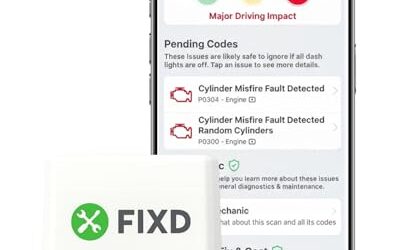
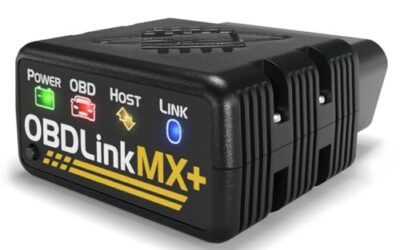
To save an OBD2 scan report, complete the scan, open the tool’s report or history screen, then export, share, print, or capture the results before clearing any codes. The exact steps depend on scanner firmware, companion app, phone OS, and whether the tool stores reports internally or in cloud storage.
Save the report while the vehicle remains connected if possible. A saved record can preserve diagnostic trouble codes, freeze-frame data, readiness status, live data snapshots, and scan time. Those details can help compare a fault before and after a repair.
Key takeaways
- Save the first scan before clearing codes or disconnecting the scanner.
- Use PDF, CSV, plain text, email, cloud storage, or screenshots based on tool support.
- Record vehicle identification, mileage, date, symptoms, and battery condition with the file.
- Some basic code readers show codes but cannot store or export full reports.
- Clearing codes erases useful history and does not repair the underlying fault.
What you need before saving an OBD2 report
Start with an OBD2-compatible scanner and a working diagnostic connector. Most US-market gasoline vehicles from model year 1996 onward use an OBD2 system, but coverage varies by vehicle, engine, control module, and market. Diesel vehicles, hybrids, electric vehicles, and newer advanced systems may need special coverage.
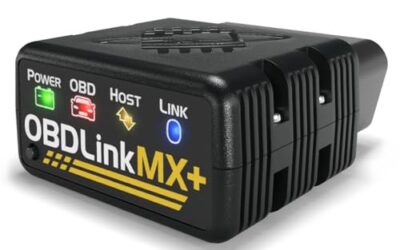
Check the scanner manual for its report options. A tool may save reports in internal memory, a removable card, a desktop program, or a phone app. Bluetooth and Wi-Fi scanners often depend on Android or iPhone app support. An app that reads codes may not support PDF export or complete vehicle scans.
Keep the vehicle battery stable during scanning. Low voltage can interrupt communication or create misleading voltage-related codes. Do not switch off the ignition, unplug the tool, or close its app while a scan or report export is still running.
How to save an OBD2 scan report
1. Prepare the vehicle and scanner
- Park safely in a ventilated area. Set the parking brake and place the transmission in Park or Neutral, according to the vehicle manual.
- Turn off accessories such as the radio, climate control, and interior lights.
- Locate the 16-pin diagnostic connector. It is often below the dashboard near the steering column, but location varies.
- Plug in the scanner without forcing the connector.
- Turn the ignition to the position specified by the scanner. Many scans use ignition on with engine off. Some tests require the engine running.
- Let the scanner connect fully before opening menus or starting a test.
Some vehicles require a security gateway unlock or a special adapter for certain modules. Basic emissions diagnostics may still work while body, chassis, or manufacturer-specific functions remain blocked.
2. Record vehicle details first
Enter the VIN, model year, make, model, engine, and mileage if the tool allows it. If automatic VIN reading fails, enter details manually only when the scanner supports that vehicle correctly.
Write down the customer or vehicle name, scan date, warning-lamp status, recent repairs, and driver-reported symptoms. A code without context gives less useful evidence than a code tied to operating conditions.
3. Run a full scan when supported
Choose a full-system, health-check, or all-module scan when you need a broad record. This may check the engine, transmission, ABS, airbag, body, and other control modules. A generic OBD2 scan often covers emissions-related data only.
Wait until every selected module finishes. Save the report even if the scanner shows no stored codes. A no-code result can still show pending codes, monitor status, communication faults, or module-specific information.
4. Save codes and freeze-frame data
Open each code screen and look for options such as Save, Record, Report, Print, Export, Share, or Add to history. Save both stored and pending codes when the tool separates them.
Freeze-frame data shows conditions recorded when a fault set. It can include engine speed, coolant temperature, vehicle speed, fuel trim, throttle position, and load. Values depend on the vehicle and code.
Save permanent codes separately when shown. Permanent codes may remain after a repair until the vehicle completes required checks. Clearing them through a scanner may not remove them immediately.
5. Export the report
Use the export method your scanner supports. Common choices include PDF, CSV, text file, email, cloud drive, direct share, or print.
| Save method | Useful for | Limits |
|---|---|---|
| Sending a fixed report to a shop or keeping a readable record | May omit raw live data or interactive details | |
| CSV | Sorting codes, comparing readings, or opening data in spreadsheet software | Formatting can become difficult to read |
| Plain text | Quick notes, email, and simple storage | May lose graphs, images, and menu context |
| Screenshot | Capturing screens from an app without export support | Easy to miss pages, timestamps, or full code descriptions |
| Cloud account | Accessing reports across phones or computers | Requires account access and may depend on app support |
Use a clear file name such as 2018-Honda-Civic-OBD2-scan-2026-10-09.pdf. Add mileage or repair stage when several reports belong to the same vehicle.
6. Confirm the saved file
Open the exported file before disconnecting the scanner. Check that it contains the VIN or vehicle details, scan date, module list, codes, code status, and freeze-frame data when available.
Send the file to a second location. For example, save one copy on the phone and another in a computer folder or cloud drive. Use a folder for each vehicle to prevent reports from different cars mixing together.
7. Disconnect and document next steps
Exit the report or app before unplugging the scanner. Turn off the ignition if the vehicle manual calls for that step. Record what repairs, tests, or code-clearing actions happen after the report.
Do not clear codes until the original report is safely stored. Clearing codes can erase freeze-frame data and reset readiness monitors. It does not repair the problem.
How to save an OBD2 scan report from a phone app
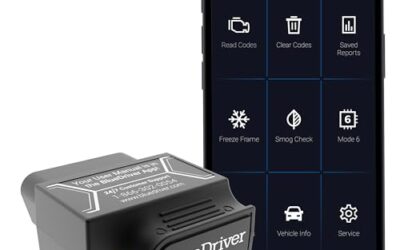
Bluetooth and Wi-Fi scanners usually save reports inside a companion app. Connect the phone to the scanner according to its instructions, then open the vehicle history or scan archive.
- Open the saved scan session.
- Tap Share, Export, Report, or the platform’s equivalent.
- Select PDF, text, email, cloud storage, or another available option.
- Choose a destination that you can open without the scanner app.
- Open the saved copy and check every page.
Android and iPhone menus differ. Android may show a system share panel with local storage, email, and cloud apps. iPhone may use Files, Mail, Messages, or a cloud provider. App permissions, subscription levels, phone OS versions, and scanner firmware can change these choices.
Some apps store history only inside the account. That can help with access across devices, but it may limit use after an account change or app removal. Export a portable copy when the app offers one.
How to save a report from a handheld scanner
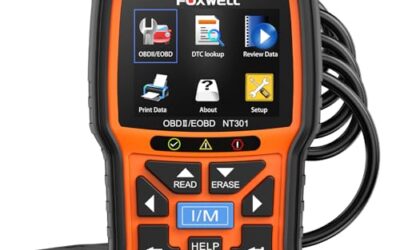
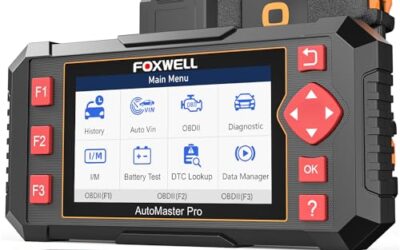
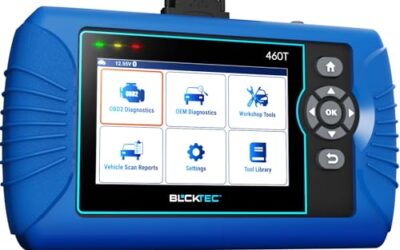
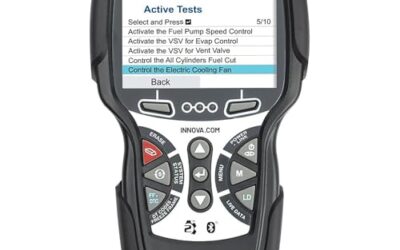
Handheld scanners may store reports in internal memory or on a microSD card. Open the Review, History, Data Manager, or Print menu after scanning.
If the scanner supports USB transfer, connect it to a computer with the correct cable. The computer may see the scanner as storage, or the scanner may require desktop software. Use the file format supplied by the tool and keep the original copy before editing it.
Some handheld tools print a report through a built-in printer or external printer. A paper report can help during a repair visit, but digital storage makes later comparison easier. Photograph paper pages if no digital export exists.
What to do when the scanner cannot save reports
A low-cost code reader may show a code and description without storing history. In that case, capture each screen and write down the data manually.
- Photograph the code screen with the full code visible.
- Record whether each code is stored, pending, or permanent.
- Copy freeze-frame values one screen at a time.
- Record readiness monitor results.
- Write down the scan date, mileage, VIN, symptoms, and warning-lamp status.
- Keep images in one dated folder.
Do not rely on memory or a single generic code description. A code such as P0171 identifies a system condition, not one guaranteed failed part. Vehicle-specific service information and testing still matter.
For more context on live data and fuel trim, see OBD2 scanners for live data and fuel trim. Advanced module access follows different rules, as explained in OBD2 scanners for advanced vehicle use.
Common mistakes
Clearing codes before saving
Code clearing can remove freeze-frame information and reset monitors. Save first, diagnose second, clear only when appropriate, then rescan after repair.
Saving only the main engine code
Other modules may contain related faults. A transmission, ABS, or body code can change the diagnostic path even when the check-engine lamp is the main complaint.
Confusing a screenshot with a complete report
One screenshot may omit pending codes, monitor status, or later modules. Scroll through the entire scan and capture each relevant screen.
Using the wrong vehicle profile
A scanner set to the wrong model year, engine, or market may show limited menus or inaccurate coverage. Reconnect with the correct profile when the tool supports manual selection.
Ignoring battery voltage
Low vehicle voltage can cause communication failures and multiple unrelated codes. Record voltage-related warnings and avoid making repair decisions from a scan taken during unstable power.
Editing the original report
Keep the original file unchanged. Add notes in a separate copy or a companion text file so raw scan details remain available.
When to get professional help
Get professional help when the scan shows airbag, brake, steering, high-voltage battery, or charging-system faults. These systems can create injury risks and may require manufacturer-level tools.
Use a qualified technician when codes return after repair, several modules lose communication, the vehicle will not start, or battery voltage remains unstable. A professional can test wiring, power, grounds, sensors, and network communication instead of replacing parts from code names alone.
Do not work around an airbag connector, orange high-voltage cable, or fuel system without following the vehicle service procedure. Keep the saved report available for the technician, along with symptoms and recent work.
Related reading: OBD2 Scanner Buying Guide for Beginners.
Gear that can help
If you need OBD2 scanners for this job, these picks already appear in our OBD2 scanners guides. Check the full guide for fit and who should skip each one.

Pros
- Broad basic OBD2 diagnostic function set
- Built-in code definitions can help explain fault codes
- Supports major protocols including CAN, ISO9141, KWP2000, J1850 VPW and J1850 PWM
- Color display, multilingual support and on-screen code definitions
Cons
- Limited to engine and emission-related codes
- Does not support ABS, SRS, transmission, bidirectional control or service reset functions
- Vehicle compatibility should be checked before purchase
Specifications
| Color | yellow |
|---|---|
| Dimensions | 9 x 6.3 x 1.6 inches |
| Weight | 0.66 Pounds |
| Product Group | Automotive Parts and Accessories |
| Binding | Automotive |
Best For / Avoid If
Best for buyers prioritizing
- Broad basic OBD2 diagnostic function set
- Built-in code definitions can help explain fault codes
- Supports major protocols including CAN, ISO9141, KWP2000, J1850 VPW and J1850 PWM
Consider another option if
- Limited to engine and emission-related codes
- Does not support ABS, SRS, transmission, bidirectional control or service reset functions
- Vehicle compatibility should be checked before purchase

Pros
- Supports check-engine code reading and clearing
- Provides live data features including engine speed, vehicle speed, coolant temperature, and calculated load value
- Includes a 2.5-foot cable and six-button control layout
- Compact 6.02 x 2.75 x 0.91-inch design
Cons
- Does not support ABS, airbag, oil service light, or other non-OBDII systems
- Vehicle compatibility is described as supporting most applicable vehicles rather than every vehicle
- Requires connection to a vehicle’s OBDII port for power
Specifications
| Color | Yellow |
|---|---|
| Size | Portable |
| Dimensions | 6.02 x 2.75 x 0.91 inches |
| Weight | 0.6375 Pounds |
| Product Group | Automotive Parts and Accessories |
| Binding | Automotive |
Best For / Avoid If
Best for buyers prioritizing
- Supports check-engine code reading and clearing
- Provides live data features including engine speed, vehicle speed, coolant temperature, and calculated load value
- Includes a 2.5-foot cable and six-button control layout
Consider another option if
- Does not support ABS, airbag, oil service light, or other non-OBDII systems
- Vehicle compatibility is described as supporting most applicable vehicles rather than every vehicle
- Requires connection to a vehicle’s OBDII port for power
Pros
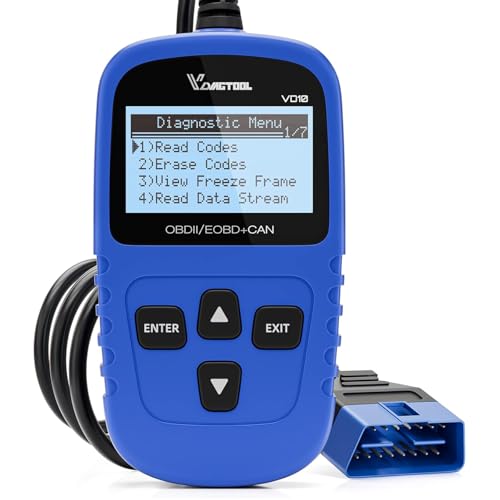
- Includes code reading, code clearing, live data, freeze-frame, I/M readiness, and vehicle information functions
- Supports VIN, Calibration ID, and Calibration Verification Number retrieval
- Lists compatibility with post-1996 US-based, post-2006 EU-based, and post-2009 Asian-based OBDII vehicles
- Offers a built-in DTC definition database and support for six languages
- Includes a stated five-year warranty
Cons
- The display is described as a two-line LCD screen, which may provide less viewing space than larger scan-tool displays
Specifications
| Color | Blue |
|---|---|
| Dimensions | 9.79921258843 x 6.692913379 x 1.57874015587 inches |
| Product Group | Automotive Parts and Accessories |
| Binding | Unknown Binding |
Best For / Avoid If
Best for buyers prioritizing
- Includes code reading, code clearing, live data, freeze-frame, I/M readiness, and vehicle information functions
- Supports VIN, Calibration ID, and Calibration Verification Number retrieval
- Lists compatibility with post-1996 US-based, post-2006 EU-based, and post-2009 Asian-based OBDII vehicles
Consider another option if
- The display is described as a two-line LCD screen, which may provide less viewing space than larger scan-tool displays
FAQ
Can I save an OBD2 report after clearing codes?
Usually, the original freeze-frame data is gone after clearing. Some scanners keep a local history copy, but that depends on the tool and app. Save the report before clearing.
Does every OBD2 scanner create a PDF?
No. Some readers show codes only. Others save text, screenshots, CSV files, or app history instead of PDF. Use the format available and preserve all relevant screens.
Where should I store OBD2 scan reports?
Keep one original copy in a dated vehicle folder and one backup in a separate location. Use file names with vehicle, date, and mileage.
Will saving a scan report clear the codes?
Saving a report should not clear codes. Code clearing is a separate command, but menu labels vary. Read the confirmation screen before accepting it.
Can a saved report prove which part failed?
No. Codes identify monitored conditions or system faults. Testing must confirm the failed part, wiring issue, software problem, or power problem.
Sources and further reading
- J1962 Diagnostic Connector standard (SAE International): Connector details and related diagnostic interface standards.
- J1979 E/E Diagnostic Test Modes standard (SAE International): Diagnostic test modes used by OBD systems.