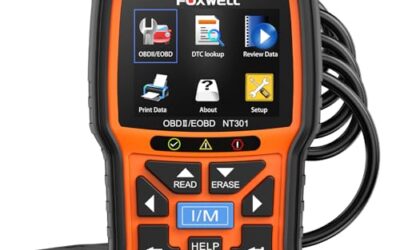
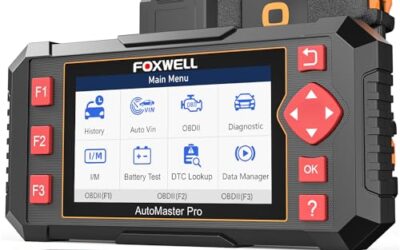
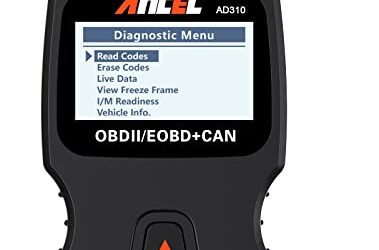
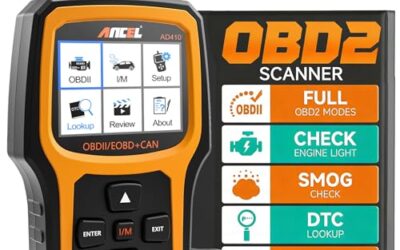
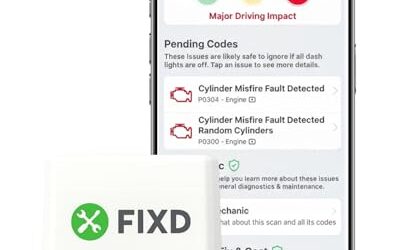
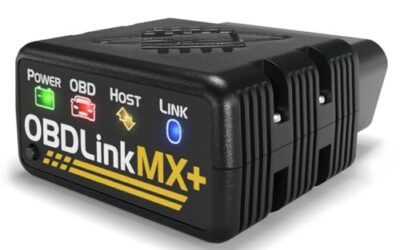
To record OBD2 live data while diagnosing a fault, connect a compatible scan tool, select useful PIDs, start recording, reproduce the symptom safely, then save the file with vehicle and test details. The recording becomes useful only when sensor values are compared with engine speed, load, temperature, and the moment the fault appears.
You need an OBD2 scan tool or app that supports data logging, a suitable cable or wireless adapter, a phone or tablet if required, and a safe way to monitor the vehicle during testing. A basic code reader may display live data but may not record or export it.
Key takeaways
- Check vehicle, connector, app, phone OS, and protocol compatibility before testing.
- Record fewer useful PIDs instead of every available parameter.
- Capture cold start, warm operation, the symptom, and fault-code timing when possible.
- Use a passenger or a mounted display during road tests. Do not handle a phone while driving.
- Save the original file before clearing codes or running repairs.
- Live data supports diagnosis. It does not prove that one sensor caused the fault.
What OBD2 live data recording shows
Live data consists of values reported by vehicle control modules through the diagnostic connector. Common values include engine speed, coolant temperature, intake air temperature, calculated load, throttle position, fuel trims, oxygen sensor readings, vehicle speed, and system voltage.
A live-data recording adds time or sample order to those values. That sequence matters. A sensor can look normal at idle but respond slowly during acceleration. A fuel trim value can look reasonable after a warm restart but become abnormal during a cold start. A recording preserves those changes for later review.
OBD2 data does not expose every internal signal. Parameter names, units, update rates, scaling, and available modules vary by vehicle. A 1996 gasoline car may offer fewer manufacturer-specific values than a newer vehicle. Diesel, hybrid, electric, turbocharged, and advanced emissions systems can require enhanced diagnostics beyond generic OBD2.
OBD2 access usually uses a standardized diagnostic connector and test modes, but physical access and communication support still vary. The SAE J1962 diagnostic connector standard covers connector requirements, while SAE J1979 diagnostic test modes covers standardized emissions-related data.
What you need before recording
Compatible scan tool
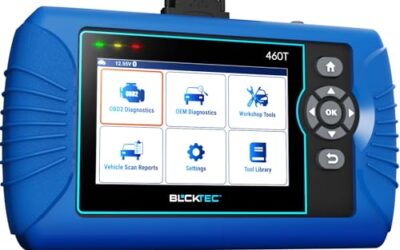
Choose a tool with live-data logging, not only live-data display. Look for save, playback, export, graph, or report functions. Some tools save proprietary files. Others export CSV files that open in spreadsheet software.
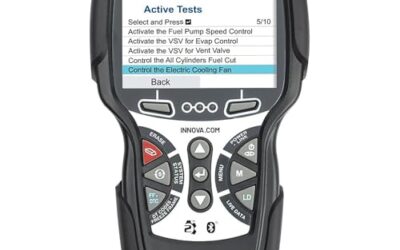
Tool coverage matters. Generic OBD2 usually focuses on engine and emissions data. ABS, airbag, transmission, body, and advanced driver-assistance modules may need a scan tool with manufacturer-level coverage. A generic adapter may connect successfully while showing only a small part of vehicle data.
Vehicle and connector checks
Most US light-duty vehicles from model year 1996 onward use OBD2 for emissions diagnostics, but market, engine, and model-year differences apply. A connector that looks similar does not prove full compatibility. Some older vehicles use proprietary systems, while some newer vehicles restrict access through security gateways.
Inspect the connector for bent pins, corrosion, loose fit, or aftermarket wiring. Do not force the adapter into place. A poor connection can create dropped samples or failed communication.
Phone, tablet, and power needs
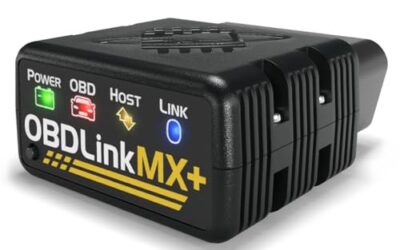
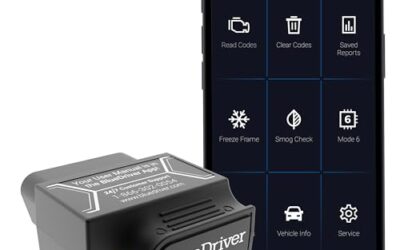
Wireless adapters may use Bluetooth Classic, Bluetooth Low Energy, Wi-Fi, or a brand-specific connection. The phone OS must support that connection and the app. iPhone and Android support differs by adapter and application. Firmware versions can also change pairing and vehicle coverage.
Keep the device charged. A recording stops when an app closes, a phone loses power, or the adapter disconnects. Disable notifications and automatic screen locking where safe. Do not place a phone where it can interfere with steering, pedals, airbags, or visibility.
How to record OBD2 live data while diagnosing a fault
- Write down the vehicle details. Record model year, make, model, engine, transmission, mileage, ambient temperature, fuel level, and recent repairs. These details give later readings useful context.
- Scan before changing anything. Read stored, pending, and permanent codes when the tool supports them. Save freeze-frame data. Freeze-frame data captures conditions such as engine speed, load, temperature, and vehicle speed when a code set. Do not clear codes before saving this information.
- Check battery and charging voltage. Low system voltage can create communication faults and abnormal sensor readings. Compare the scan-tool voltage with a meter when the result seems questionable. Use the vehicle service information for acceptable voltage ranges.
- Warm the vehicle when the fault requires it. Some tests need a cold engine. Others need closed-loop operation, normal coolant temperature, or a specific drive cycle. Record the starting temperature and wait for the condition required by the diagnostic plan.
- Select a focused PID list. Start with engine speed, vehicle speed, coolant temperature, intake air temperature, calculated load, throttle position, short-term fuel trim, long-term fuel trim, oxygen or air-fuel sensor data, manifold pressure or mass airflow, ignition timing, and system voltage. Remove values that do not help answer the fault question.
- Set recording and sample options. Select the fastest practical update rate if the tool offers that choice. A long list of PIDs can slow updates because the module must send more data. Some tools record each PID at different rates. Note those limits before treating a short event as proof.
- Start with a stationary baseline. Record key values at key-on, engine-off, idle, and a few steady engine speeds if safe. This gives a reference for later changes. Save the file with a clear name such as 2018_Ford_F-150_P0171_cold-start_01.
- Reproduce the symptom safely. Use a stationary test for rough idle, a controlled road test for hesitation, or a loaded test for a power complaint. Follow local traffic rules. A passenger should monitor the tool, or the device should be mounted where it stays visible without blocking the driver.
- Mark the event. Note the time, engine speed, vehicle speed, throttle position, gear, road grade, and driver action when the symptom occurs. If the tool has a marker button, use it. Otherwise, record a voice note after stopping safely.
- Stop and save the original file. Add conditions such as cold start, warm idle, light acceleration, wide-open throttle, uphill load, or deceleration. Keep the original file unchanged. Make a copy for notes and analysis.
- Repeat one condition at a time. Repeat the same test when possible. Compare files instead of changing several parts between tests. Repeated behavior carries more weight than one odd sample.
Which PIDs should you record?
PID selection should match the complaint. Recording everything often lowers sample quality and makes the graph difficult to read.
| Fault type | Useful PIDs | What the comparison can show |
|---|---|---|
| Rough idle or lean code | RPM, coolant temperature, short-term fuel trim, long-term fuel trim, oxygen or air-fuel sensor data, MAF or MAP | Whether fuel correction changes at idle, under load, or after airflow changes |
| Hesitation during acceleration | RPM, vehicle speed, throttle position, load, MAF or MAP, ignition timing, fuel pressure if available | Whether airflow, throttle response, load calculation, or fuel delivery changes with the stumble |
| Overheating concern | Coolant temperature, engine RPM, vehicle speed, fan command if available, system voltage | Whether temperature rises with load, low speed, or a change in fan operation |
| Hard starting | RPM during cranking, coolant temperature, intake air temperature, throttle position, fuel pressure if available, battery voltage | Whether the module sees cranking speed, plausible temperature, and stable voltage |
| Transmission complaint | Engine RPM, vehicle speed, throttle position, load, commanded gear, actual gear, transmission temperature | Whether the event matches a shift command, slip condition, temperature state, or load change |
Fuel trims need context. Positive correction means the control system is adding fuel relative to its base calculation. Negative correction means it is removing fuel. A trim pattern across idle and higher engine speed can help separate an airflow leak from a fuel delivery problem, but trim values alone do not identify the failed part.
How to read a recorded file
Start with the event marker, then work backward. Ask what changed first. Did throttle position move before airflow changed? Did RPM fall before ignition timing changed? Did voltage drop before communication stopped? Sequence helps separate a command from a response.
Compare the same PID under matching conditions. A coolant temperature value has little meaning if one recording starts cold and another starts warm. Compare idle with idle, steady cruise with steady cruise, and similar engine loads with similar loads.
Look for implausible values. A coolant temperature reading near ambient after a cold soak may make sense. A large jump without a matching engine condition may point to a wiring, connector, scaling, or sample problem. One strange point does not prove a sensor failure.
Check whether the scan tool labels data as commanded, actual, calculated, or corrected. Commanded throttle and actual throttle answer different questions. Short-term fuel trim and long-term fuel trim also show different control time scales.
Use service information for model-specific ranges, test conditions, wiring diagrams, and component tests. Generic internet ranges can mislead because manufacturers use different strategies and sensor designs.
For fuel-trim diagnosis, the related guide on OBD2 scanners for live data and fuel trim explains what scanner features support that work. For broader module coverage, see the guide to OBD2 scanners for advanced use.
Common mistakes
- Recording too many PIDs: More channels can reduce update speed and hide the event.
- Ignoring freeze-frame data: Freeze-frame may show conditions that a later road test cannot reproduce.
- Clearing codes first: Clearing codes can erase freeze-frame and reset readiness monitors. It does not repair the fault.
- Confusing a code with a failed part: A code identifies a monitored condition or circuit. Wiring, air leaks, power supply, software, and mechanical faults can create the same code.
- Testing without a baseline: Without a normal comparison, an unusual value is hard to judge.
- Trusting a delayed graph: Slow update rates can make two events appear out of order.
- Driving while holding the device: This creates a serious distraction and may violate local rules.
- Ignoring voltage: Low vehicle voltage can affect modules, sensor readings, and the scan connection.
When to get professional help
Get professional help when the fault involves braking, steering, airbags, high-voltage systems, fuel leaks, or an unsafe drivability condition. Stop road testing if the vehicle loses power, overheats, smokes, smells strongly of fuel, or behaves unpredictably.
A repair shop may have factory-level software, wiring diagrams, bidirectional controls, pressure testers, oscilloscopes, and vehicle-specific data. Those tools matter when generic PIDs cannot separate a control command from a component response.
Professional diagnosis also makes sense when the vehicle uses a security gateway, the scan tool cannot access the needed module, or the fault returns after basic checks. Bring saved recordings, freeze-frame data, code numbers, test conditions, and a clear symptom description.
Before you buy, it is worth reading What Is an OBD2 PID? Live Data Explained.
Gear that can help
If you need OBD2 scanners for this job, these picks already appear in our OBD2 scanners guides. Check the full guide for fit and who should skip each one.
Pros
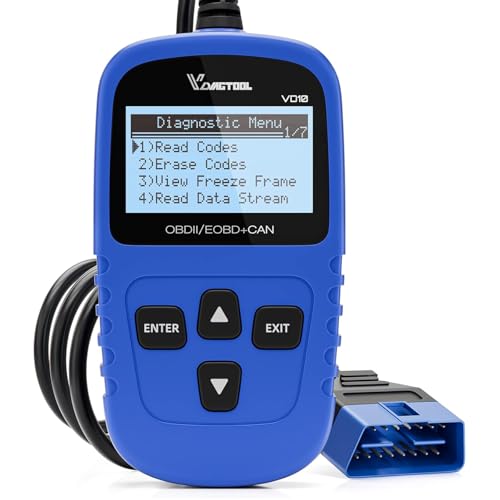
- Includes code reading, code clearing, live data, freeze-frame, I/M readiness, and vehicle information functions
- Supports VIN, Calibration ID, and Calibration Verification Number retrieval
- Lists compatibility with post-1996 US-based, post-2006 EU-based, and post-2009 Asian-based OBDII vehicles
- Offers a built-in DTC definition database and support for six languages
- Includes a stated five-year warranty
Cons
- The display is described as a two-line LCD screen, which may provide less viewing space than larger scan-tool displays
Specifications
| Color | Blue |
|---|---|
| Dimensions | 9.79921258843 x 6.692913379 x 1.57874015587 inches |
| Product Group | Automotive Parts and Accessories |
| Binding | Unknown Binding |
Best For / Avoid If
Best for buyers prioritizing
- Includes code reading, code clearing, live data, freeze-frame, I/M readiness, and vehicle information functions
- Supports VIN, Calibration ID, and Calibration Verification Number retrieval
- Lists compatibility with post-1996 US-based, post-2006 EU-based, and post-2009 Asian-based OBDII vehicles
Consider another option if
- The display is described as a two-line LCD screen, which may provide less viewing space than larger scan-tool displays

Pros
- Supports iPhone, Android, and Windows devices
- Works with a range of named diagnostic applications
- Offers enhanced OEM support for several vehicle brands
- Includes protection against over-voltage and battery drain
Cons
- Vehicle compatibility and available features should be confirmed in the troubleshooting guide before purchase
Specifications
| Color | Black |
|---|---|
| Size | Small |
| Dimensions | 2.0078740137 x 0.9055118101 x 1.8110236202 Inches |
| Weight | 0.06172943336 pounds |
| Product Group | Automotive Parts and Accessories |
| Binding | Automotive |
Best For / Avoid If
Best for buyers prioritizing
- Supports iPhone, Android, and Windows devices
- Works with a range of named diagnostic applications
- Offers enhanced OEM support for several vehicle brands
Consider another option if
- Vehicle compatibility and available features should be confirmed in the troubleshooting guide before purchase
Pros
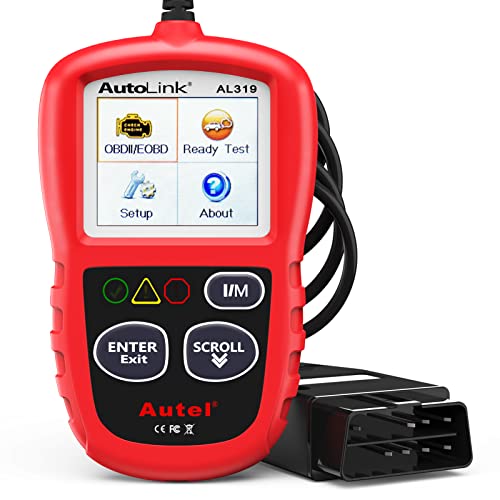
- Supports multiple diagnostic functions beyond basic code reading
- No batteries are needed for operation
- Offers seven language options, including English, French, and Spanish
- Designed with a plug-and-play interface for end users and DIYers
Cons
- The listing does not identify all seven supported languages
Specifications
| Color | OBD2 Scanner |
|---|---|
| Size | AL319 |
| Dimensions | 4.61 x 2.83 x 0.71 inches |
| Weight | 0.39021820374 Pounds |
| Product Group | Automotive Parts and Accessories |
| Binding | Automotive |
Best For / Avoid If
Best for buyers prioritizing
- Supports multiple diagnostic functions beyond basic code reading
- No batteries are needed for operation
- Offers seven language options, including English, French, and Spanish
Consider another option if
- The listing does not identify all seven supported languages
FAQ
Can every OBD2 scanner record live data?
No. Some scanners display live data only. Recording, graphing, playback, and file export require support from the tool, app, or both.
Should I record every available sensor?
No. Start with PIDs tied to the fault. A shorter list often produces clearer graphs and faster updates.
Can live data prove that a sensor is bad?
Usually not by itself. Confirm unusual data with wiring checks, power and ground tests, service information, and a component-specific procedure.
Can I record data while driving?
Yes, when the tool and vehicle test allow it, but mount the device safely or use a passenger. Never hold or operate a phone while driving.
Will clearing a code fix the vehicle?
No. Clearing a code removes stored diagnostic information and may reset monitors. The underlying fault remains until repaired.
Sources and further reading
- J1962 Diagnostic Connector standard (SAE International): Connector requirements for vehicle diagnostic equipment.
- J1979 E/E Diagnostic Test Modes standard (SAE International): Standardized diagnostic data and test modes used by OBD systems.