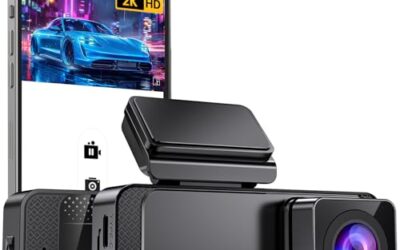
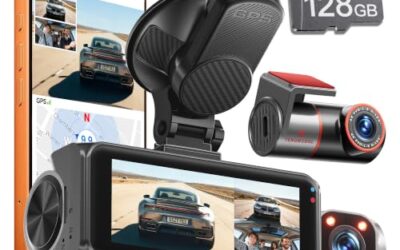
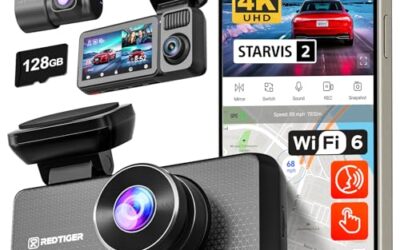
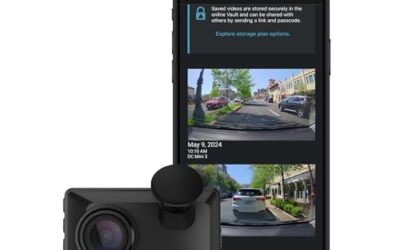
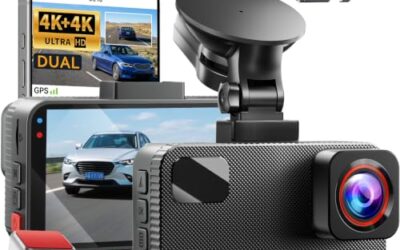
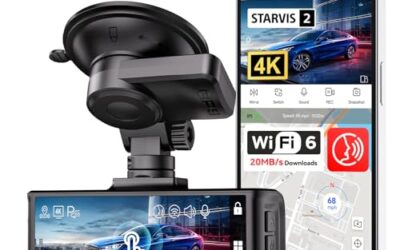
To view dash cam footage, use the camera’s screen, its compatible phone app, or a computer that can read the camera’s memory card. Check your model’s manual first, since app support, card formats, Wi-Fi setup, and playback controls vary by camera.
- Use the camera or its app for quick playback, if your model supports those options.
- Use a computer and a card reader to copy or review files without relying on a phone connection.
- Protect important clips before recording continues, since loop recording may overwrite older footage.
- Keep original files intact when footage may be needed for an insurance claim or other formal review.
Start with the safest method for your setup: park the vehicle, turn off the camera if its manual calls for that, and avoid handling the camera or card while driving. Then pick the method that matches your camera and where you want to watch the clip.
- Find the right clip. Check the camera’s playback menu or its app. Look for a date, time, event, or folder filter. Camera menus differ, so use the manual for exact button names.
- Protect the clip. If the camera offers a lock, protect, or save command, use it before continuing normal recording. This can help prevent the camera from treating the clip like ordinary loop footage. A lock feature does not replace making a separate copy.
- Choose a viewing method. Open the clip on the camera, transfer it through a compatible app, or remove the card and read it with a computer.
- Check playback and sound. Confirm that the video opens and that audio plays if the camera recorded it. Some cameras let owners disable audio, and some clips may have no sound.
- Copy important footage. Save a copy to another device or storage location. Keep the original file and avoid editing it if you may need to share it as evidence.
If you need to review a rear-camera angle, confirm that your camera records that channel and that you selected the matching file. A front-and-rear camera guide can help explain how two-channel systems are set up: dash cams with front and rear camera coverage.
Choose the method that fits your dash cam
| Method | What you need | Best fit | Common limit |
|---|---|---|---|
| Camera screen | A dash cam with a display and playback controls | Checking a recent clip in the vehicle | Small screen and limited controls may make detailed review awkward |
| Phone app | Compatible camera, app, phone, and connection | Viewing or transferring clips without removing the card | App features and wireless steps vary by camera and phone OS |
| Computer and card reader | Memory card and reader that fit the card | Copying files or reviewing clips on a larger screen | Computer may need a suitable player or codec for some files |
| Camera connected to a computer | A supported cable and camera mode | Models that expose storage over a wired connection | Some cameras charge only or need a specific transfer mode |
View footage on the dash cam screen
If your camera has a screen, open its playback or gallery menu while parked. Select the recording by date, time, or event label. Some menus show protected clips separately from ordinary recordings.
Built-in playback is convenient for a quick check, but it may not show full detail clearly. Screen size, resolution, and menu design vary. Use a computer or compatible phone app when you need to inspect small details, compare several clips, or make a copy.
Do not assume every dash cam has a screen or lets you play recordings on the device. Some models rely on an app or card reader. The manual should identify the available playback method.
View dash cam footage on a phone
Phone playback usually requires the camera maker’s app and a supported connection. Depending on the model, the camera may use Wi-Fi, Bluetooth, a cable, or a transfer accessory. These methods are not interchangeable, and an app made for one camera family may not work with another.
- Install the official app associated with your camera model, using your phone’s app store.
- Turn on the camera and open its connection or transfer menu, if required.
- Follow the camera’s manual and app prompts to connect. Some cameras create their own Wi-Fi network; others use a different pairing process.
- Open the app’s playback or download area and choose the clip.
- Save a copy to the phone if the app supports downloads, then confirm it opens from the saved location.
Phone OS versions and app support can change. Older cameras may not work with current phones or app releases. A successful live connection also does not always mean the app can export full-resolution files; check the model’s instructions for transfer limits.
If the phone cannot connect, check that the camera is powered, that the correct app is installed, and that the camera is in the required mode. Close other connections if the manual says the camera supports only one active connection. Do not reset the camera or format its card before copying important files.
View footage on a computer
A computer is often a practical choice for reviewing longer recordings or keeping a separate copy. Many dash cams store video on a removable memory card, but card type, capacity limits, and file system support vary by model.
- Turn off the camera before removing its card, unless the manual gives a different procedure.
- Insert the card into a compatible card reader. If the computer does not have a matching slot, use a reader that supports the card type.
- Open the card’s folders and look for video files. Folder names and file extensions differ by brand and model.
- Copy the relevant files to the computer before editing or organizing them.
- Open a copied file with a media player that supports its format. If it fails, try the player or viewing software recommended for the camera.
Some recordings use common formats such as MP4, while other cameras use formats or companion software that may not play in every default player. A file that does not open is not necessarily damaged. Check its file extension and the camera’s playback instructions before trying conversion tools.
Some dash cams divide longer recordings into multiple files. If a clip seems to stop early, check the nearby files for the next segment. Certain models also save GPS data, separate audio, or other information alongside video. Keep related files together if you need the full record or the camera’s own playback software.
Protect a clip before it disappears
Many dash cams use loop recording: when storage fills, the camera can replace older unprotected recordings with newer ones. Event detection or a manual lock may protect some clips, but behavior depends on the camera and its settings. A G-sensor can trigger event protection while normal recording is already running; it does not guarantee that a useful clip will be preserved.
If footage matters, stop relying on the card as its only copy. Follow the manual’s shutdown steps, copy the files, and check the copy. If the camera has a protect function, use it as an added step rather than treating it as a backup.
For a recording that may be relevant to a collision, avoid trimming, renaming, or converting the only copy. Keep the original files and note where and when you copied them. If you need to provide footage to an insurer or another party, ask what file format and transfer method they accept.
Why dash cam footage may not play
- The card does not appear: The reader may not support the card, the card may not be seated, or the computer may have trouble reading its file system. Try a compatible reader. Do not format the card if it holds footage you need.
- The file appears but will not open: The player may not support the format or codec. Check the camera’s manual for its recommended software before assuming the recording is damaged.
- The app cannot connect: The camera may need a specific Wi-Fi or transfer mode, the app may not support the phone OS, or another phone may already be connected. Follow the model’s pairing steps.
- The clip is missing: It may be in an event, parking, or protected folder, or it may have been overwritten. Check every relevant folder. Recovery is uncertain once a recording is overwritten.
- Video plays without sound: Audio recording may be disabled, unsupported for that clip, or muted in the player. Check both camera settings and playback controls.
- The time or date looks wrong: The camera clock may need setting, or the file may use a different time zone. Check the camera’s clock settings and the player’s file details.
Common mistakes
- Removing the card while recording: This can interrupt file writing. Turn off the camera first unless its manual specifies another safe method.
- Formatting the card to fix playback: Formatting can erase recordings. Copy recoverable footage before changing the card.
- Assuming every clip is stored in one folder: Event, parking, and regular recordings may use separate folders.
- Using an unrelated app: Many camera apps only support specific models or product families.
- Editing the only original: Editing or converting can change the file. Keep an untouched copy first.
- Leaving an important clip on a looping card: New recordings may replace unprotected files. Copy the footage to another location.
When to get professional help
Get help from the camera maker or a qualified installer if the camera repeatedly corrupts files, will not power down correctly, or cannot read a card that meets its stated requirements. Stop repeated attempts if the card contains important footage and the files are not readable; further use can reduce recovery options.
If a camera is hardwired and you suspect a power or wiring fault, do not probe vehicle wiring without the correct service information. Model year, fuse layout, wiring, and camera installation can affect the safe diagnosis. An installer can check the camera’s power connection without guessing at vehicle circuits.
For a system-specific overview, see the Thinkware dash cam model comparison. It can help identify model differences, but use your own camera’s manual for its playback steps.
FAQ
Can I view dash cam footage without removing the memory card?
Often, yes. Use the camera screen, a supported phone app, or a supported wired connection. Available methods depend on the dash cam model.
Can I view dash cam footage on any phone?
No. The camera app, phone OS, and connection method must work together. Older cameras may not support newer phones or app versions.
Why does my computer say the video file is unsupported?
The player may not support the camera’s file format or codec. Check the camera manual for its software or try a player that supports the file type.
Will a dash cam keep an important clip automatically?
Not always. Event triggers and protected-file behavior vary, and a G-sensor cannot guarantee that useful footage remains saved. Lock and copy important clips promptly.
Does removing the memory card erase footage?
Removing a card does not normally erase files, but removing it while the camera writes data can interrupt recording. Turn off the camera first unless its manual says otherwise.