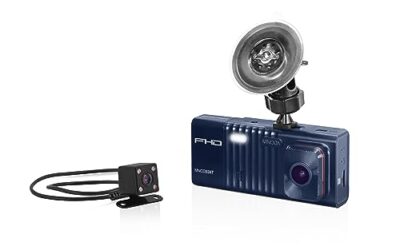
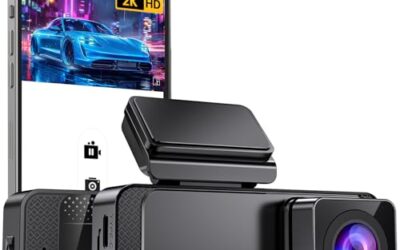
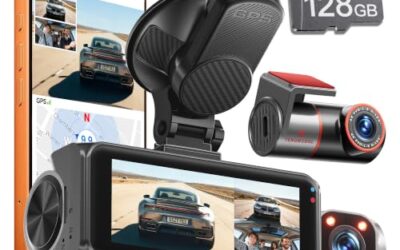
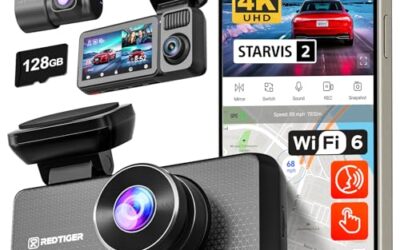
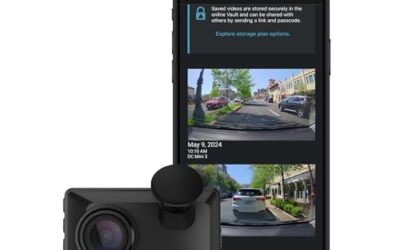
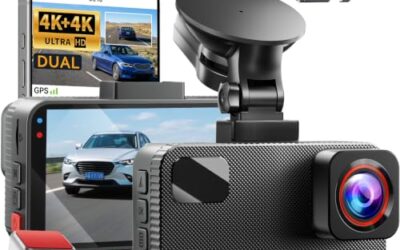
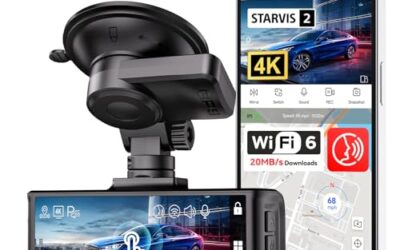
To update dash cam firmware, download the manufacturer binary file, place it onto a formatted microSD card, insert the card into the camera while unpowered, and supply stable 12V power to initiate the automatic flashing sequence. Alternatively, execute the update wirelessly using the vendor companion app over direct Wi-Fi. Never interrupt camera power during update processing to avoid bricking internal flash memory.
Key Takeaways
- Firmware updates patch system kernels, optimize image signal processor (ISP) exposure profiles, and resolve read/write write-cycle loops on memory cards.
- Manual microSD installation provides the highest reliability; Over-The-Air (OTA) smartphone updates offer convenience but carry wireless packet-loss risks.
- Always format microSD cards to FAT32 before copying update binaries, specifically for cards larger than 32GB running on Novatek or Ambarella system-on-chip platforms.
- Vehicle voltage must stay above 12.0 volts throughout flashing; accessory timeout circuits or active engine cranking can terminate power and destroy the bootloader.
Why Dash Cam Firmware Updates Matter
Dash cams run embedded Linux or lightweight real-time operating systems (RTOS) on system-on-chip (SoC) architectures manufactured by Ambarella, Novatek, SigmaStar, or Allwinner. Firmware contains the machine code controlling optical tuning, sensor input, thermal protection logic, and memory bus communication. Manufacturers update firmware to adjust video encoding bitrates (H.264/H.265 codecs), refine high dynamic range (HDR) exposure performance in nighttime conditions, correct GPS synchronization bugs, and improve card endurance. Ignoring updates leaves hardware exposed to video file corruption, reboot loops in elevated cabin temperatures, and failure to lock critical impact footage triggered by the G-sensor.
Preparation and Safety Requirements
Flashing firmware writes data directly into the camera non-volatile SPI NOR flash memory. Interruption during write sequences corrupts the system partition, rendering bootloaders non-functional. Observe strict electrical and file prerequisites before initiating update routines.
1. Electrical Supply Integrity
Do not perform firmware updates using standard vehicle auxiliary 12V sockets (cigarette lighter ports) with the engine off if the vehicle features an active battery-saver shutdown timer. Modern vehicles often cut accessory bus power after 5 to 15 minutes. Engine cranking drops system voltage down to 9–10 volts, terminating the write cycle instantly. Either keep the vehicle engine idling continuously throughout the process, use a hardwire kit connected to an active power circuit, or bring the dash cam indoors and power it through a 5V/2A regulated USB wall adapter.
2. MicroSD Card Specifications
Use high-endurance memory cards rated at least UHS-I, Video Speed Class 30 (V30). Cards exhibiting bad storage blocks cause firmware binary verification checks to fail.
3. File System Formatting
Dash cams require specific file allocation tables to read update binaries during boot sequences. Cards sized at 32GB or smaller ship native with FAT32. Cards 64GB, 128GB, 256GB, and larger format by default to exFAT. Many dash cam bootloaders cannot read exFAT partitions during pre-boot initialization. Use third-party partition software on desktop computers to format large cards into FAT32 with a 32KB or 64KB cluster allocation size, or format the card using the internal dash cam menu before copying update files.
Method 1: Manual MicroSD Card Installation (Recommended)
Manual flashing using a dedicated computer memory card reader is the safest, most universal method across brands including VIOFO, Thinkware, Nextbase, and BlackVue.
- Verify the current firmware version: Enter the dash cam system settings menu on the device screen or within its mobile application. Record the installed software build string (for example, v1.02_20230815).
- Acquire original manufacturer firmware: Visit the official manufacturer technical support portal. Locate the specific camera model and hardware revision. Download the update package. Do not download firmware designed for alternate regional models (such as flashing Korean domestic firmware onto North American hardware variants), as Wi-Fi band limits and sensor pinouts may differ.
- Decompress the archive: Support downloads usually arrive as compressed .ZIP or .RAR archives. Extract the internal files. Look for files with extensions such as
.bin,.pkg, or.elf(for example,FWA129.binorFW96660A.bin). Do not rename these files unless directed by manufacturer documentation; bootloader routines scan for exact string matches. - Format the microSD card: Insert the microSD card into a desktop or laptop card reader. Perform a full format using the FAT32 file system. Delete all preexisting directories (including
DCIM,Movie, andROfolders). - Transfer the binary to the card root: Copy the extracted
.binor.pkgfile directly into the primary root directory of the memory card. Do not place the file inside any folders or subdirectories. Safely eject the card from the computer operating system. - Insert card into unpowered camera: Ensure the dash cam is completely powered down with all LED indicator lights off. Insert the microSD card into the slot until it clicks securely into place.
- Apply steady power: Connect the camera to a stable 5V/2A or 12V power source. Do not touch any buttons.
- Monitor LED indicators: The camera detects the firmware file and begins flashing. Indicators typically blink rapidly (REC LED, status LED, or screen splash screens showing update progress). Flashing typically takes 60 to 180 seconds.
- Wait for automatic reboot: The camera reboots automatically once the flash memory completes programming. Most cameras automatically delete the firmware file from the card upon boot to prevent infinite update loops. If the unit loops into updating again, remove the card, delete the binary via computer, and reinsert.
Method 2: Wireless Mobile App Updates (OTA)
Modern dash cams equipped with 2.4GHz or 5GHz Wi-Fi modules support Over-The-Air (OTA) updates using iOS or Android companion apps (such as BlackVue App, Garmin Drive, or 70mai).
- Connect smartphone to home Wi-Fi or cellular network: Launch the dash cam companion application. Navigate to the firmware download menu. Download the latest firmware image directly onto your phone internal storage.
- Establish direct Wi-Fi link with camera: Switch on the vehicle ignition. Connect your smartphone directly to the local ad-hoc Wi-Fi access point broadcast by the dash cam (disable wireless CarPlay or Android Auto temporarily to avoid network routing conflicts).
- Transfer payload: Open the companion application. When prompted with notification that new firmware is available on phone storage, confirm the upload to the camera. The app transfers the binary file across the direct Wi-Fi channel into the camera buffer.
- Allow execution: Once upload verification passes 100 percent, the camera initiates local flashing. The camera will disconnect its Wi-Fi network and reboot. Keep phone near the camera until operational chime sounds.
Method 3: Direct Desktop Utility Tools
Certain brands, including Garmin and older Nextbase units, use proprietary desktop host applications (Garmin Express, Nextbase Replay) running on Windows or macOS.
- Power down the dash cam completely.
- Connect the camera directly to the computer using a high-quality USB-A to mini-USB/USB-C data cable (ensure the cable features internal data lines, not a charge-only wire).
- Select “Mass Storage” or “Computer Connection” mode on the dash cam screen interface if prompted.
- Open the desktop utility. The application reads hardware identifiers (serial, board ID) and queries cloud databases.
- Click “Install Update”. The software writes necessary payloads to internal partitions or the mounted microSD card. Safely disconnect the device once the progress bar confirms file verification.
Comparison of Firmware Update Methods
| Method | Speed | Risk Level | Prerequisites | Best Suited For |
|---|---|---|---|---|
| Manual MicroSD | Fast (1–3 min) | Lowest | Card reader, PC/Mac, FAT32 partition | All brands; recovery scenarios; major version leaps |
| Wireless OTA App | Moderate (3–7 min) | Moderate | Smartphone, app, active vehicle power | Quick patches; users without computer access |
| Desktop Utility | Fast (2–4 min) | Low | Data cable, PC/Mac, proprietary app | Garmin, Nextbase; consolidated sync and flash |
Common Dash Cam Update Mistakes
Avoid these operational errors to ensure safe installations:
- Using unshielded charge-only USB cables: Connecting dash cams to computers with power-only cables prevents data transmission. The camera powers up in regular record mode instead of mass storage mode.
- Renaming the firmware binary: The bootloader strictly scans for default filenames (e.g.,
SD_CarDV.bin). Modifying punctuation or names stops the bootloader from executing updates. - Leaving outdated files on the card: Failing to wipe the card before loading updates can lead to conflicts if corrupted fragments or older update binaries linger on the storage volume.
- Cycling power early: Users often assume a black display indicates completion. Many cameras disable screens to conserve power while programming internal flash. Always wait until confirmation chimes or standard boot graphics appear.
How to Recover a Bricked Dash Cam
If power cut during update procedures, the camera may enter a non-responsive state (“brick”). Symptoms include steady unblinking power lights, non-responsive buttons, or blank screens.
Recovery depends on bootloader survival:
- Direct Bin Reload: Format a low-capacity (8GB–16GB) microSD card to FAT32 on a PC. Copy the base-level recovery firmware binary provided by manufacturer support onto the card root. Insert the card, hold down the power and emergency lock buttons simultaneously, and connect 12V power. Some SoCs feature hard-coded hardware triggers to force bootloader reads from external media.
- Direct USB Flashing Utility (ELF Flash): If external media fails, devices powered by Ambarella or Novatek platforms can be recovered via raw direct flashing over USB using factory low-level recovery utilities (such as DirectUSB for Ambarella). This requires installing specialized vendor VCOM drivers on Windows, bridging specific hardware circuit pads on the camera motherboard to force boot mode, and flashing a master
.elfpartition directly over USB. Contact manufacturer support for model-specific loader packages.
When to Contact Manufacturer Support
Contact the dash cam manufacturer if the unit fails to respond after hard reset sequences and bootloader recovery attempts. If device serial numbers show incompatibility with published firmware releases (often seen after unannounced hardware component revisions within identical product shells), professional depot re-flashing or hardware replacement under warranty may be required.
Frequently Asked Questions
How often should dash cam firmware be updated?
Check for updates every three to six months, or whenever stability, Wi-Fi pairing, or file saving problems occur. If a dash cam runs reliably and no critical bugs are documented in manufacturer patch notes, frequent updates are unnecessary.
Will updating firmware erase saved video files?
If you perform manual updates, formatting the card deletes all recorded clips. Always back up important driving records to external storage prior to formatting. Wireless OTA updates generally do not touch existing video partitions, though formatting following major firmware transitions remains best practice.
Can I downgrade to an older firmware version?
Most cameras permit rolling back firmware via the manual microSD method by loading an older official binary. However, some updates flash permanent bootloader or partition modifications that block older codebases. Verify manufacturer release documentation before attempting a downgrade.
Why does my dash cam keep restarting after updating?
Boot loops usually indicate that the firmware binary remains on the microSD card, forcing the camera to flash repeatedly, or the update corrupted system configuration blocks. Remove the card, format it completely on a computer, and perform a physical pinhole button reset on the camera housing.