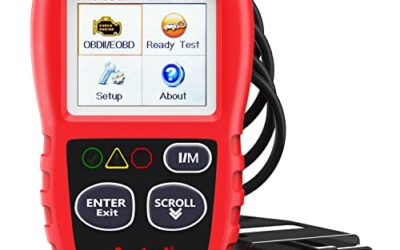
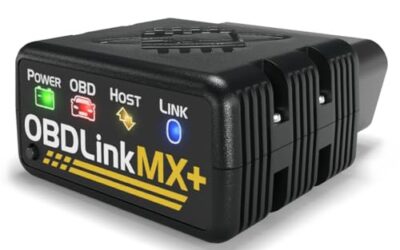
How to Update an OBD2 Scanner
Updating your OBD2 scanner is a straightforward process that ensures your diagnostic tool can communicate effectively with modern vehicles. Modern vehicles have increasingly complex electronic systems, and your scanner needs to be updated to read the latest data and communicate with new protocols.
In this guide, we will walk you through the process of updating an OBD2 scanner. We will cover the reasons why you should update, the prerequisites, and step-by-step instructions for different types of scanners.
Key Takeaways
- Regular updates improve diagnostic accuracy and add support for new vehicle models.
- Updates are usually free from the manufacturer.
- Always check compatibility with your vehicle and scanner model.
- Backup your current firmware before updating.
What is an OBD2 Scanner?
An OBD2 scanner is a device that plugs into the OBD2 port under the dashboard of your vehicle to read and clear diagnostic trouble codes (DTCs). It helps diagnose issues with the engine, transmission, and other systems.
OBD2 stands for On-Board Diagnostics version 2, a standard for vehicle diagnostics in the US since 1996. The OBD2 port is located under the dashboard on the driver’s side in most vehicles.
Why Update Your OBD2 Scanner?
Vehicle manufacturers release new software updates to improve the accuracy of diagnostics, add support for new vehicle models, and fix bugs in the original software. Without updates, your scanner may not read all available data or may give incorrect readings.
Updates can also add new features like enhanced emissions testing or support for hybrid and electric vehicles. As vehicle technology advances, including more advanced driver assistance systems and multiple electronic control units, the need for regular scanner updates becomes more important to maintain reliable performance.
Prerequisites for Updating an OBD2 Scanner
Before starting the update process, gather the following:
- Your scanner model and version.
- The manufacturer’s website or support page.
- A stable internet connection.
- A computer or the device itself for wireless updates.
- Original software or firmware files if required.
It is important to note that updates are not always compatible with all vehicles. For example, some scanners may have limited support for certain vehicle years or types. Always check the manufacturer’s compatibility list for your specific scanner and vehicle model.
Step-by-Step Guide to Updating an OBD2 Scanner
For Wired Scanners
- Visit the manufacturer’s official website and navigate to the support or download section. Look for a specific page for your scanner model to ensure you get the right update.
- Search for your scanner model and download the latest firmware or update software. Make sure the file is compatible with your scanner’s current version.
- Ensure you have the correct file for your scanner version. Check the release notes for any specific requirements.
- Connect the scanner to your computer using the appropriate cable. This could be USB, OBD2 cable, or other connectors depending on the model.
- Run the update software provided by the manufacturer. The software will guide you through the process.
- Follow the on-screen instructions carefully, such as selecting the update option and confirming the download.
- Do not interrupt the process to avoid damaging the device or corrupting the firmware.
- Once complete, restart your computer and test the scanner with a sample vehicle to ensure the update was successful.
For Wireless Scanners
- Ensure your scanner is connected to the internet via Wi-Fi or Bluetooth.
- Check for updates directly in the app or software interface if available.
- Download the update from the manufacturer’s app store or website.
- Follow the in-app instructions to install the update.
- Restart the scanner after updating.
Common Update Methods
| Method | Description | Pros | Cons |
|---|---|---|---|
| Wired USB | Connect via USB to computer | More reliable, no battery drain | Requires computer |
| Wireless App | Updates via smartphone app | Convenient, portable | Requires compatible device |
| SD Card | Insert SD card with update | Simple for some models | May not work on all scanners |
Understanding Firmware Updates
Firmware is the software that runs the hardware of your OBD2 scanner. Updating the firmware is different from updating the app or software. Firmware updates are usually more comprehensive and can fix deep-seated issues.
Manufacturers often provide both app updates and firmware updates. It is important to update both to get the best performance. Some scanners may require a specific operating system version on your computer or a particular version of the app on your phone. Failing to meet these requirements can prevent the update from installing properly.
Compatibility and Limitations
Updates are not always compatible with all vehicles. For example, some scanners may have limited support for certain vehicle years or types. Always check the manufacturer’s compatibility list for your specific scanner and vehicle model.
Additionally, some updates may require a specific operating system version on your computer or a particular version of the app on your phone. Failing to meet these requirements can prevent the update from installing properly.
Common Mistakes When Updating an OBD2 Scanner
- Using the wrong update file for your scanner model.
- Interrupting the update process.
- Not checking for updates before buying a new scanner.
- Using outdated drivers for the computer.
When to Get Professional Help
If you encounter errors during the update process or are unsure about the steps, consider taking your vehicle to a professional mechanic or diagnostic shop. They can perform updates or diagnose issues that require specialized equipment.
FAQ
What is the best way to update an OBD2 scanner?
The best way depends on your scanner type. For most, it is downloading the latest firmware from the manufacturer’s website and following their instructions.
How often should I update my OBD2 scanner?
It is recommended to update your scanner whenever a new version is released by the manufacturer, typically every few months or when new vehicle models are introduced.
Can updating an OBD2 scanner improve its performance?
Yes, updates can fix bugs, improve accuracy, and add new features.
Do I need to update my scanner for every vehicle?
Updates are general for the scanner, but some may be model-specific. Always check compatibility.
What if my scanner won’t update?
Try restarting the device, checking the connection, or contacting the manufacturer for support.